Pick an App
One-click AI tools that transform your creative workflow.
Nano Banana 2.1
Select model
Nano Banana 2.1
Nano Banana Pro
Nano Banana
Choose Resolution
Resolution
1K
1024px
2K
2048px
4K
4096px
Choose Thinking Level
Thinking Level
Minimal
Fastest
Medium
Balanced
High
Best for complex scenes
Choose Aspect Ratio
Aspect Ratio
Auto
16:9
9:16
4:3
3:4
1:1
3:2
2:3
5:4
4:5
21:9
4:1
1:4
8:1
1:8
Virtual Jewelry Try-On with AI
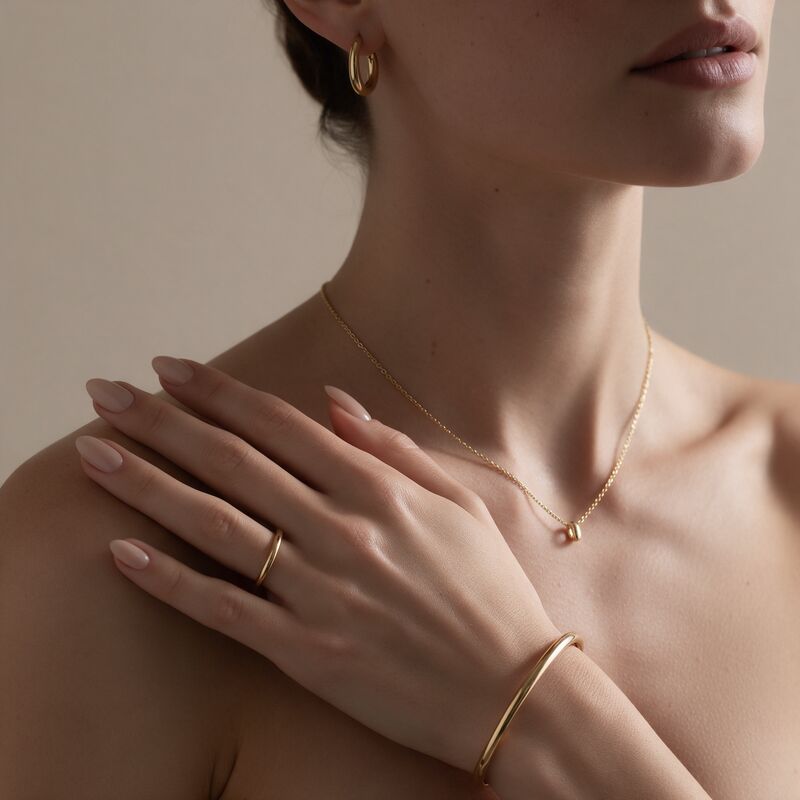
AI jewelry try-on is a Fash Studio tool that places a photo of your jewelry onto a photo of a person and returns a realistic image of that person wearing it. You upload the jewelry photo, choose a model template or your own photo, and press Run. Everything happens in your browser.
How Virtual Jewelry Try-On Works
Jewelry try-on takes three steps: upload the jewelry, choose who wears it, then press Run.
- Upload your jewelry. Add a clear photo of each piece to the Jewelry box. Nano Banana 2.1 takes up to 13 pieces in one run, and Nano Banana Pro and Nano Banana take up to 5.
- Choose who wears it. Pick one of the 50 built-in templates, grouped into ears, face, neck, hands, portraits and lifestyle shots, or upload a selfie or a model photo of your own. Your own photos are kept under My Templates for later runs.
- Press Run. The AI recognizes each piece, places it where it is worn and matches it to the light in the photo. Most results are ready in under a minute and appear in your History.
The flow works like AI virtual try-on for clothing: the person, pose, clothing and background stay as they are, and only the jewelry is added.
What You Can Try On
The AI recognizes six types of jewelry and places each one where it is worn: earrings, necklaces, rings, bracelets, watches and brooches.
Earrings and Ear Piercings
Upload studs, hoops, drops or ear cuffs and pick an ear or portrait template, or a close photo of your own ear. To see how a piercing will look before you get it, upload the stud you have in mind and check its size and style on your ear. The AI picks a natural spot on the ear, so confirm the exact position with your piercer. Virtual earring try-on for men works the same way: upload a side-profile photo of yourself and add the stud or hoop.
Necklaces
Chains, pendants and chokers are placed on the neck at a realistic length and angle. Parts that should pass behind the neck, hair or collar are hidden, so the chain reads as worn instead of pasted on top. A template with an open neckline shows a pendant at its full drop.
Rings
Rings go on a finger at the right scale, and the stone keeps its cut, color and setting. Upload several rings in one run to see a stack spread across the fingers.
Bracelets
Bangles, cuffs and chain bracelets sit on the wrist with contact shadows where they touch the skin. Add a ring or a watch to the same run to see the whole hand styled together.
Watches
A watch is placed on the wrist with the dial, case and strap kept as they are in your product photo. Use a hand or lifestyle template where the wrist faces the camera.
Brooches
Brooches and pins are placed on the clothing, at the chest or the collar, with the same light and shadow as the rest of the photo. A portrait template with a jacket or a plain top gives the brooch a clear spot.
AI Try-On vs AR Try-On
AR try-on and AI try-on answer different questions. AR try-on uses your phone camera to overlay jewelry on your face or hand in real time, which is useful for a quick look from several angles while you shop. AI try-on works from a photo and generates a finished image with the light, shadows and reflections built in. For a longer explanation, read what AI virtual try-on is.
| Feature | AI try-on | AR try-on |
|---|---|---|
| How it works | Generates a new image from a person photo and a jewelry photo | Overlays a digital model of the piece on a live camera view |
| Needs an app | No, it runs in the browser | Usually a store app or a camera-enabled web page |
| Output quality | Photorealistic still image up to 4K, with matched light and shadows | Real-time preview, with detail that depends on the digital model and the camera |
| Shareable image | Yes, you download a finished image | Usually a screenshot |
| Best for | Product photos, ads and previewing a piece on a specific photo | Quick live checks while shopping |
Jewelry Try-On for Brands and Online Stores
Jewelry brands and online stores use AI try-on to get on-model product images without booking a photoshoot. You photograph the piece once, then place it on as many templates as you need.
On-model product images
A product page with the piece worn on a person shows its scale and how it sits. Run the same packshot on an ear, neck or hand template to build a set of on-model shots from one photo. The same approach works for clothing, as covered in flat lay to on-model images.
One piece on different people
Run the same earring or necklace on templates with different skin tones and face shapes, so shoppers can see it on people who look like them. To keep a finished shot and change only the person, swap the model afterward. The same idea for clothing is covered in one outfit on different models.
Ads and social posts
The lifestyle templates give you campaign-style images for ads and social posts. To match a season or a brand color, change the background of the result. For a new scene built from a prompt, use the AI fashion image generator.
Video from the same images
A finished try-on image can also become motion content. You can turn product photos into videos for product pages and reels, and the product photo to video guide walks through each step. For creator-style ads, make UGC try-on videos where a creator presents your product.
Tips for Realistic Results
- Even, soft lighting. The AI matches the jewelry to the light in the person photo, so a photo without harsh shadows gives cleaner reflections on metal and stones.
- A clear angle. Use a side profile for earrings, a front view for necklaces and a hand facing the camera for rings, bracelets and watches.
- Hair pulled back for earrings. Tuck the hair behind the ear or tie it up so the lobe and the upper ear are fully visible.
- A visible neckline for necklaces. A V-neck, an open collar or a strapless top leaves room for the chain and the pendant.
- A plain background on the jewelry photo. Shoot the piece on a plain surface, or remove the background first, so the AI reads only the jewelry.
- High resolution on both photos. Large, sharp files keep stones and engravings readable. For a small product photo, upscale the image before you upload it.
For more on preparing source photos, read how to create realistic fashion images with AI.
Limitations
- It is a visual preview, not a sizing tool. The result shows how a piece looks on a person. It does not tell you your ring size, the right chain length or the stud diameter to buy.
- Very fine details can soften. Thin chains, tiny studs and small engravings can lose some detail, most of all at 1K resolution.
- The result depends on your photos. Blurry or dark inputs give weaker results, so start from the best photos you have.
Pricing
Jewelry try-on runs on Fash Studio credits. One image costs from 8 credits, depending on the AI model and resolution, and the Run button shows the exact price before you start. Each plan card on the Fash Studio plans page shows how many try-ons its monthly credits cover.
Upload your jewelry and pick a template above to see it worn in one run.
Frequently Asked Questions
Can I try on jewelry virtually?
Yes. Upload a photo of the piece, choose a template or your own photo, and the AI returns an image of that person wearing it. It works for earrings, necklaces, rings, bracelets, watches and brooches.
How does AI jewelry try-on work?
The AI reads your jewelry photo, works out what type of piece it is and places it where it is worn on the person in the template. It keeps the design, metal color and stones as they are and matches the reflections and shadows to the light in the photo. The person, pose, clothing and background stay unchanged.
Can I see how a piercing will look before I get it?
Yes, for ear piercings. Upload a close photo of your ear and the stud or hoop you are considering, and the result shows its size and style on your ear. The AI picks a natural spot on the ear, so treat the result as a style preview and confirm the exact position with your piercer.
Can I try on earrings online for free?
No. Fash Studio has no free trial or free plan, and every try-on uses credits. One image costs from 8 credits, and each plan card on the pricing page shows how many try-ons its monthly credits cover. If you are not happy with the results, you can request a full refund within 30 days.
Do I need to download an app?
No. Jewelry try-on runs in your browser on desktop and mobile. You download the finished image when it is ready.
Does virtual earring try-on work for men?
Yes. Upload a photo of yourself or a male model, add the stud, hoop or ear cuff, and the AI places it on the ear the same way it does on any template. A side-profile photo with the ear fully visible gives the clearest result.
How accurate is a virtual jewelry try-on?
It is accurate for how a piece looks, not for exact measurements. The AI keeps the design, metal color and stones from your product photo and places the piece at a realistic scale, but it does not know your ring size or the chain length you need. Very thin chains and tiny studs can lose some fine detail.
Can jewelry brands use it for product photos?
Yes. Brands and online stores use it to create on-model images for product pages, ads and social posts from one product photo. You need the rights to the product photo and the consent of anyone in a photo you upload as a template.
Related Tools
- AI virtual try-on: Put garments on a model photo with the same three AI models.
- Background Remover: Cut a piece out of its background before you upload it.
- Model Swap: Keep a finished shot and change the person wearing it.
- Image Upscale: Raise a small product photo or a finished result to up to 4K.