
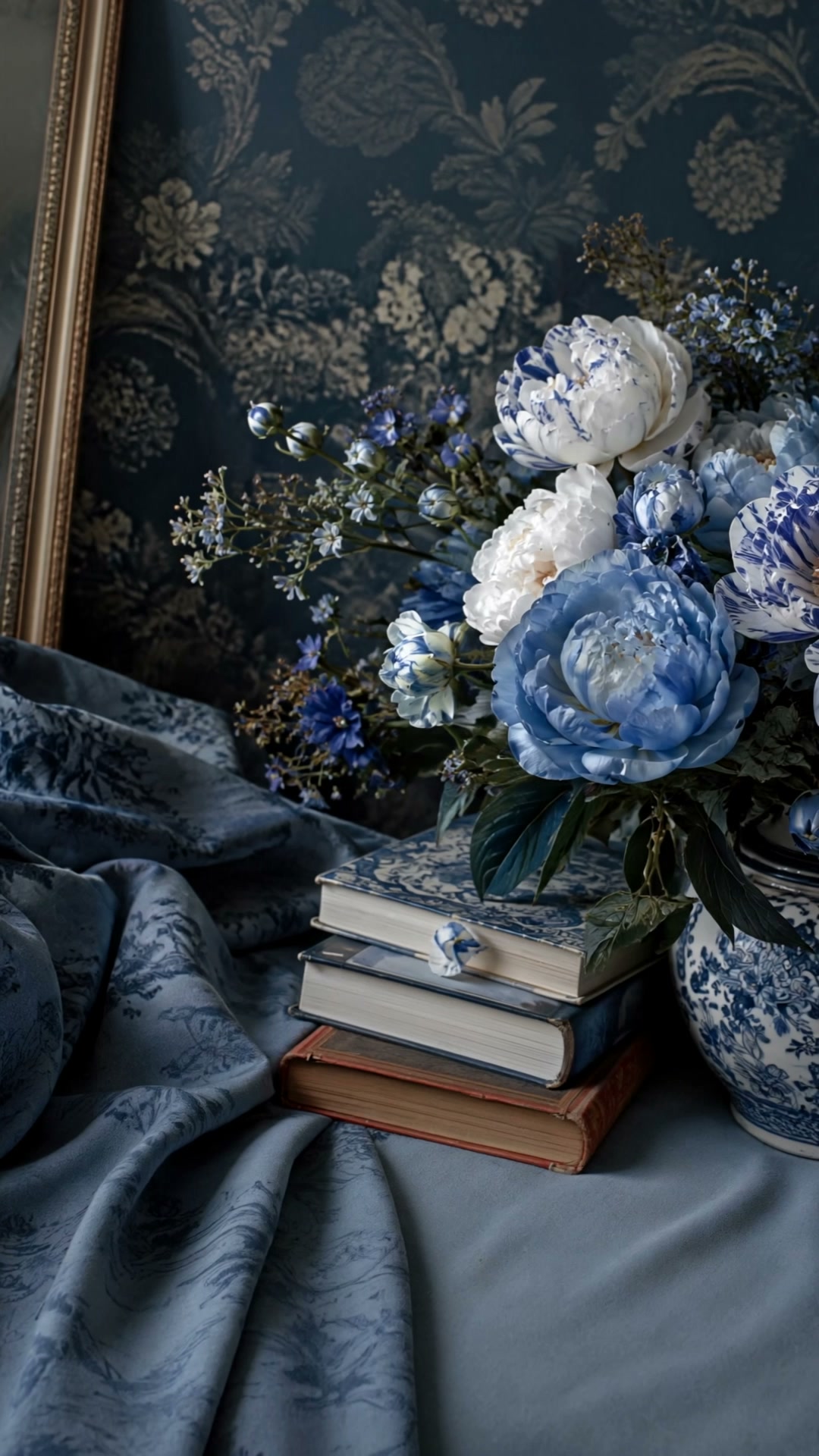
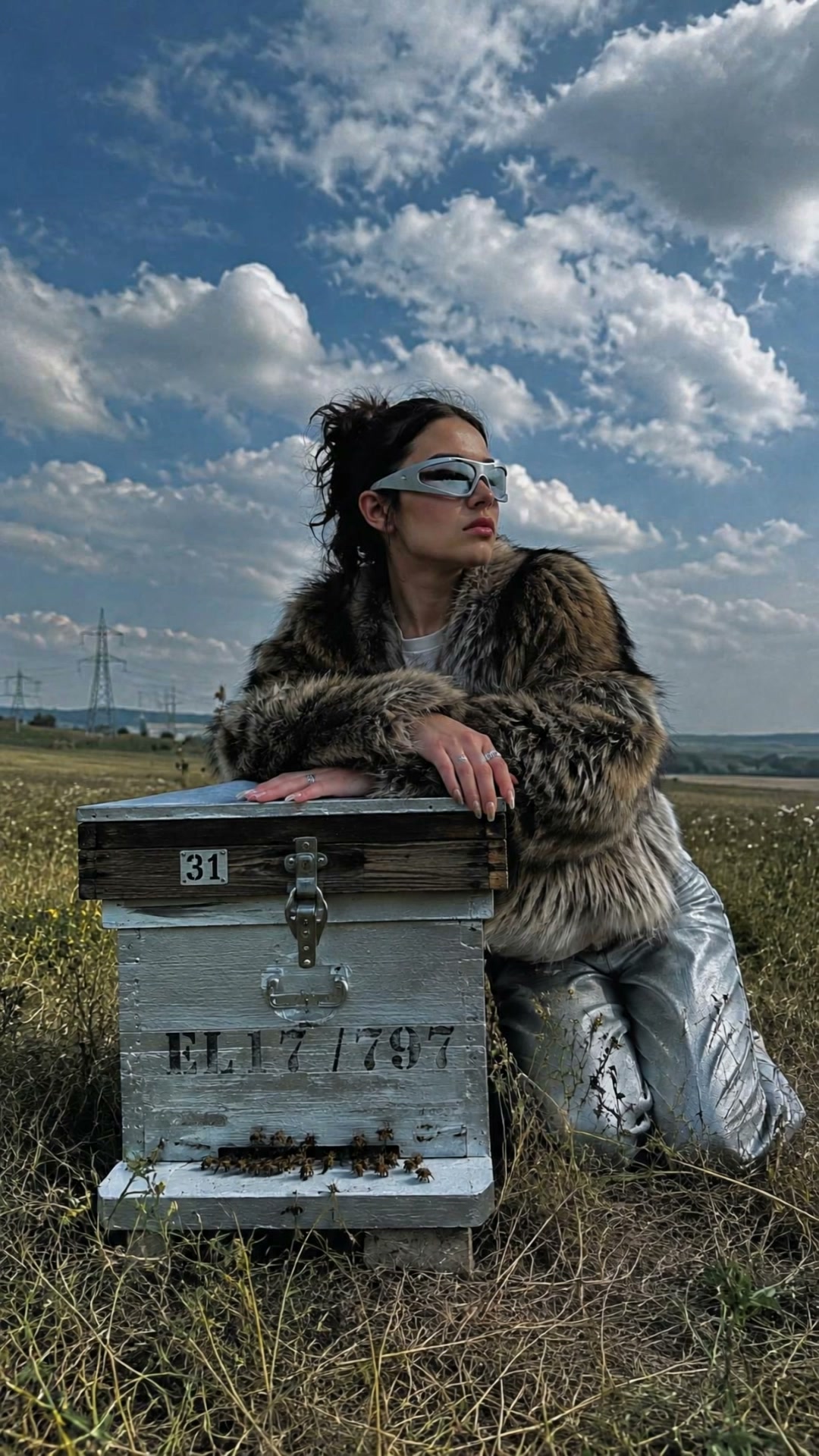
AI Product to Video Generator for Ecommerce
Give it a photo and a line about what should happen, and you get a video back. This AI photo to video generator is built to turn product photos into video without filming anything, which is what most people are after when they go looking for an AI fashion video generator. What follows is how the generation works, what each model family is good at, and how to write motion prompts that get the clip you pictured.
Why Do Brands Generate Video Instead of Filming It?
Video outperforms stills nearly everywhere it appears, and traditional production has never scaled to a full catalog. Generating it closes that gap. A product video stops being a line item you have to get approved and becomes something you make in the time it takes to write a sentence.
No production overhead
A traditional shoot needs a director, a camera operator, lighting and an editor, and it needs all of them again for the next product. A generated video needs a photo, a prompt and a few credits.
Minutes, not days
Filming, editing and render queues turn one product video into a multi-day project. Here the clip lands in your History while you are still setting up the next one.
Fresh creative on demand
Ad platforms reward new creative and punish fatigue. Generate variations of the same product for A/B tests and seasonal pushes without booking anything.
Video for every listing
Most brands can only afford video for their hero products. Generating it makes motion viable for the long tail too, where a listing has never had anything but a still.
How Does AI Video Generation Work?
Every video starts from an image, a prompt, or both. Used as an AI video generator from image, the studio takes your photo as the first frame and generates the motion that follows it. The model you pick decides which inputs it accepts and which settings appear in the panel.
Upload your first frame
Drop in the photo you want to animate and it becomes the first frame, whether that is a product shot, an on-model image or a previous generation. Reference models take several images instead, and text-to-video models need no image at all.
Describe the motion
Write what should happen next. The first frame has already fixed the subject, the outfit and the scene, so the prompt only carries the movement. Turn on Enhance and the AI expands a short line into a fuller motion brief before it runs.
Choose settings and run
Pick the model family, then set duration, resolution and aspect ratio wherever that model supports them. Models with audio show a Generate Audio toggle. The Run button shows the exact credit cost before you press it, and you can follow live progress until the clip lands in your History.
How Many Steps Does It Take to Create a Video From a Product Photo?
Three. Upload the product photo as your first frame, write one line describing the motion, then choose a model and press Run. There is no timeline, no keyframing and no editing software anywhere in between, and most runs finish in under a minute.
That count is the whole appeal of product photo to video AI, because nothing sits between the upload and the finished clip. You turn product images into video with AI without ever opening an editor, and the file waits in your History ready to download.
From Still Image to Moving Video
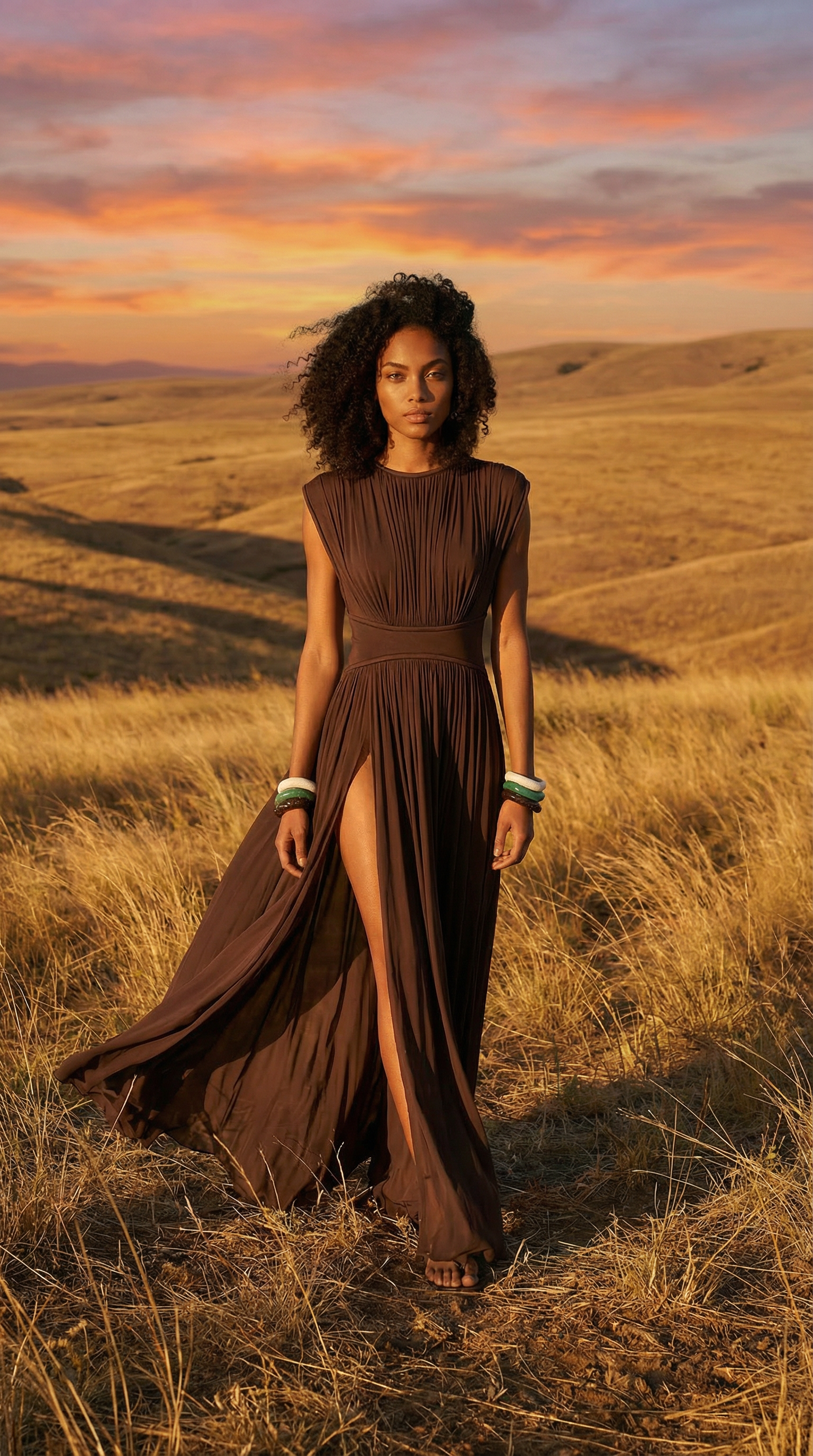
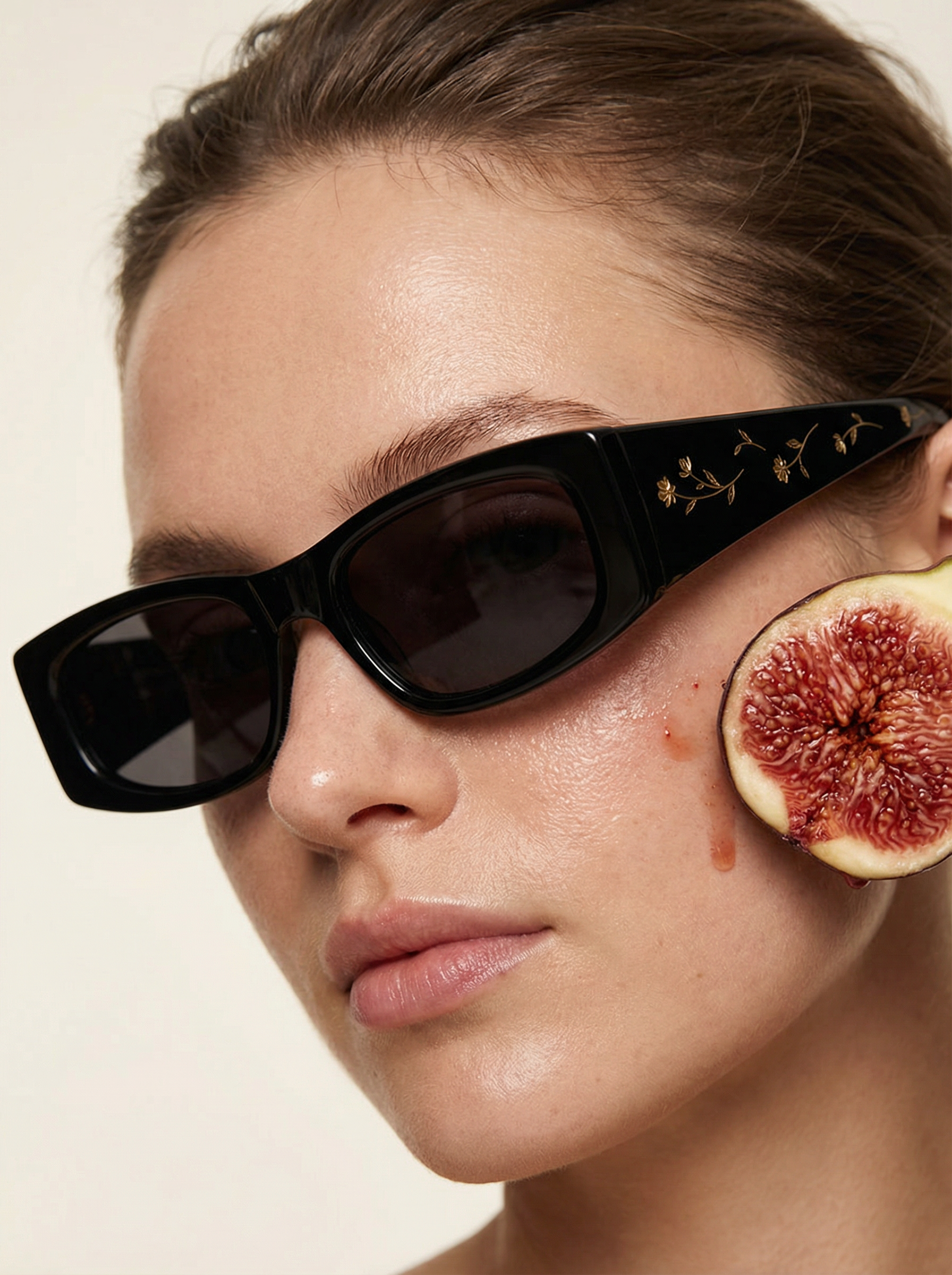
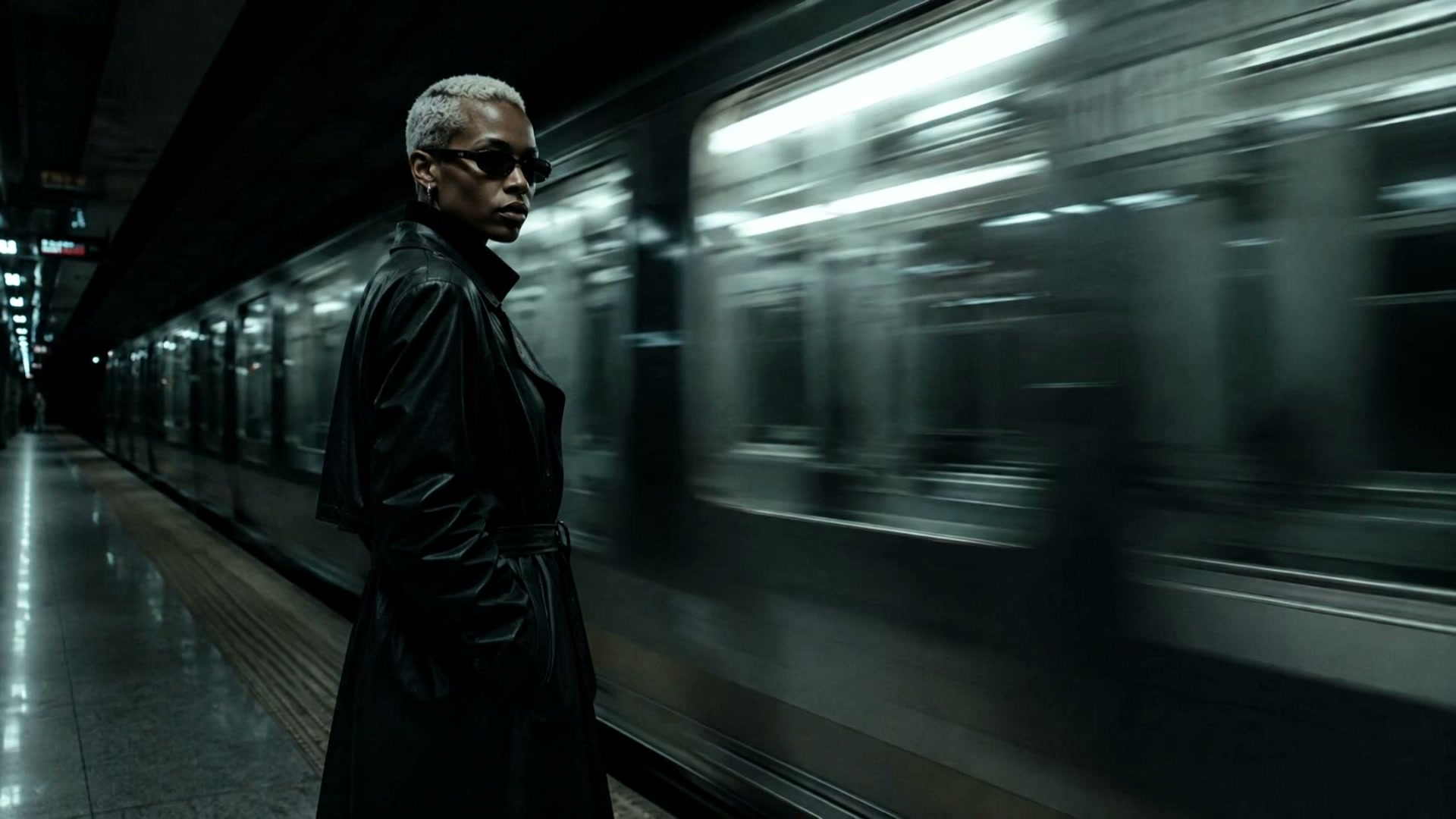
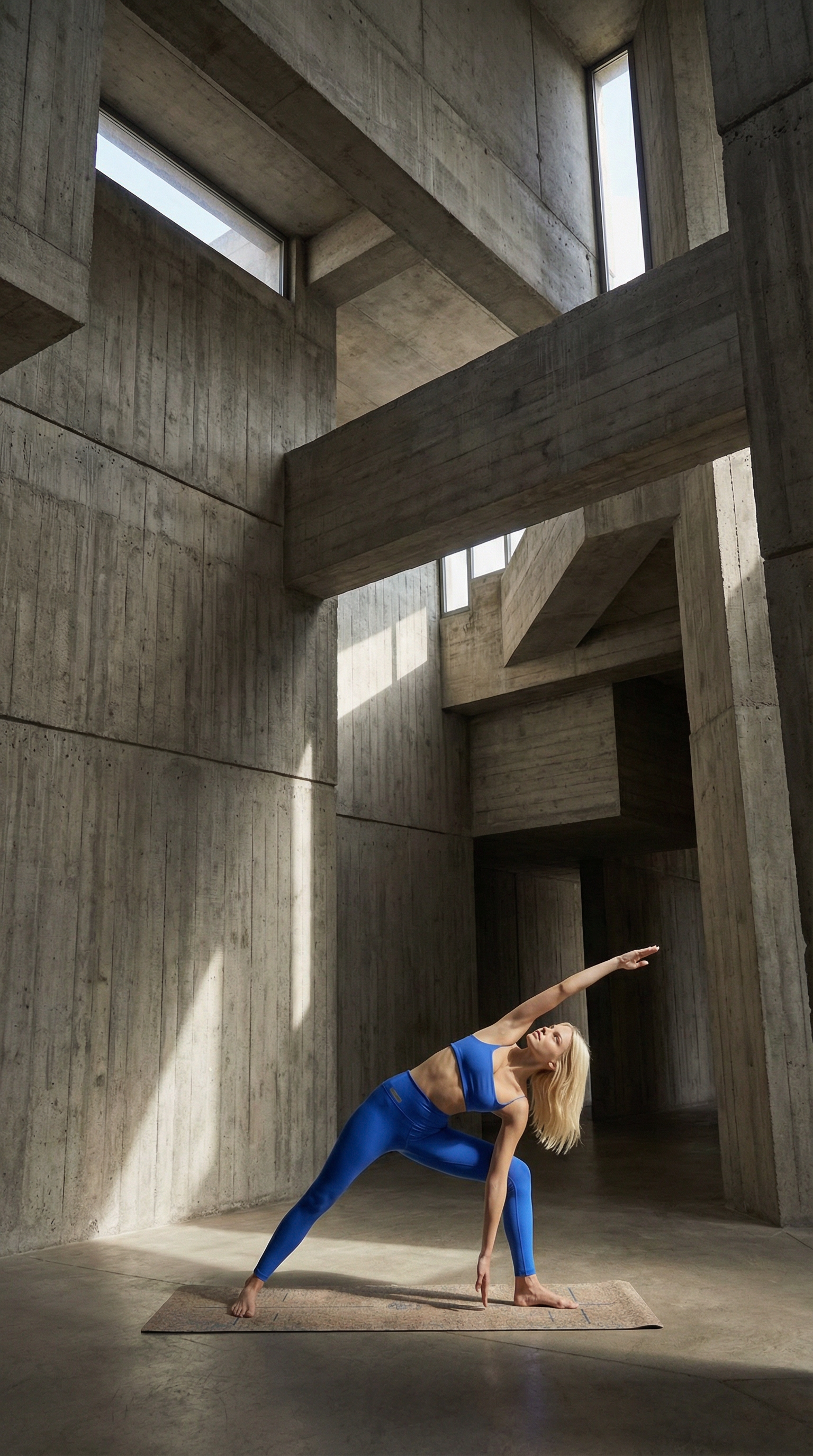
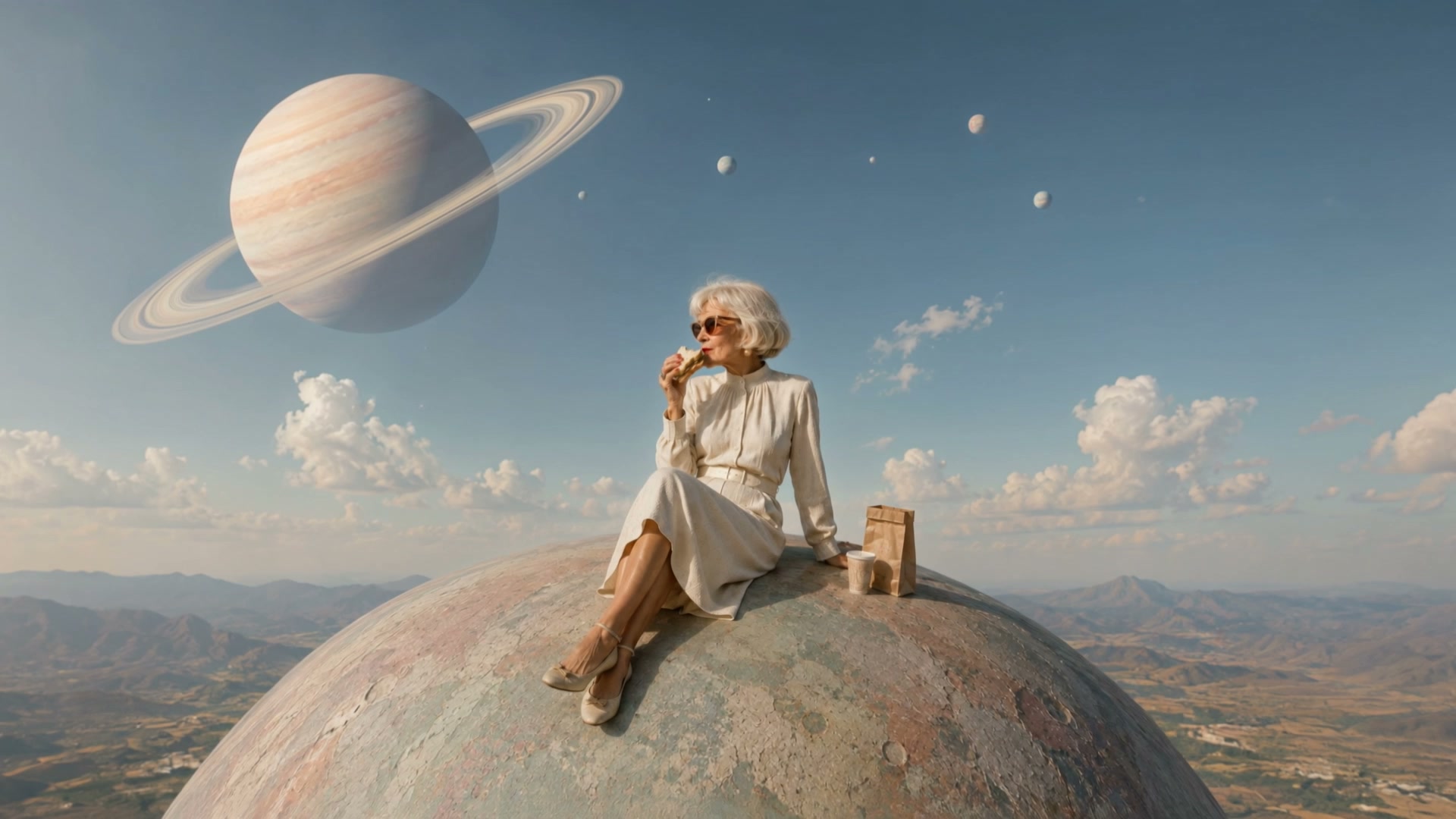
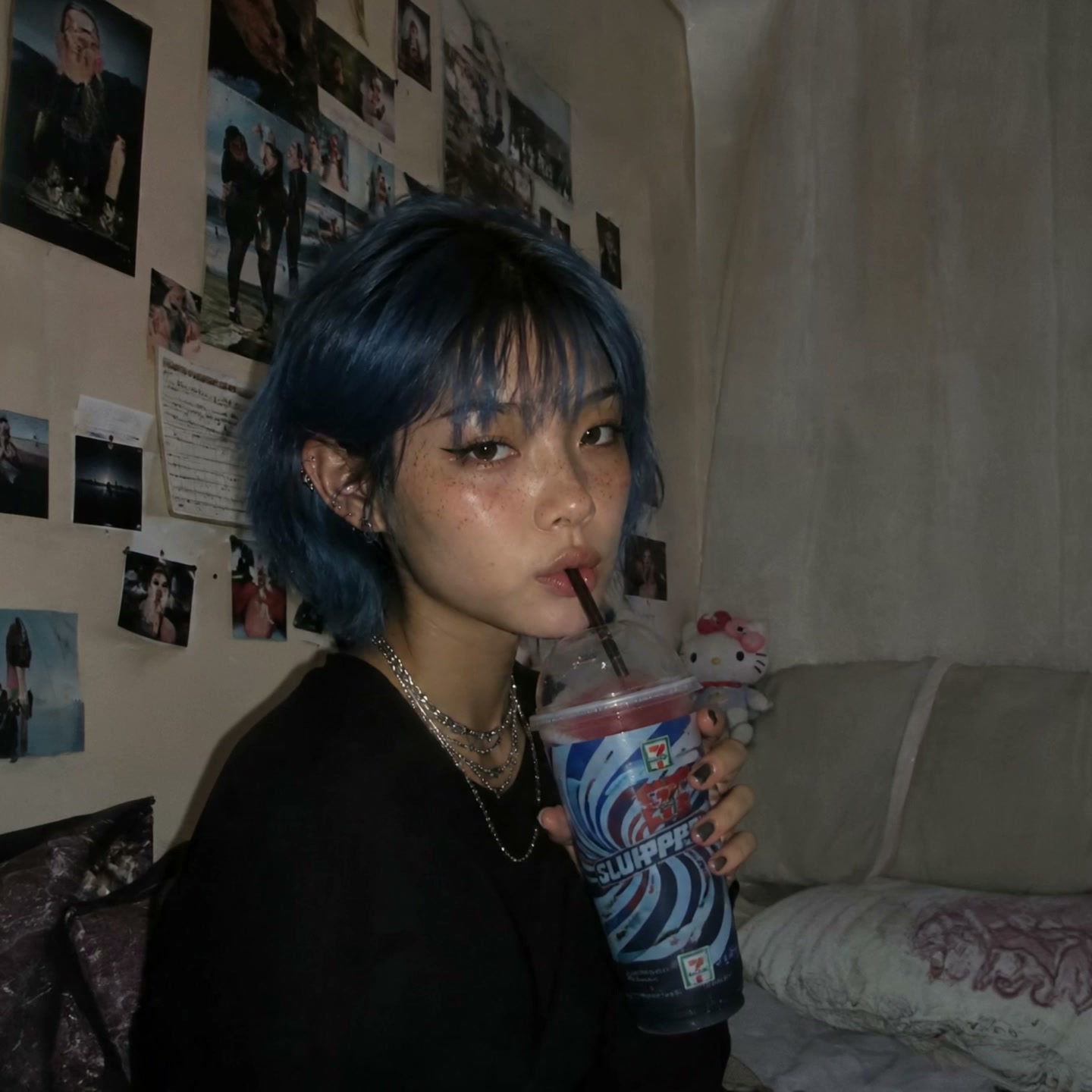
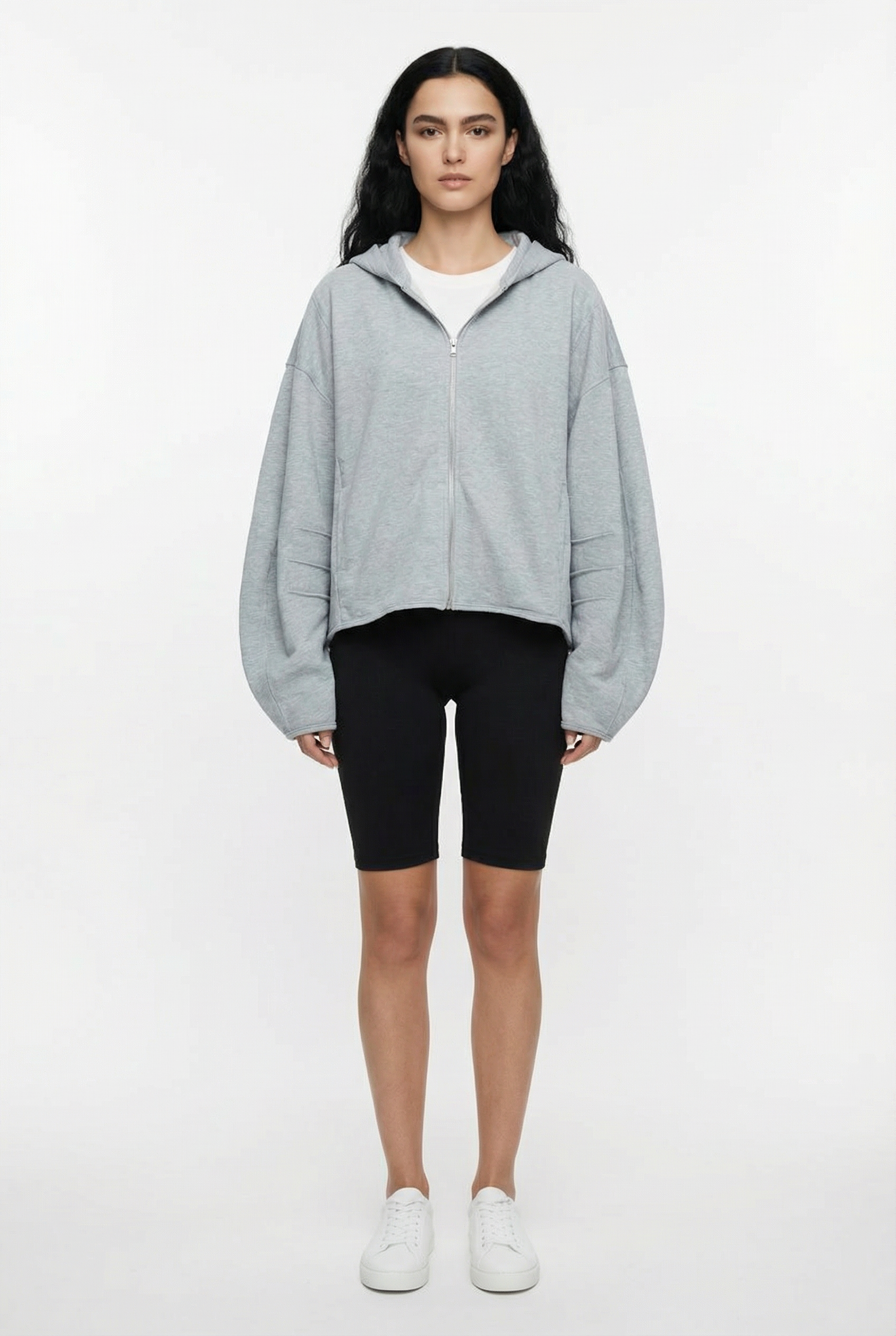
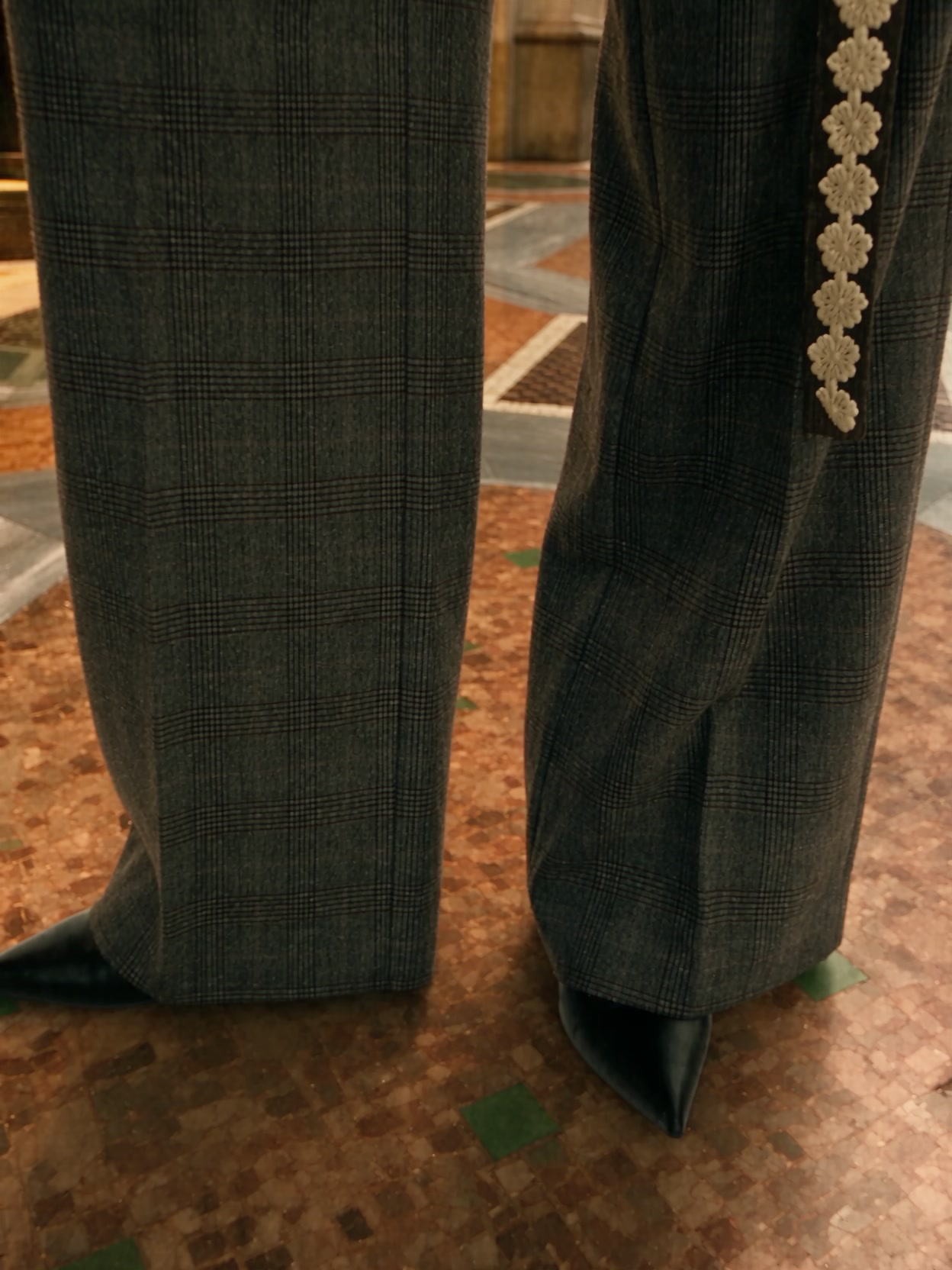
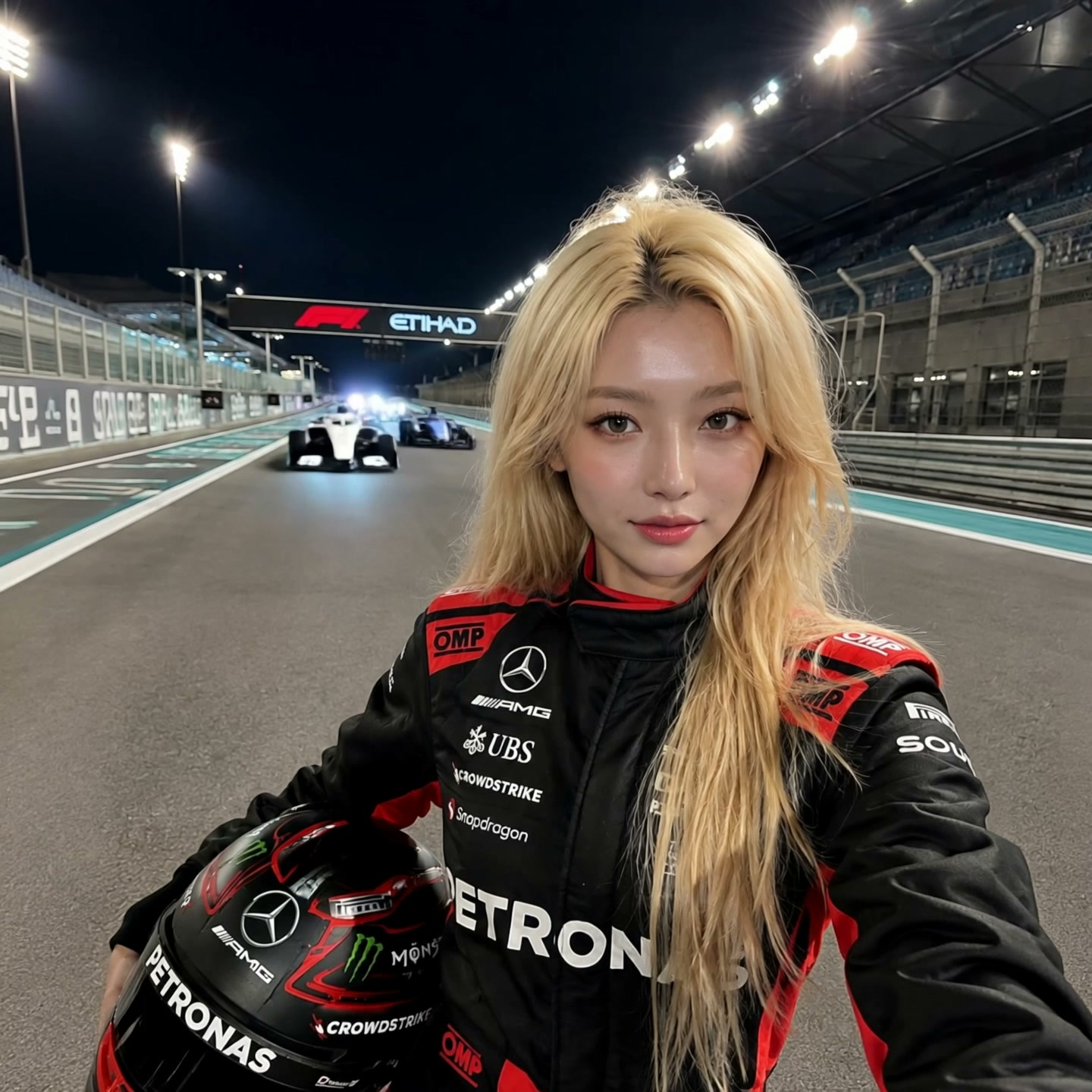
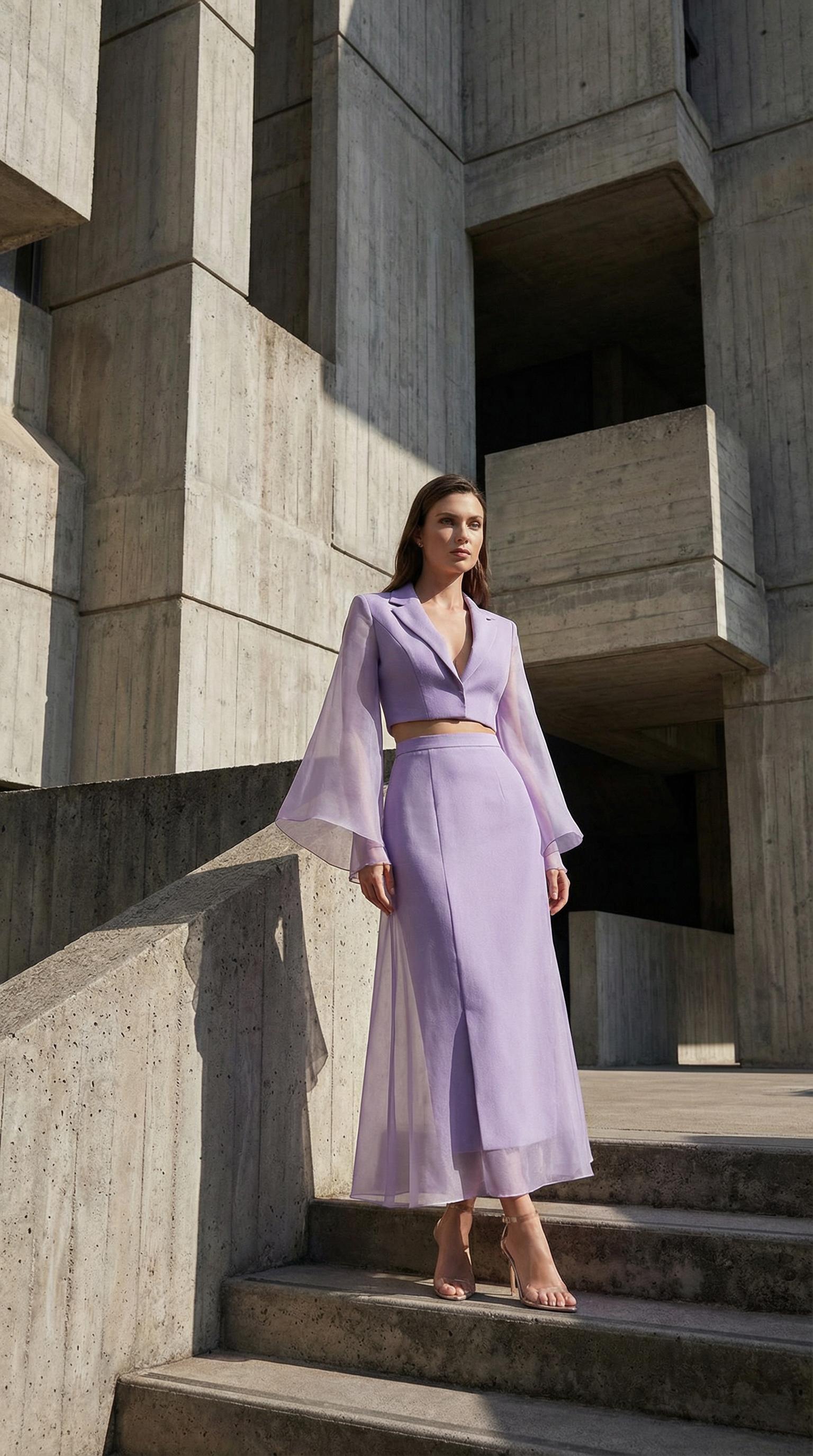
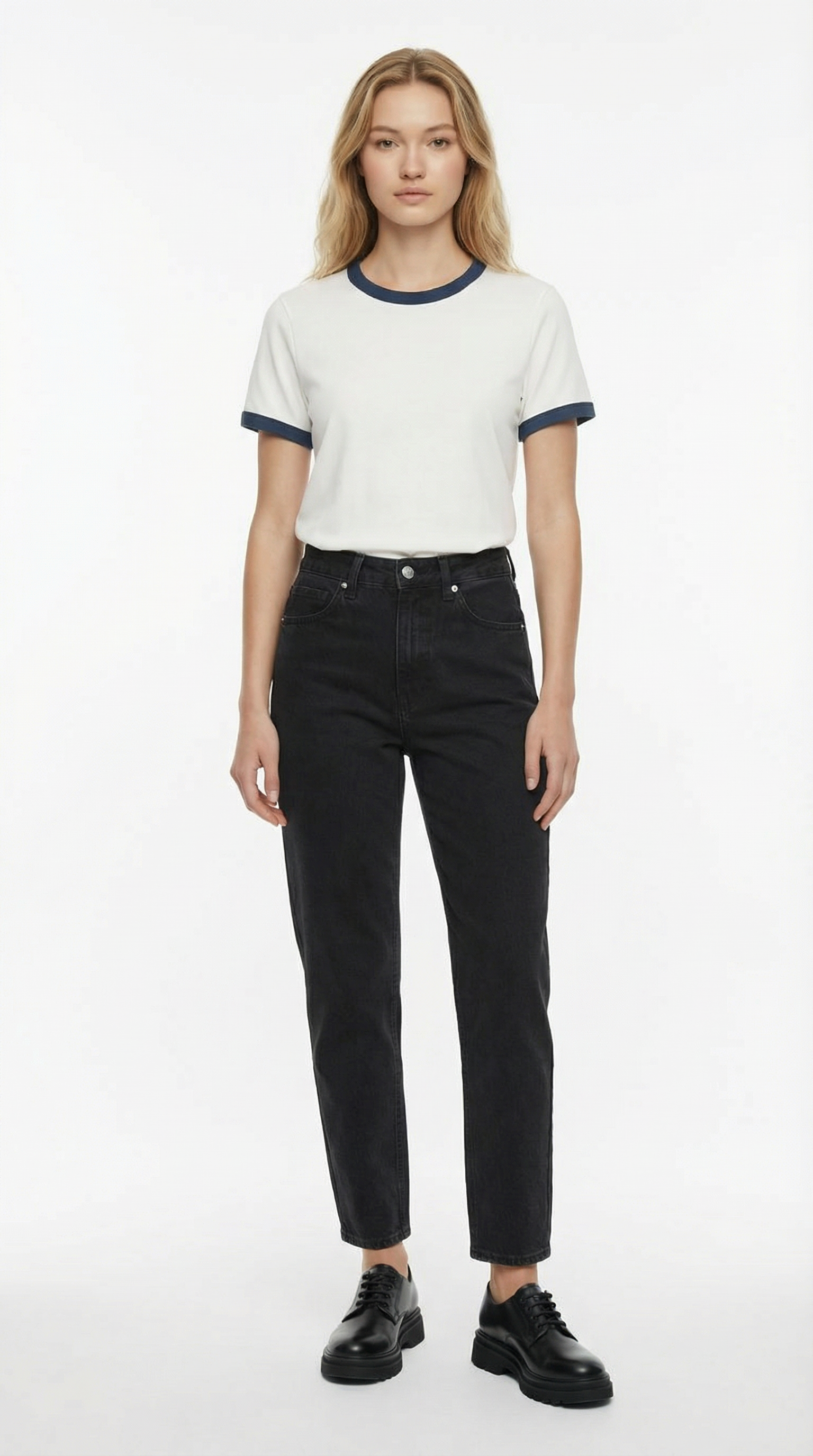
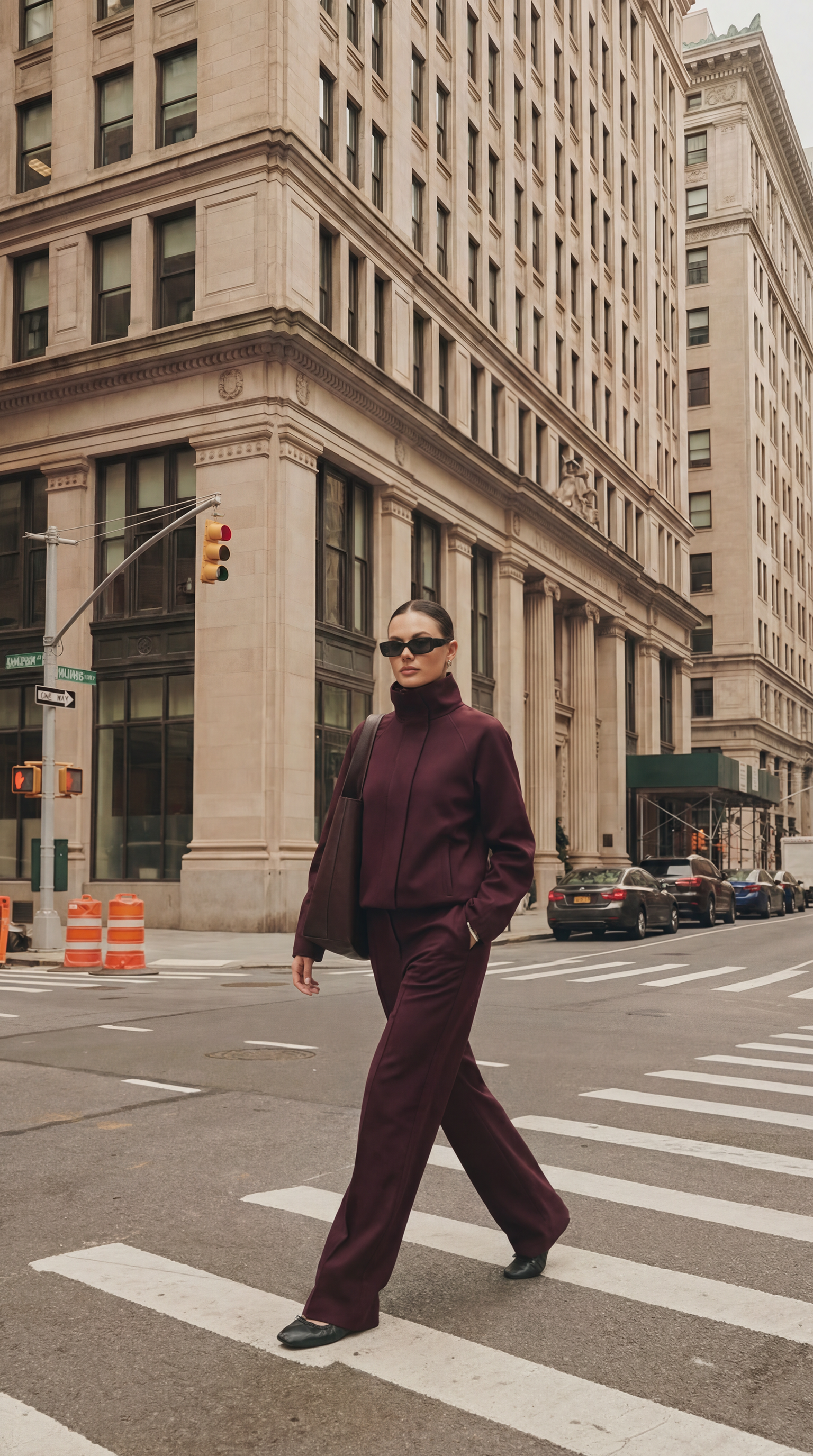
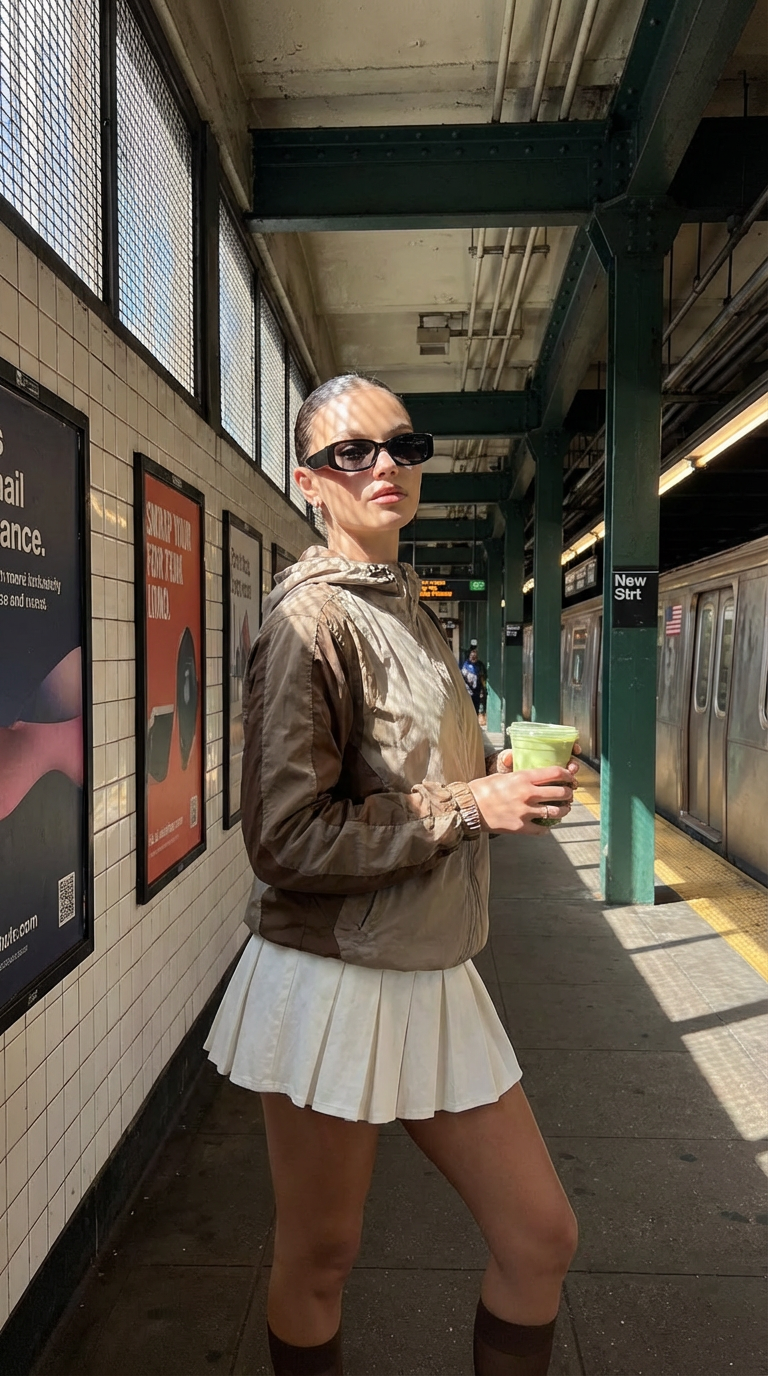
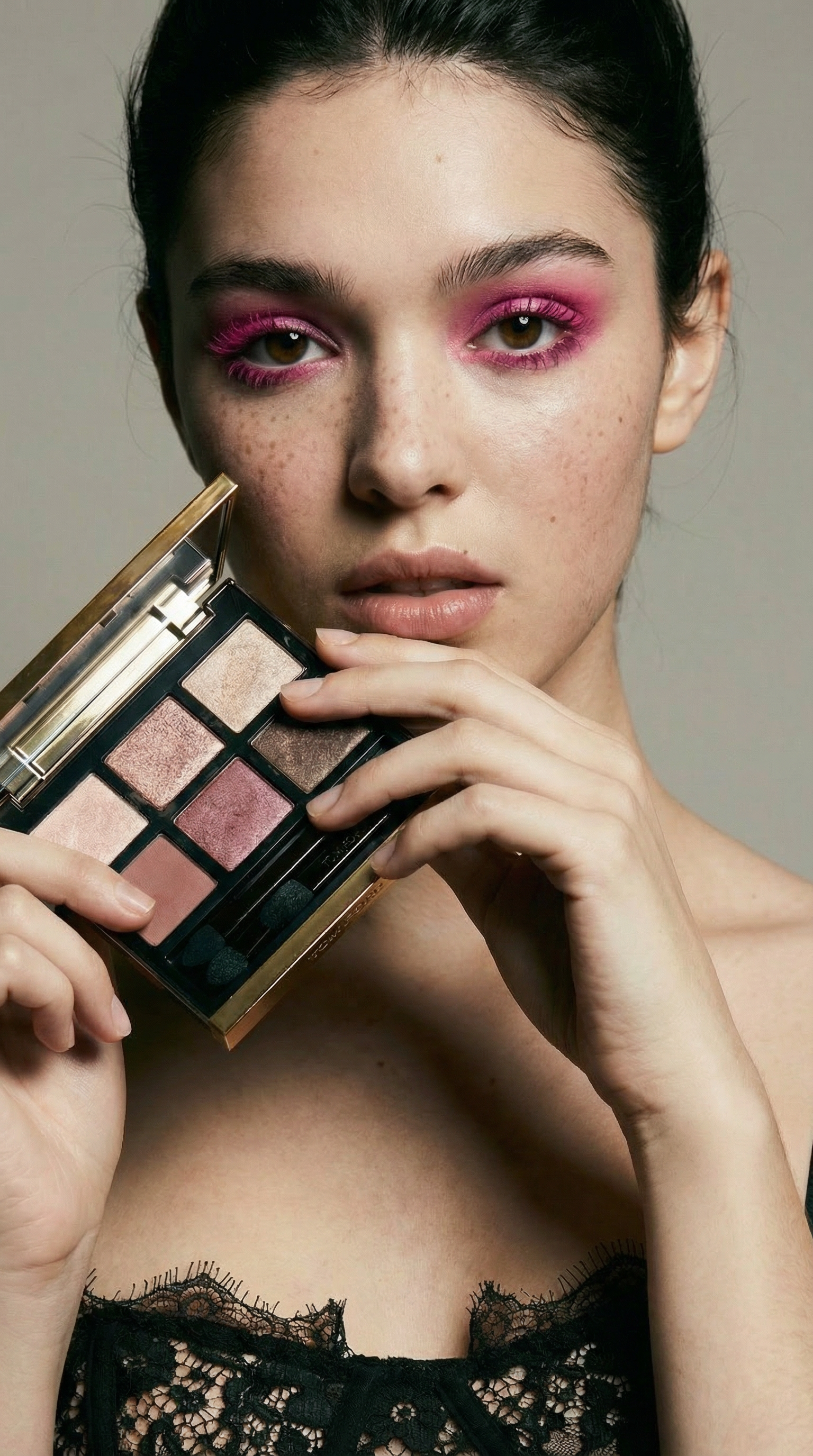
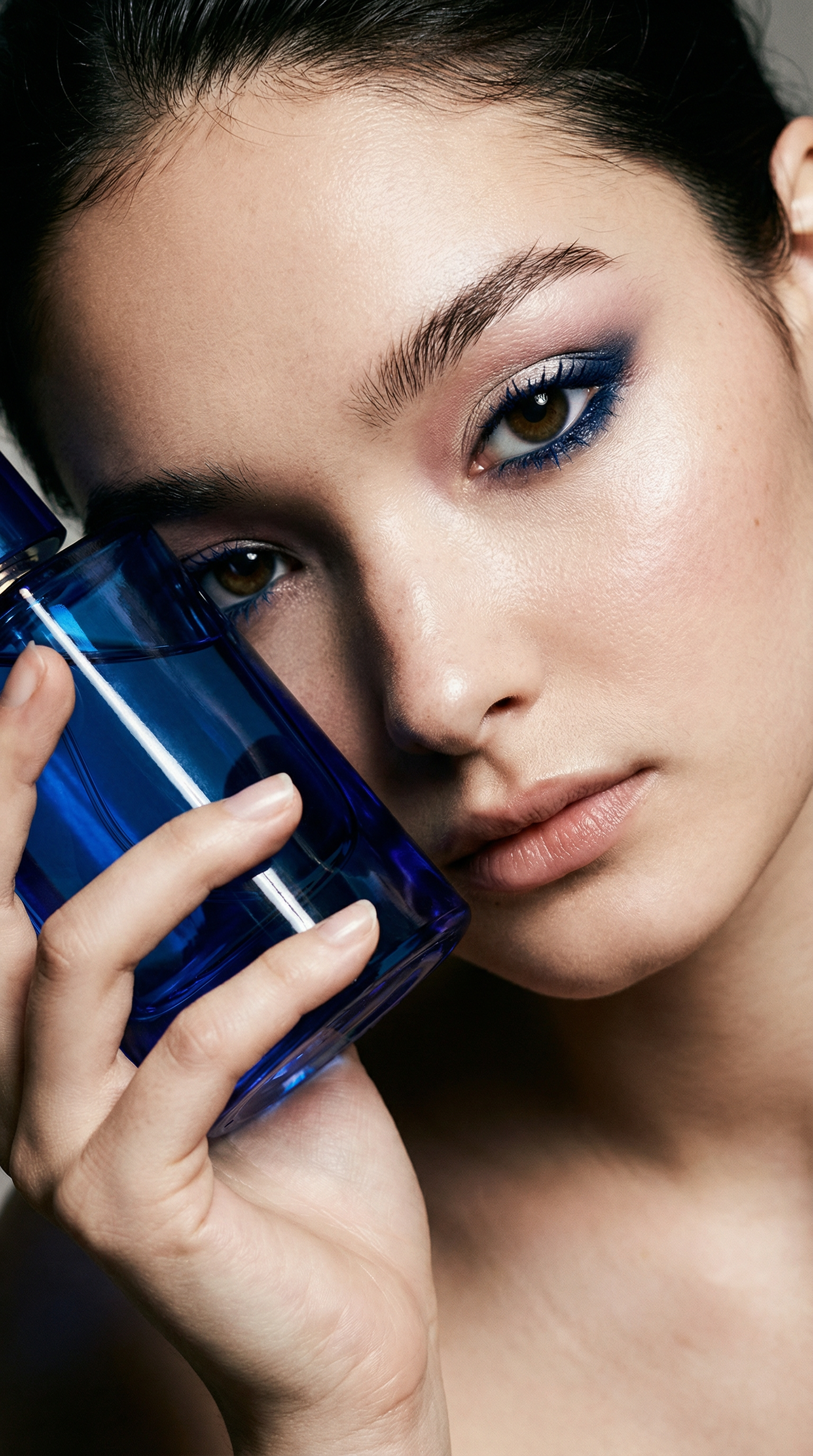
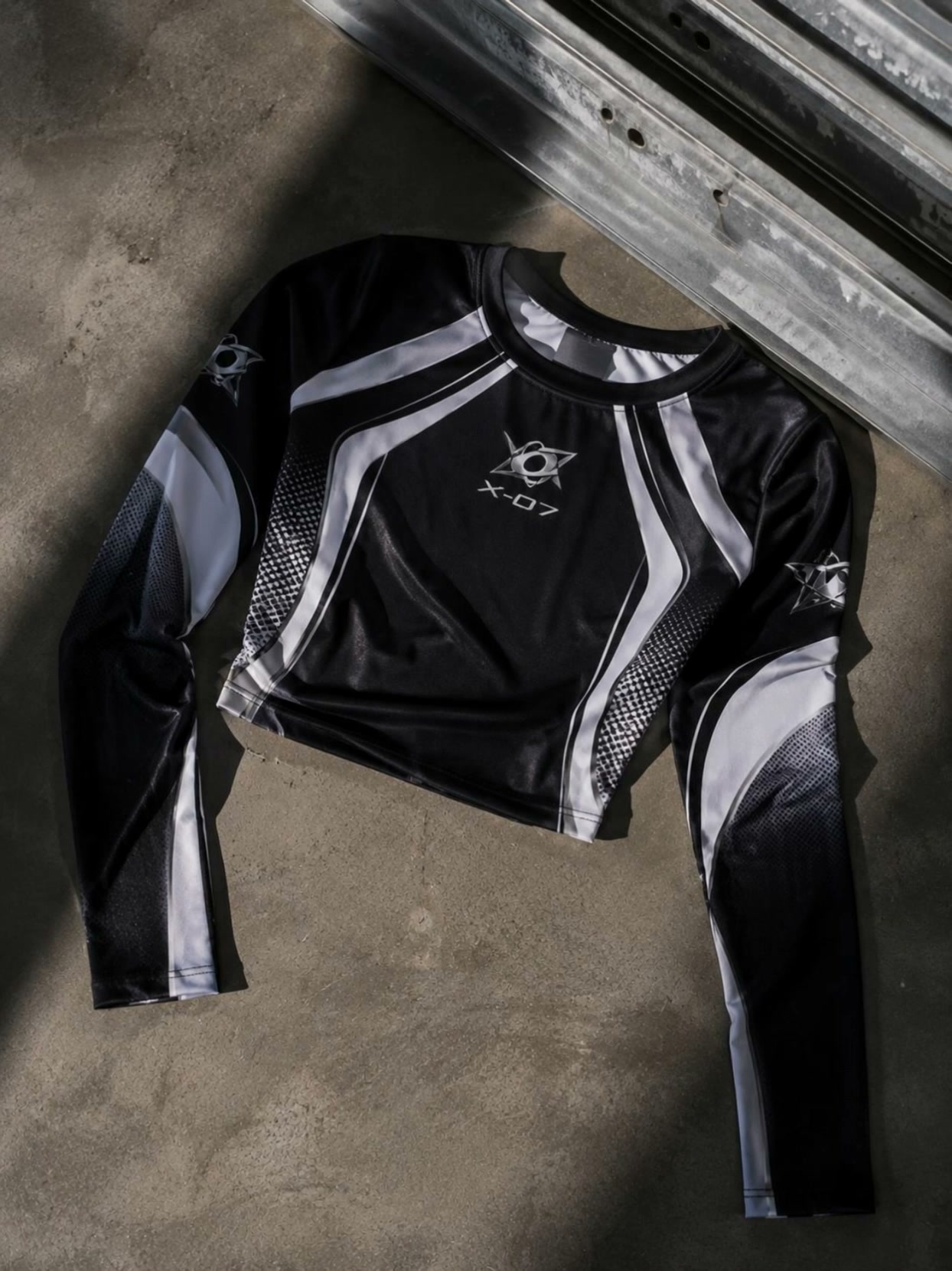
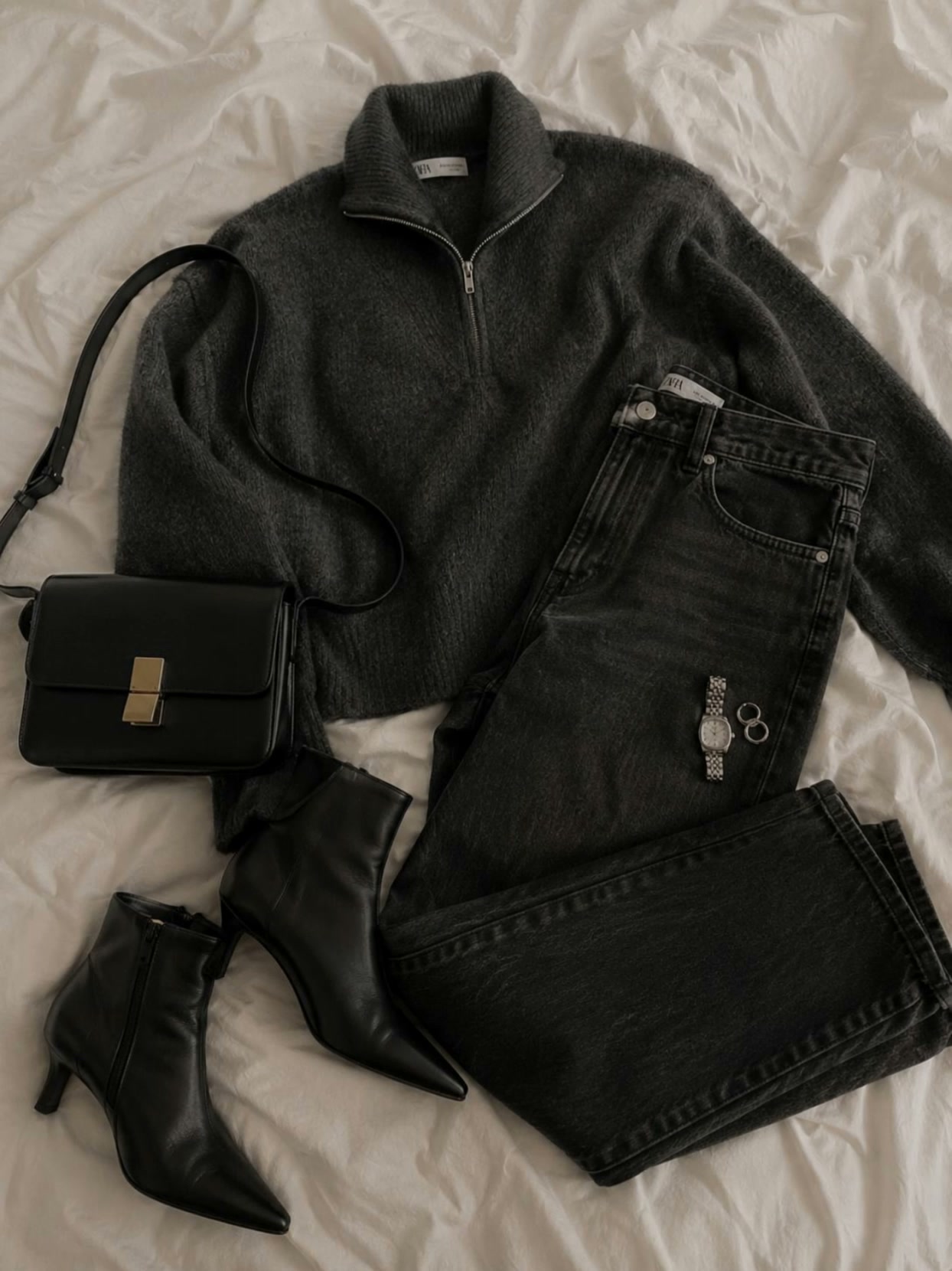
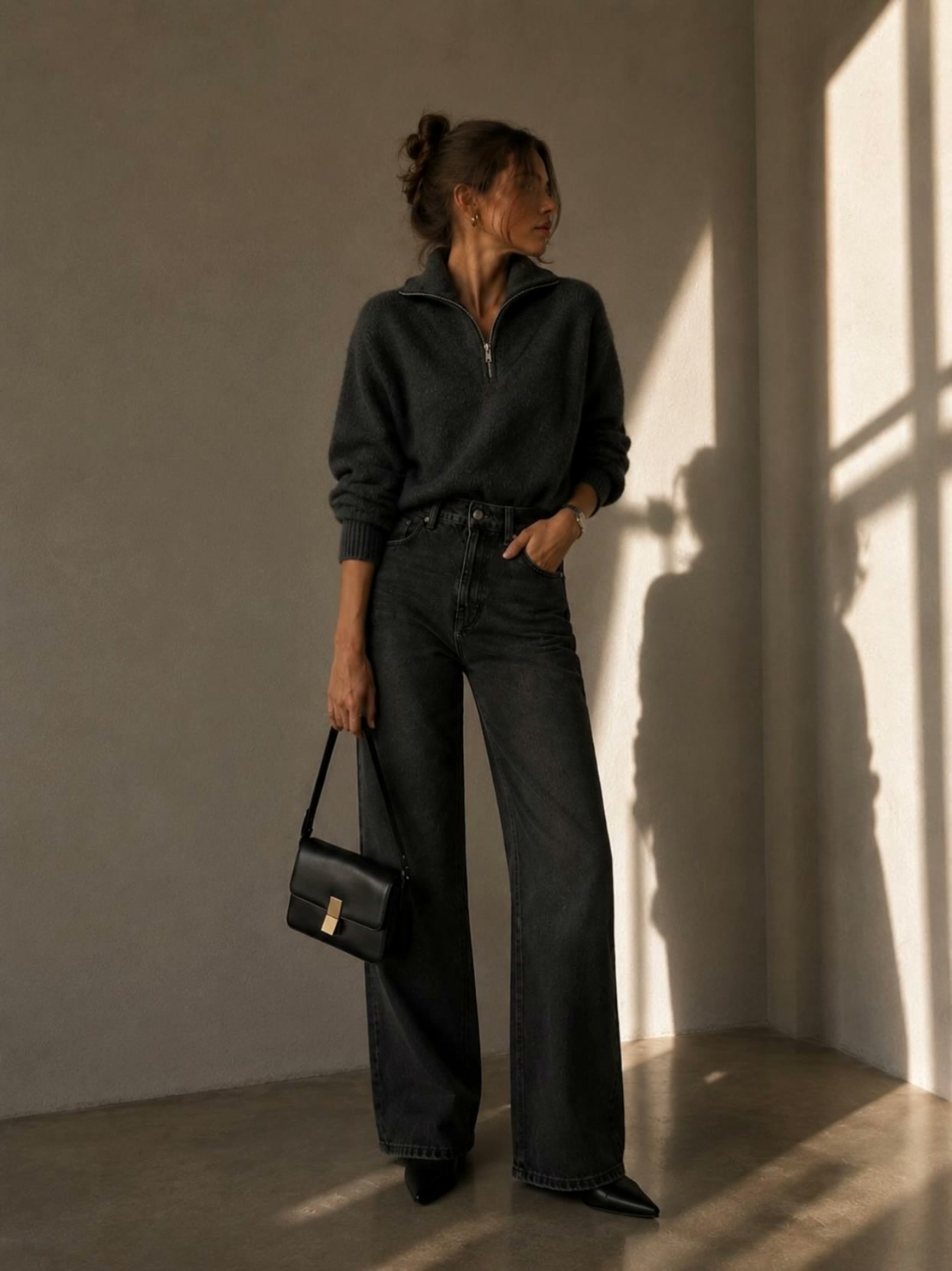
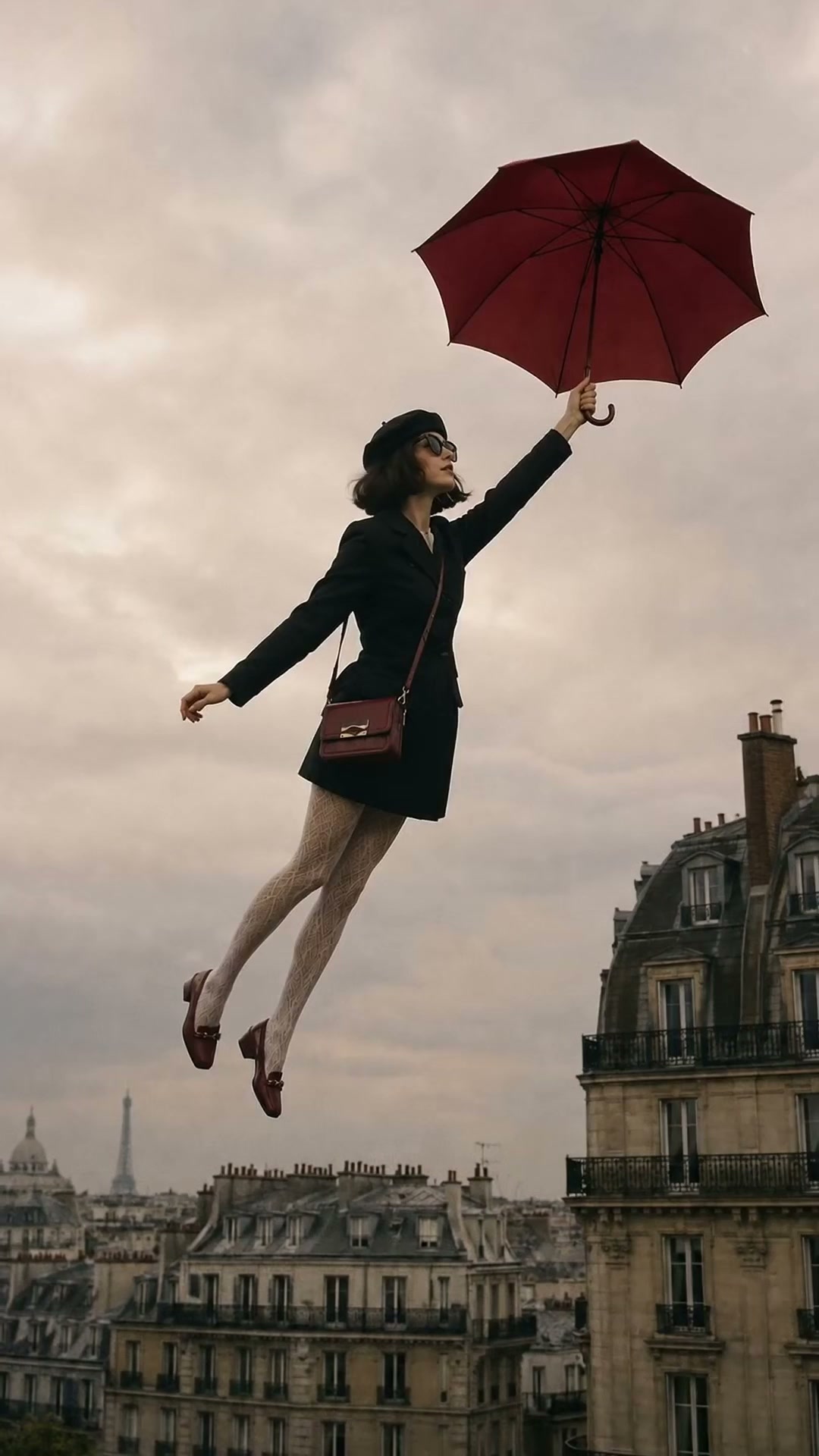
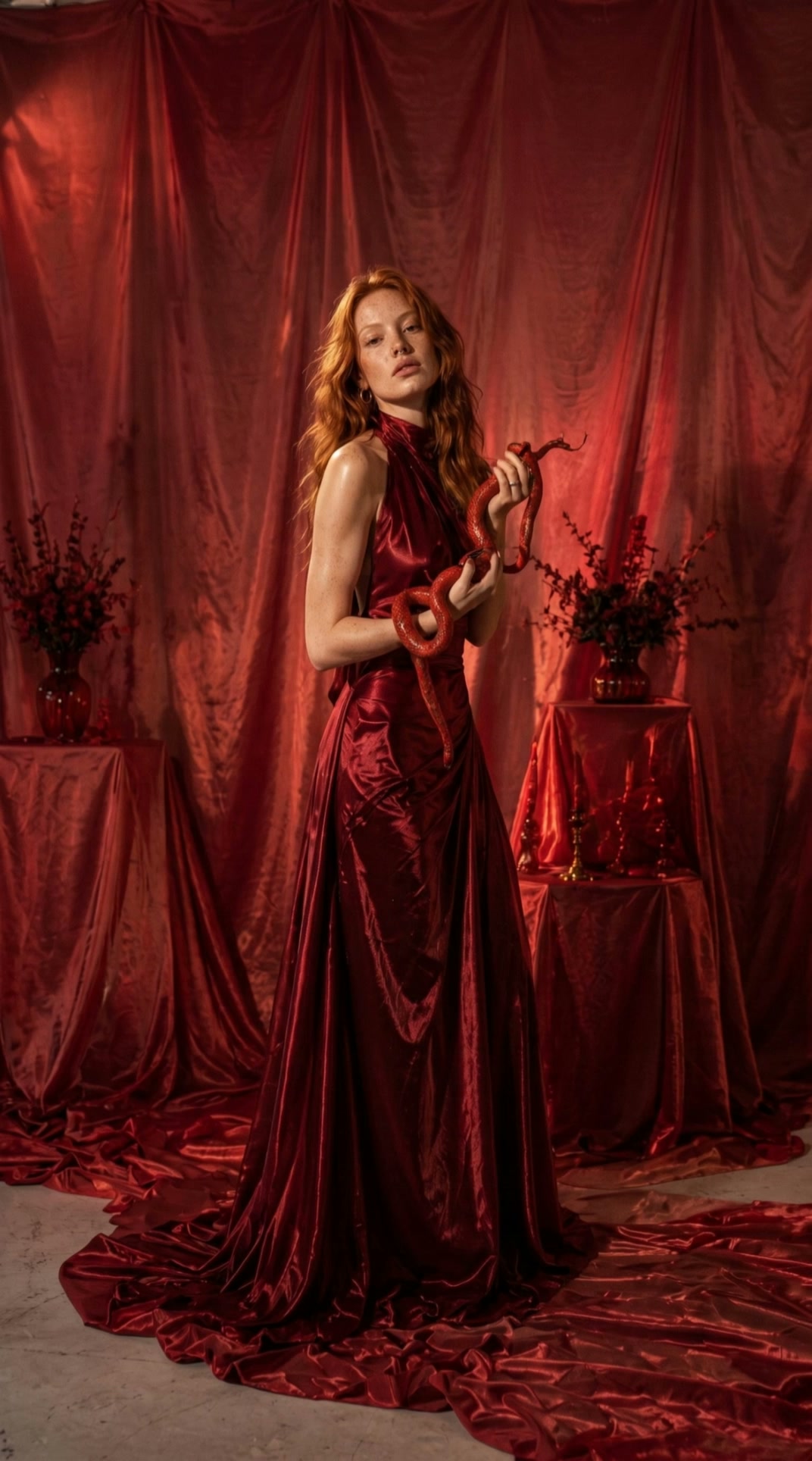
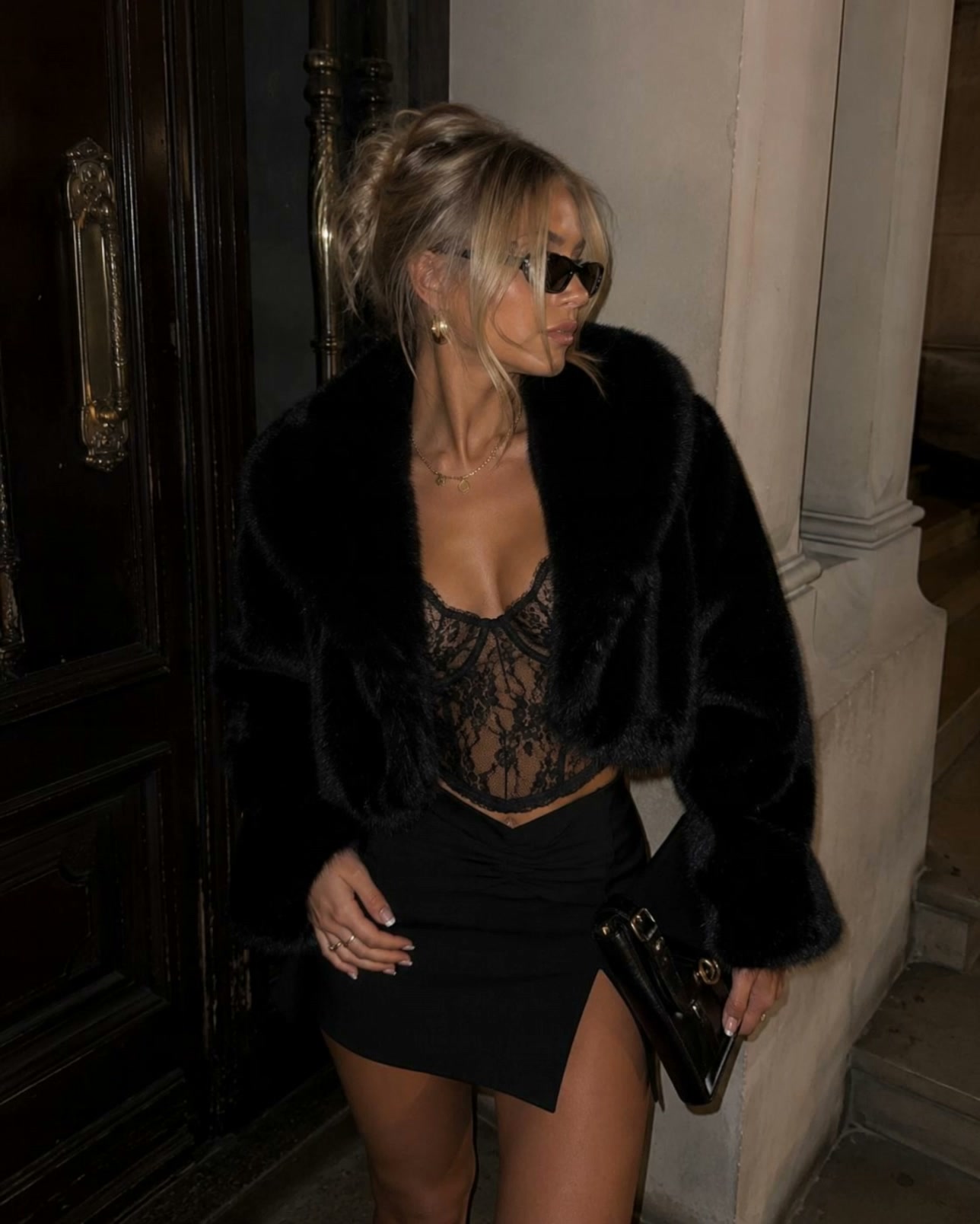
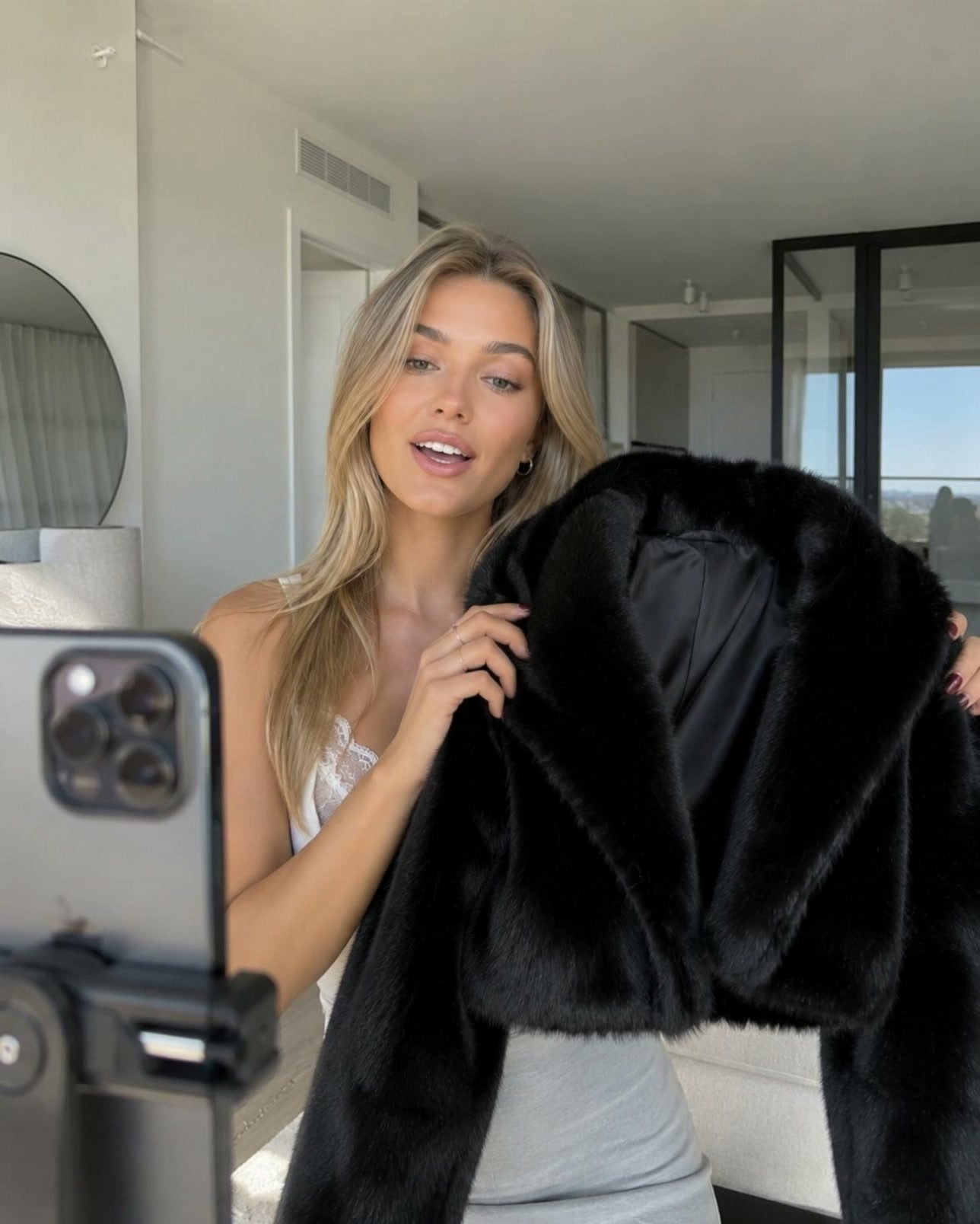
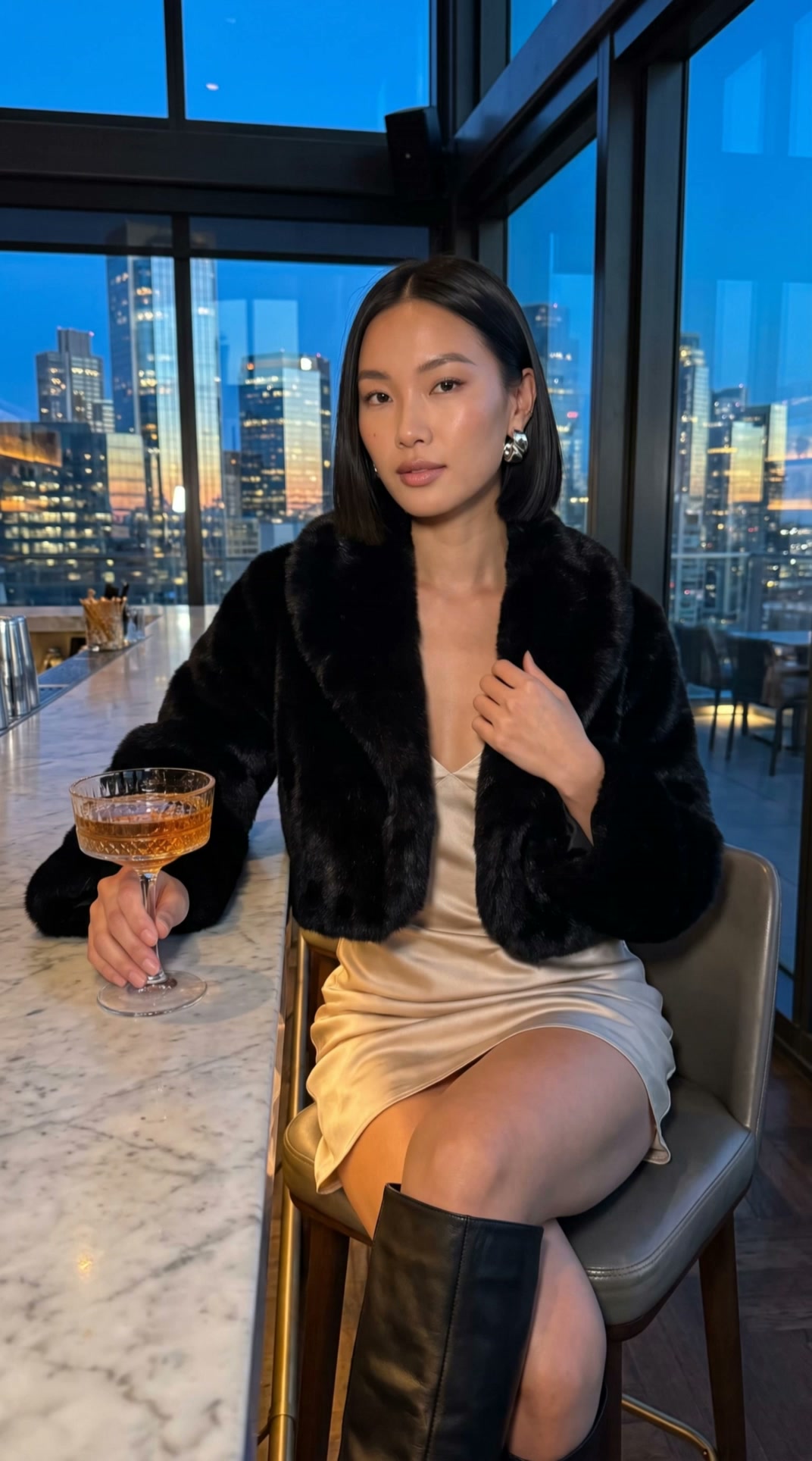
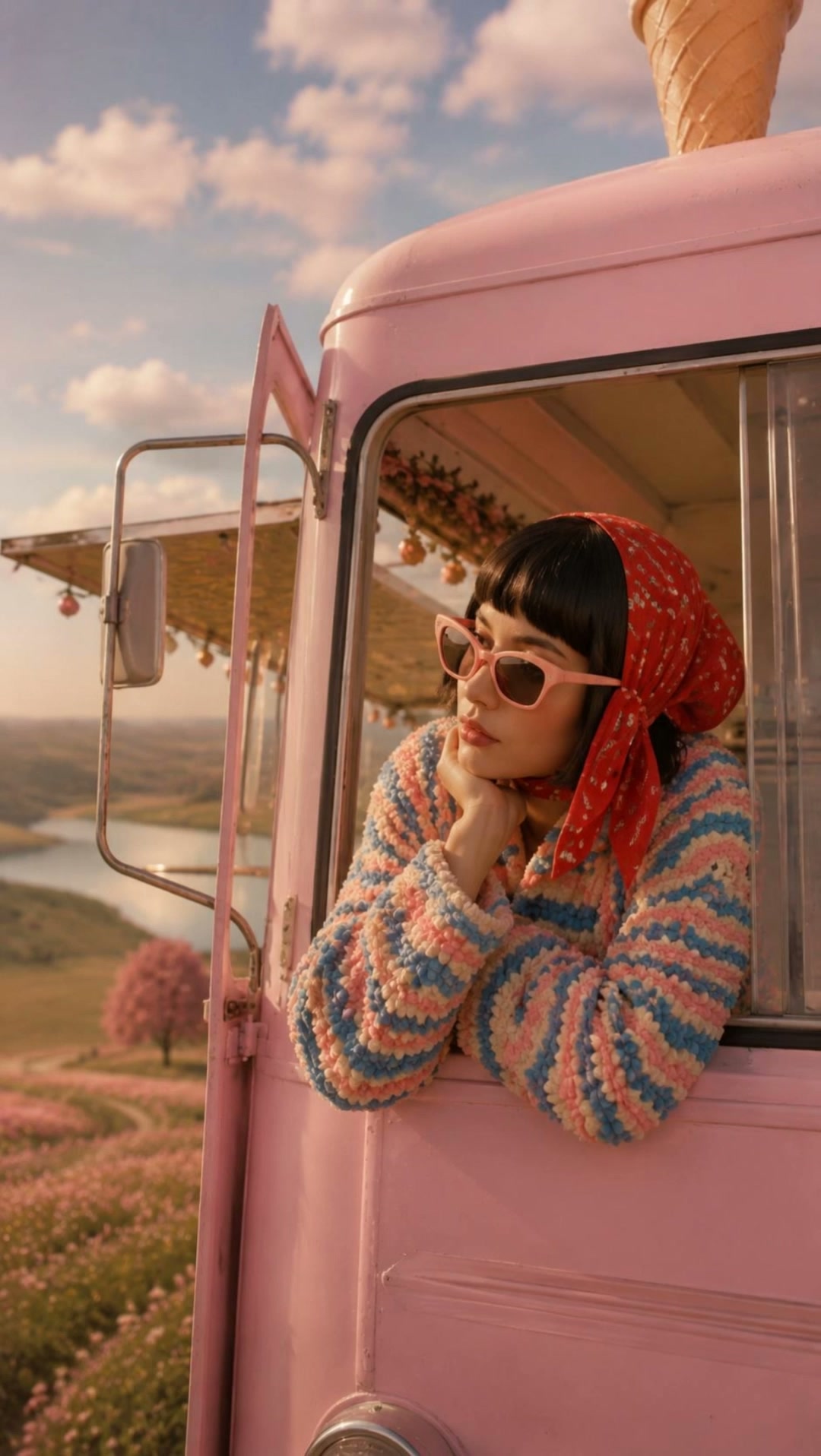
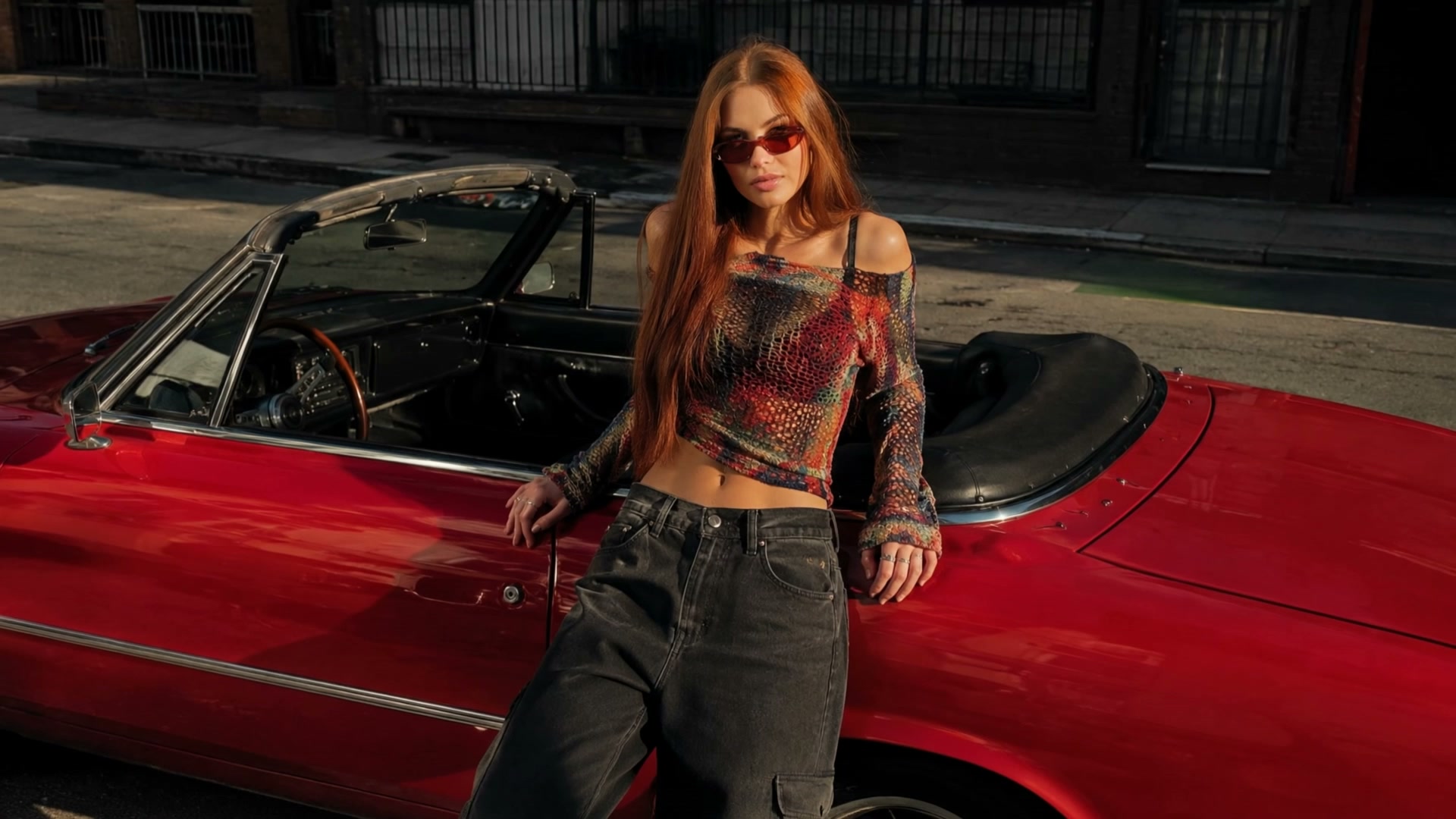
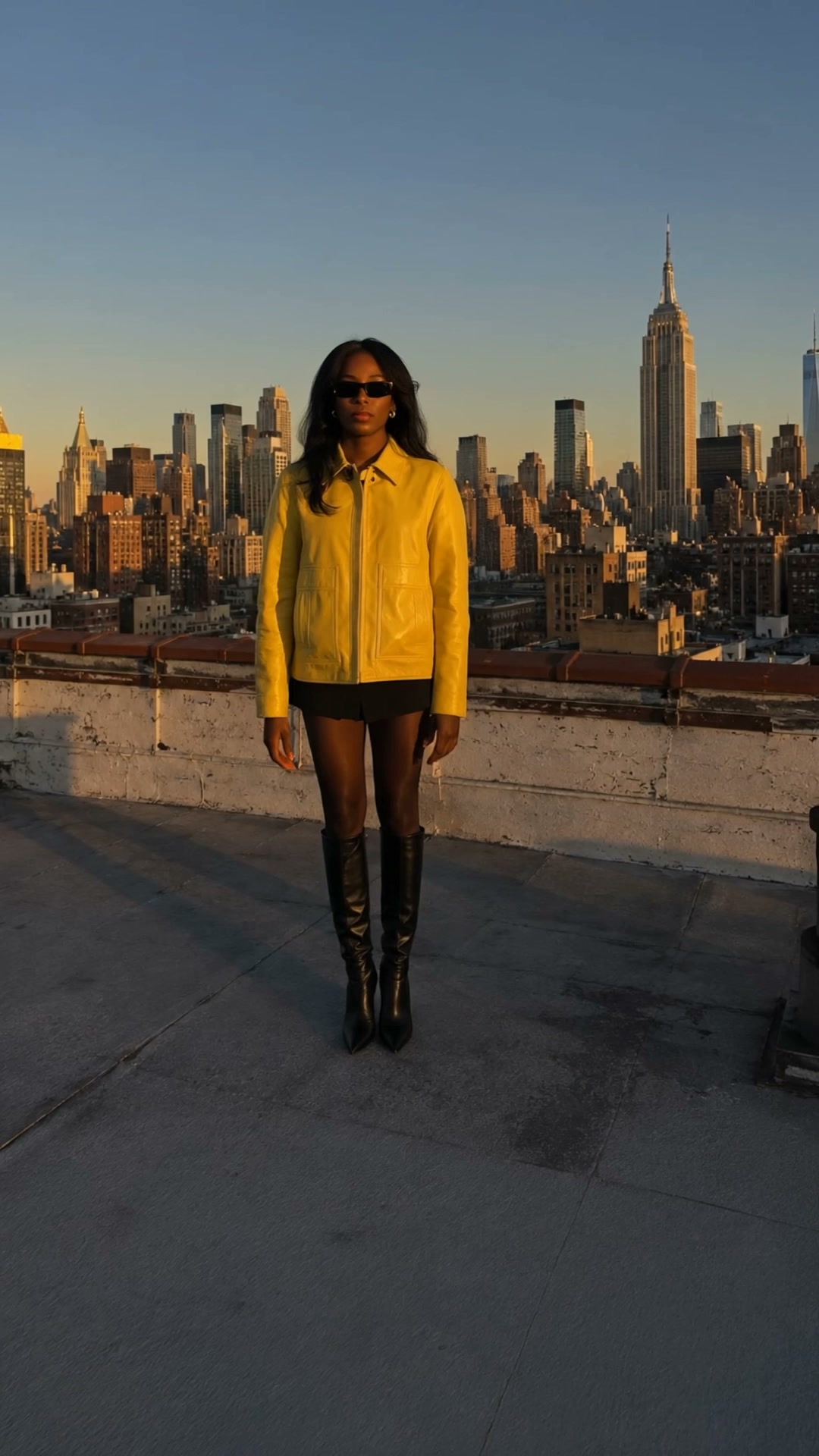
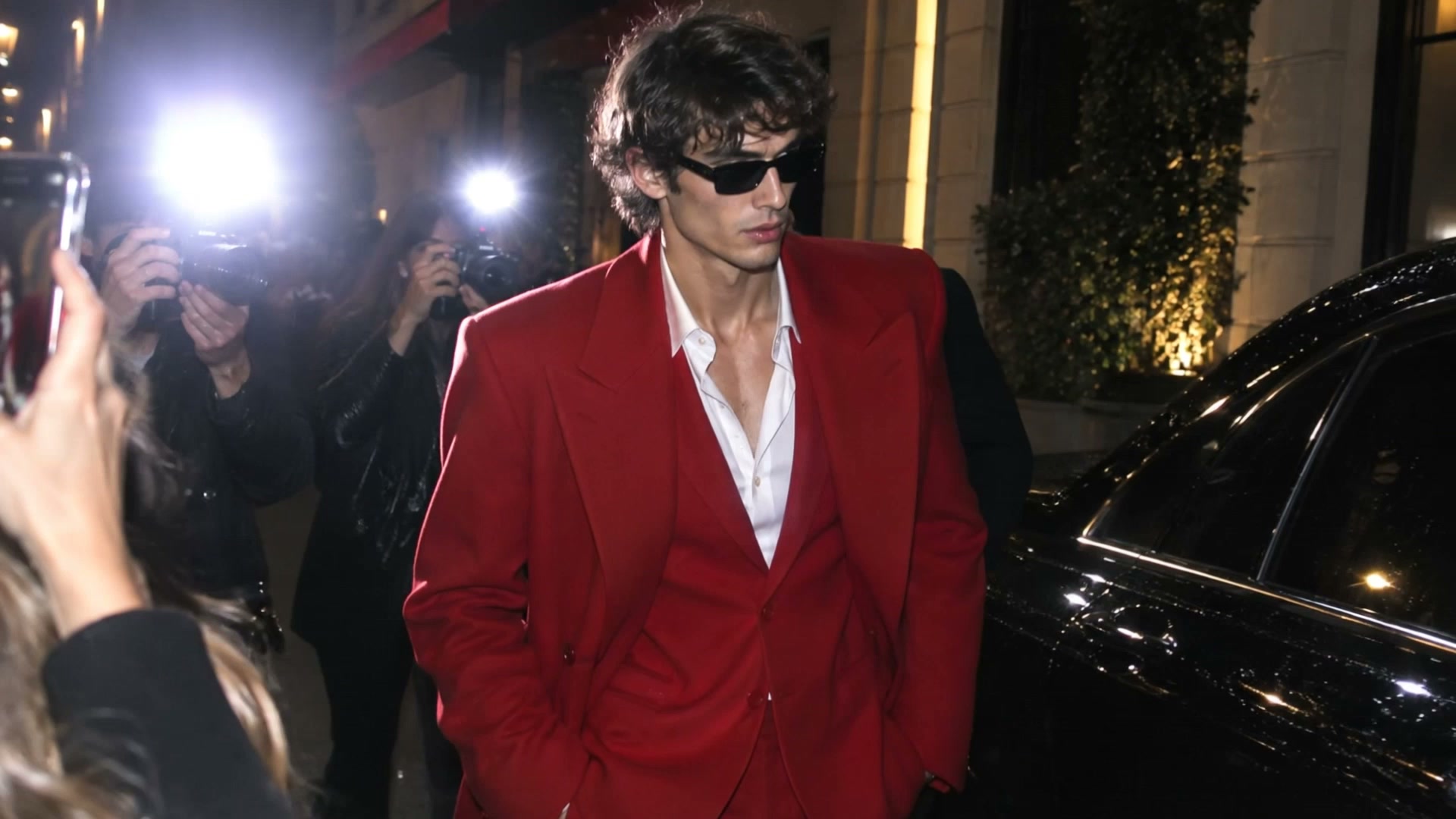
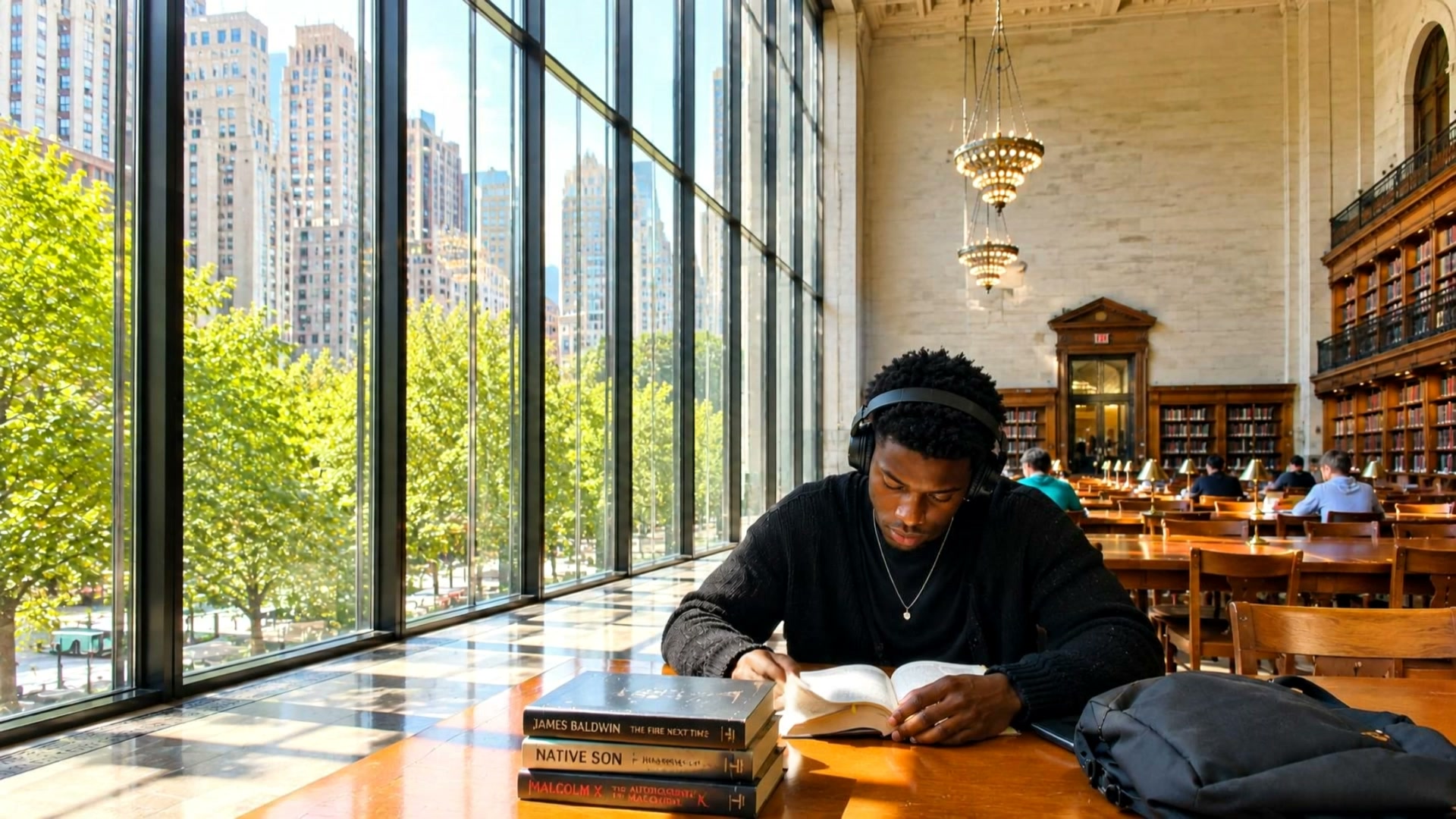
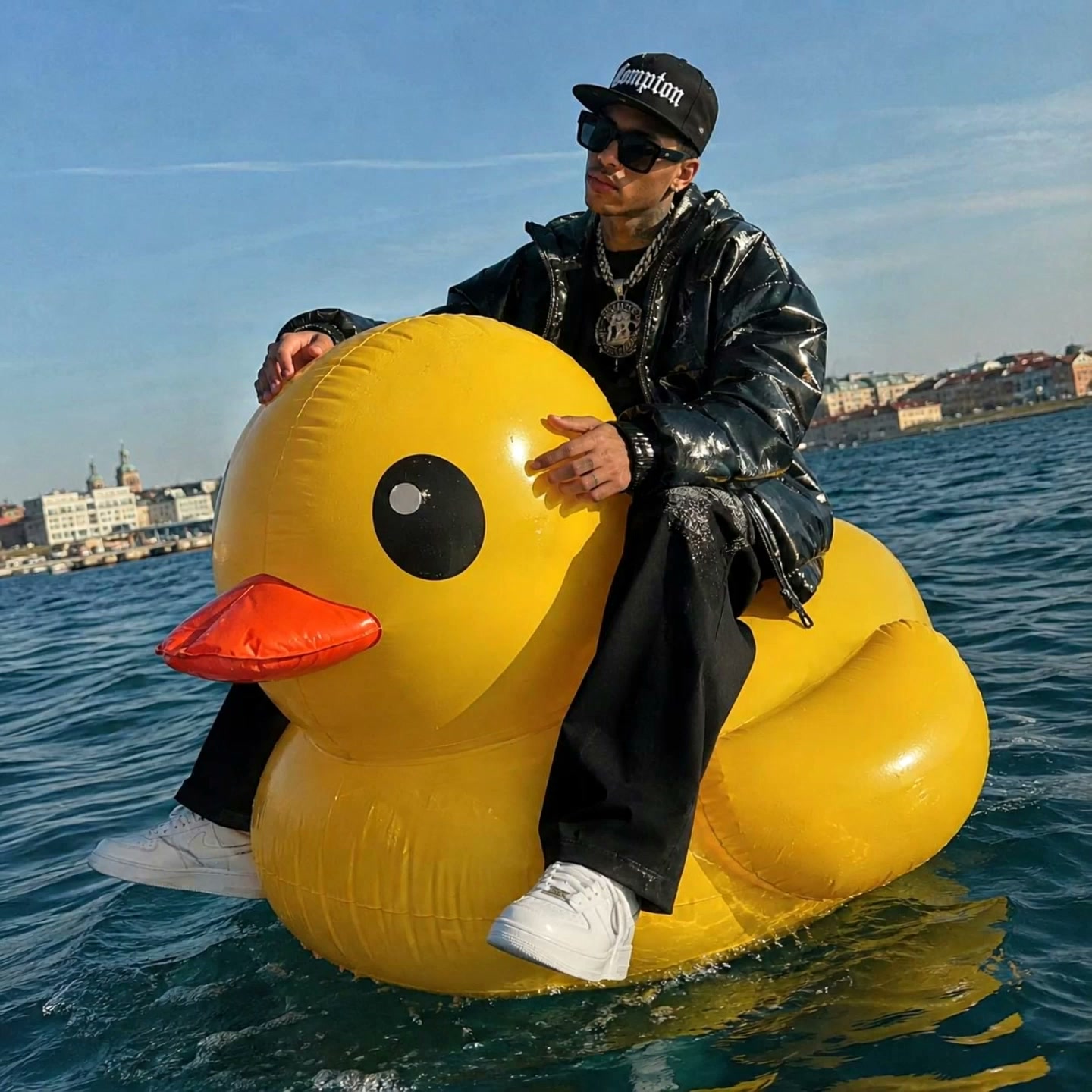
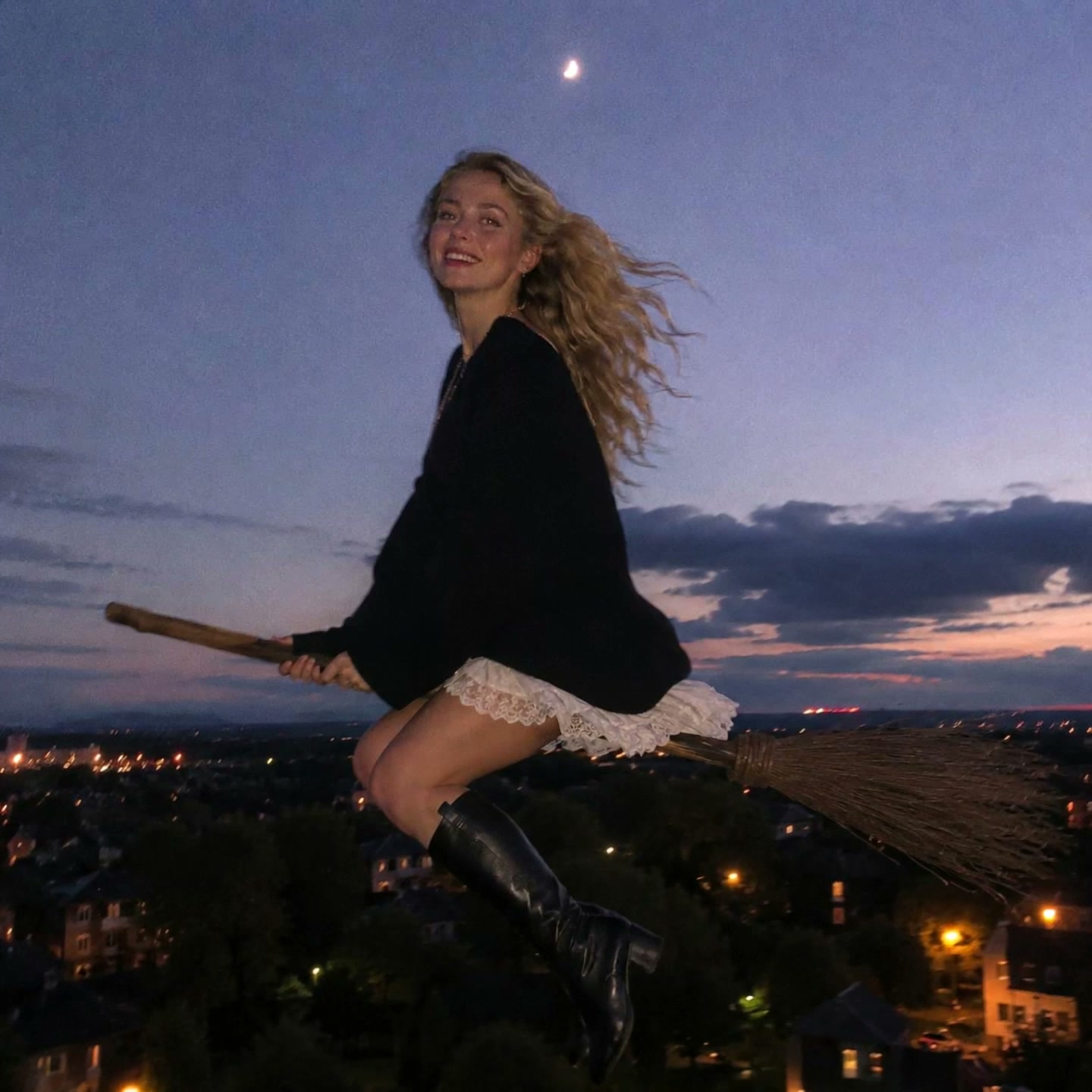
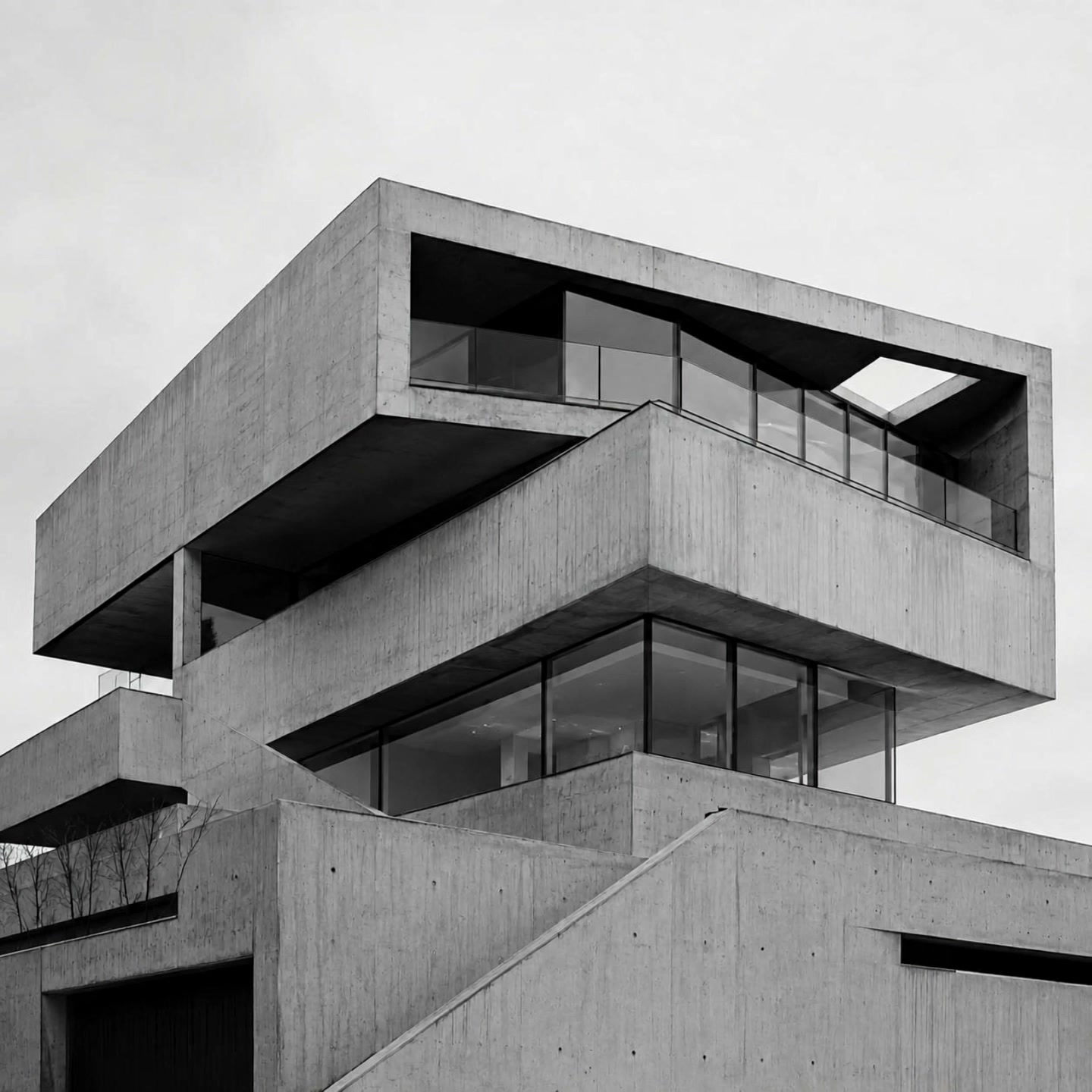
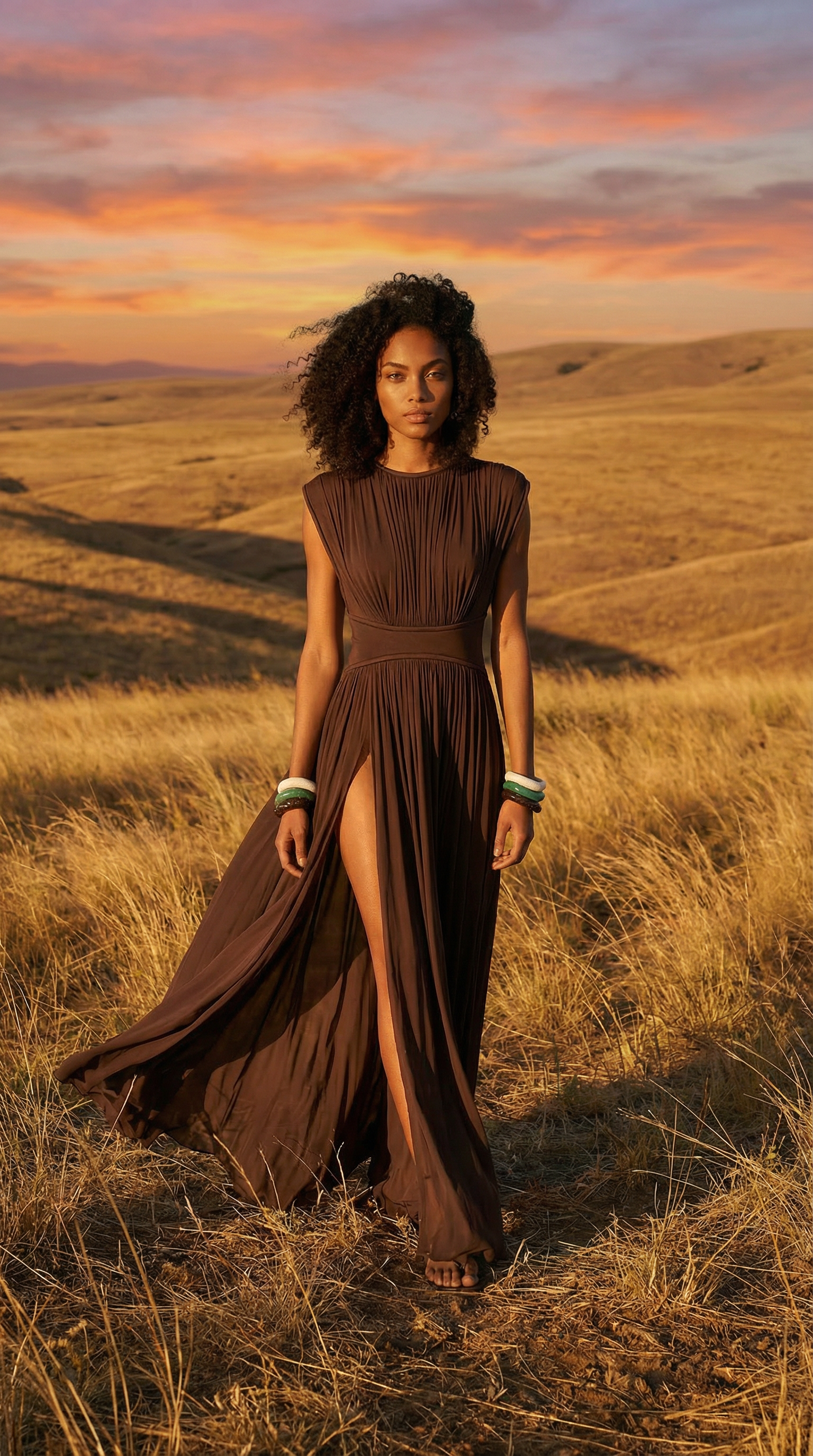
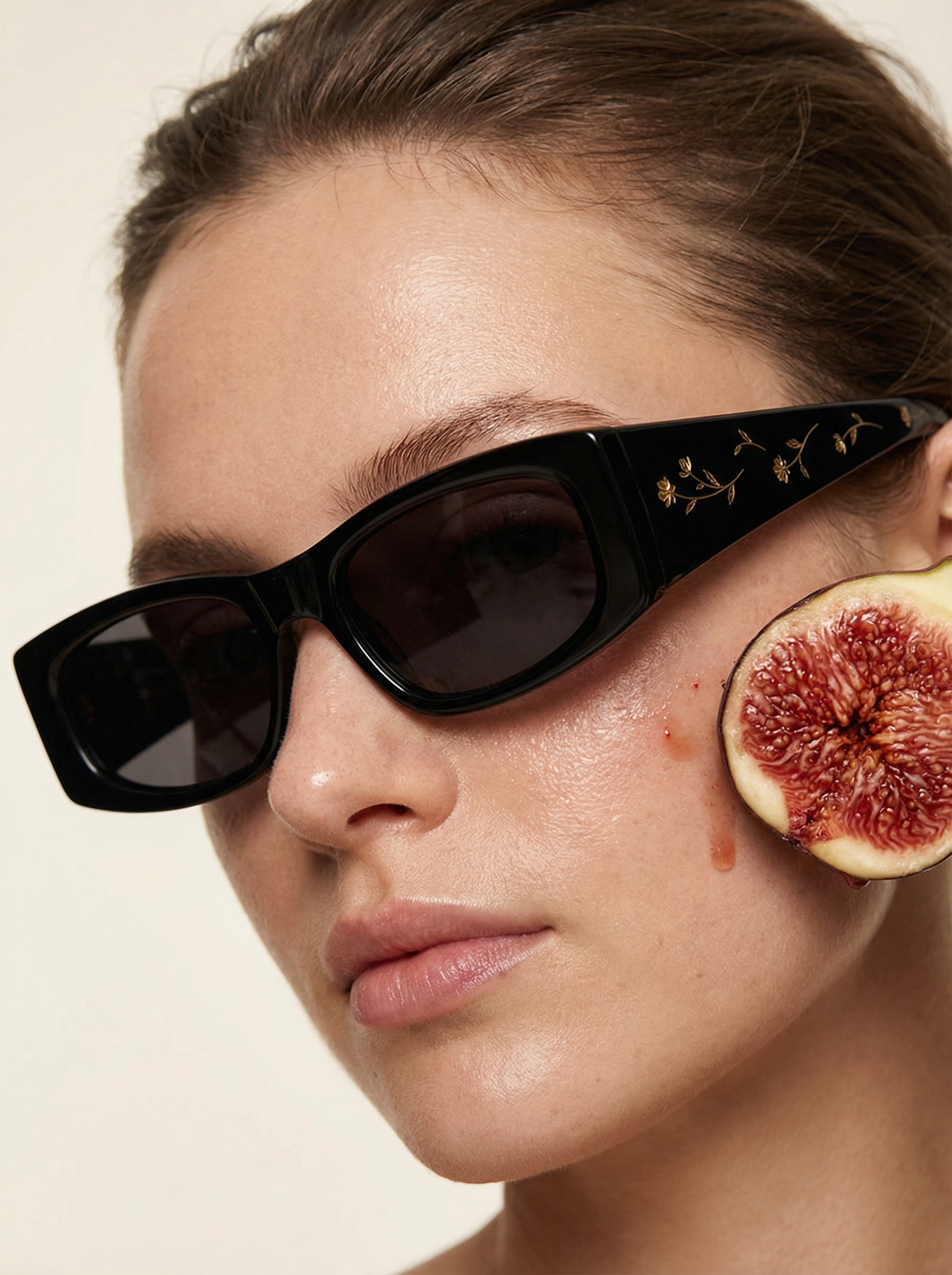
Each example below started as the single photo on the left. No filming, no set, no crew. The clip beside it is what one image-to-video run returned.
What Can You Create With AI Video?
One studio covers every kind of motion content a fashion brand ships, from a subtle product loop to a full campaign clip.
Product videos
Bring a packshot or on-model photo to life for product pages. Fabric sways, the model turns, the garment moves.
Reels & TikTok clips
Vertical 9:16 videos for Stories, Reels and TikTok, built from the same photo you already use in the feed.
Ad creatives
Fresh motion variations for paid campaigns. Swap the movement, the pacing or the format without a new shoot.
Campaign films
Cinematic 10–15 second clips with camera moves and audio, on the models that support longer durations.
Frame-to-frame transitions
Set a start and an end frame and let the AI animate the change: an outfit reveal, a pose shift, a scene morph.
Text-to-video concepts
Pure text-to-video generation for moodboards and brand concepts that don't exist as photos yet.
AI Video Generator for Clothing Brands
Clothing has a problem a still photo cannot solve: fabric behaves. A jersey dress falls differently from a structured blazer, and a customer choosing between them is trying to picture movement from a flat image. An AI video generator for clothing brands closes that gap by animating the garment photo you already shot.
Fabric that behaves like fabric
A coat hem swinging as the model turns, a silk skirt catching air, a knit settling when someone shifts their weight. Kling in particular is tuned for physics, so weight and drape read correctly.
One photo, every format
The same source image becomes a product page loop, a vertical cut for Reels and a wide version for the homepage. All three match each other, because all three came from one frame.
Ad creative that stays fresh
Paid social burns through creative. Re-running the same garment with different motion and pacing gives you new variants for an AI fashion video ads generator workflow, with no reshoot.
The shortest path for a clothing brand: generate the on-model shot in the Try-On Studio, then animate that result here. The garment never has to leave the rail, and the video never needs a camera.
Which AI Video Models Are Available?
The Model picker decides which engine generates your video. Twenty-five models sit behind it, grouped into families that share a look and a strength. Capabilities like audio, text-to-video and end frames vary model by model.
Kling
Physics-driven realism and the most precise motion control in the studio. Kling 4.0 is the flagship, with audio, end frames and 3–30 second clips, and Kling 4.0 Reference composes from up to 10 reference images. Kling o3 Pro Reference composes from up to 7, Kling 3.0 Pro covers 3–15 second clips with audio and end frames, and Kling 2.6, 2.5 Turbo and o1 handle fast 5 or 10 second runs.
- Durations3s–30s (4.0, 4.0 Reference) · 3s–15s (o3 Pro, 3.0 Pro) · 5s or 10s (2.6, 2.5 Turbo, o1)
- Resolutions720p, 1080p (4.0, 4.0 Reference) · 1080p (others)
- Ratios9:16, 16:9, 1:1 (+ 21:9 on 4.0 and 4.0 Reference, + auto on 4.0 Reference; o1 follows your image)
- Audio4.0, 4.0 Reference, o3 Pro, 3.0 Pro, 2.6
- Text-to-video4.0, 3.0 Pro, 2.6, 2.5 Turbo
- End frame4.0, 3.0 Pro, 2.6, 2.5 Turbo, o1
- Reference imagesup to 10 (4.0 Reference) · up to 7 (o3 Pro Reference)
Seedance
Cinematic storytelling with multilingual lip-sync and the widest format range here. Seedance 2.5 is the flagship, with audio, end frames and up to 30 seconds, and Seedance 2.5 Reference composes 30-second clips from up to 9 images. Seedance 2.0 reaches 15 seconds, Seedance 2.0 Reference composes from up to 9 images, and 1.5 Pro and 1.0 Pro are the affordable workhorses.
- Durations4s–30s (2.5, 2.5 Reference) · 4s–15s (2.0) · 4s–12s (1.5 Pro) · 3s–12s (1.0 Pro)
- Resolutions480p, 720p, 1080p
- Ratios9:16, 16:9, 4:3, 3:4, 1:1, 21:9 (+ auto on 2.5 Reference and 2.0 Reference)
- Audio2.5, 2.5 Reference, 2.0, 2.0 Reference, 1.5 Pro
- Text-to-video2.5, 2.0, 1.5 Pro, 1.0 Pro
- End frame2.5, 2.0, 1.5 Pro, 1.0 Pro
FLUX 3
Black Forest Labs' video model, with native audio and 5–20 second clips. FLUX 3 handles text-to-video and first-to-last-frame animation between two images you supply, and FLUX 3 Reference animates a single reference image in the same cinematic style.
- Durations5s–20s
- Resolutions720p, 1080p
- Ratios9:16, 16:9, 4:3, 3:4, 1:1, 2:1, 21:9 (+ auto)
- Audioyes
- Text-to-videoFLUX 3
- End frameFLUX 3 (start and end together)
Google VEO 3.1
Google's cinematic model. Every run returns a polished 8-second clip with generated audio, built from an image, a text prompt, or both.
- Duration8s (fixed)
- Resolutions720p, 1080p
- Ratios9:16, 16:9
- Audioyes
- Text-to-videoyes
Gemini Omni Flash
Google's fast model, with audio and flexible 3–10 second durations. The standard version handles image-to-video and text-to-video, and the Reference version composes a scene from up to 9 reference images.
- Durations3s–10s
- Resolution720p
- Ratios9:16, 16:9
- Audioyes
- Text-to-videostandard only
- Reference imagesup to 9 (Reference)
Grok Imagine
Cinematic generation from Grok, with the widest duration range here: anything from a 1-second cut to a 15-second scene. Grok Imagine 1.5 animates a single image, and the Reference version accepts up to 7.
- Durations1s–15s
- Resolutions480p, 720p
- Ratios7 options (Reference) · follows your image (1.5)
- Audiono
- Text-to-videono
- Reference imagesup to 7 (Reference)
WAN
Alibaba's open-source model. WAN 2.7 supports text-to-video, end frames and 2–15 second clips. WAN 2.7 Reference accepts up to 20 reference images, more than any other model here.
- Durations2s–15s (2.7) · 2s–10s (Reference)
- Resolutions720p, 1080p
- Ratios9:16, 16:9, 1:1, 4:3, 3:4
- Audiono
- Text-to-video2.7
- Reference imagesup to 20 (Reference)
Minimax
Minimax H3 Max is the new flagship: image-to-video, text-to-video and end frames at 5–15 seconds, from 480p drafts up to 1080p. H3 Max Reference composes a scene from up to 9 reference images. Hailuo 2.3 Pro stays the quickest path to a crisp clip: an image or a prompt in, a 6-second 1080p video out, with no ratio or duration decisions to make.
- Durations5s–15s (H3 Max, H3 Max Reference) · 6s fixed (Hailuo 2.3 Pro)
- Resolutions480p, 768p, 1080p (H3 Max) · 1080p (Hailuo)
- Ratios9:16, 16:9, 4:3, 3:4, 1:1, 21:9 (Hailuo follows your image)
- Audiono
- Text-to-videoH3 Max, Hailuo 2.3 Pro
- End frameH3 Max
- Reference imagesup to 9 (H3 Max Reference)
The workflow most people settle on: draft short and light, at 480p or 720p and 4 to 6 seconds, until the motion feels right, then re-run the winning prompt at 1080p and your final duration.
In Which Languages Can You Add Voiceover to an AI Product Video?
There is no language picker. You write the dialogue in the language you want and the model speaks it, so the language comes out of your prompt rather than out of a setting.
Fifteen of the twenty-five models generate audio, and they show a Generate Audio toggle when you select them. Seedance 2.5 and 2.0 handle multilingual lip-sync, which is what you want when a person is on camera and the words have to match the mouth. Kling 4.0, Kling 4.0 Reference, Kling o3 Pro Reference, Kling 3.0 Pro, Kling 2.6, both FLUX 3 models, both Gemini Omni Flash models, Google VEO 3.1, Seedance 2.5 Reference, Seedance 2.0 Reference and Seedance 1.5 Pro also produce audio. The remaining ten generate silent clips.
Voice cloning is the one thing the studio does not do. You cannot upload a recording and have the AI speak in your founder's voice or a specific brand voice, so if that matters, generate the clip silent and lay your own voiceover over it in an editor.
How Long Should Your Video Be?
Duration is the biggest lever on both credit cost and storytelling, so match the length to where the video will play instead of defaulting to the maximum.
2–5s
Product spins, fabric sways and seamless loops for listings and thumbnails. Cheap enough to iterate freely.
6–10s
The standard length for ads, Reels and product-page videos. Enough time for one clear motion and a beat to land.
10–30s
Walk-throughs, camera moves and mini campaign films. Kling o3 and 3.0 Pro, Seedance 2.0, WAN 2.7, Grok Imagine and Minimax H3 Max reach 15 seconds, Seedance 1.5 and 1.0 Pro go up to 12, FLUX 3 runs to 20, and Seedance 2.5 and Kling 4.0 stretch to 30.
Credits scale with duration on most models, so every extra second costs more. Two models have fixed lengths: Google VEO 3.1 always generates 8 seconds and Minimax Hailuo 2.3 Pro always generates 6.
Which Aspect Ratio Should You Choose?
The aspect ratio sets the shape of your video. Pick it for the platform it will live on, because cropping a finished video cuts into the motion you paid for.
Auto
Matches your first frame's framing
9:16
Reels, TikTok, Stories, and vertical ads
16:9
Product pages, YouTube, and website heroes
1:1
Feed posts and marketplace tiles
3:4
Catalog and lookbook formats
21:9
Cinematic banners on Seedance, FLUX 3, Minimax H3 Max and Kling 4.0
4:3 is also available on Seedance, FLUX 3, Minimax H3 Max, WAN and Grok Reference, with 3:2 and 2:3 on Grok Reference and 2:1 on FLUX 3. Kling generates 9:16, 16:9 and 1:1, with 21:9 added on Kling 4.0, while VEO 3.1 and Gemini Omni Flash offer 9:16 and 16:9. Three models have no ratio picker at all: Hailuo, Grok Imagine 1.5 and Kling o1 simply follow your image.
Are Product Videos Automatically Sized for Instagram Reels and TikTok?
No, and that is deliberate. You pick the aspect ratio before the run, and 9:16 sits in the picker on all twenty-two models that have one. The three without a picker, Hailuo, Grok Imagine 1.5 and Kling o1, take their shape from your first frame, so hand them a vertical image. Nothing resizes itself afterwards, because cropping a finished video throws away part of the motion you just paid for.
Generating a second version for a second platform costs another run. In exchange, each version is composed for its own frame rather than squeezed into it, which matters most on vertical, where a 16:9 crop tends to cut the model off at the knees.
Which Platforms Can You Use AI Product Videos On?
An AI video generator for ecommerce products has to feed several placements at once, and every placement wants a different shape and a different length. Generating for the destination beats cropping toward it, so it is worth deciding where a clip is going before you spend the credits.
| Placement | What to generate | Ratio | Length |
|---|---|---|---|
| Instagram Reels & TikTok ads | One clear motion, hook in the first second | 9:16 | 6 to 10s |
| Instagram feed | A loop that reads with the sound off | 1:1 | 3 to 6s |
| Product page | Calm motion showing fabric and fit | 16:9 1:1 | 2 to 5s |
| Email marketing | Short loop with a strong poster frame | 1:1 | 2 to 5s |
| Homepage hero & YouTube | Campaign clip, audio on a model that supports it | 16:9 | 10 to 15s |
Email is the awkward one. Many email clients refuse to play video at all, so the poster frame the studio generates with every result is what a large share of your list will actually see. Pick a first frame that works as a still, and link the clip rather than relying on it playing inline.
How Do You Add AI Product Videos to a Shopify Store?
You add them the same way you add a product photo: generate the clip, download it, and upload it through Shopify's own media uploader. Fash Studio has no Shopify app, so there is no connector to install, nothing to authorise and no sync to configure.
That makes product to video AI for Shopify a four-step routine rather than an integration project. Generate at 1:1 or 16:9 for the product gallery, download the finished file from your History, drop it into the product's media slot alongside the photos, then reuse the 9:16 version for paid social and the poster frame for email.
The same routine works on WooCommerce, BigCommerce, Etsy, Amazon and any storefront that accepts a video file, because nothing in it depends on the platform. What changes between them is only the accepted file size and ratio, which each platform documents itself.
Which Resolution Should You Generate At?
Resolution sets the pixel size of the finished clip. Higher resolutions cost more credits per run, so generate at the size the video will actually play.
480p
Motion drafts and prompt iteration. Nail the movement cheaply before spending on the final render.
720p
Social feeds and quick-turnaround content. Sharp enough for most phone-first placements.
1080p
Product pages, paid ads and campaign use. The finish for anything customers will watch full-screen.
Seedance offers all three sizes, and Minimax H3 Max offers 480p, 768p and 1080p. WAN, VEO 3.1, FLUX 3 and Kling 4.0 offer 720p and 1080p, Grok offers 480p and 720p, and Gemini Omni Flash renders at 720p. The other Kling models and Hailuo always render at 1080p, so no resolution picker appears for them.
How Do You Write a Motion Prompt That Works?
A video prompt directs motion. On an image-to-video run the first frame has already fixed the subject, the outfit and the scene, so your prompt only has to describe what happens next.
A strong motion prompt usually answers four questions. You rarely need all four, though each one you answer takes a decision away from the AI.
What moves, and how?
Name the movement plainly: "the model slowly stretches", "she walks toward the camera", "the coat sways in the wind".
How does the camera move?
Name the camera move or the AI picks one for you: "static shot", "slow zoom in", "orbit around the model", "handheld follow".
What is the pacing?
Set the energy: "slow, calm movements", "energetic", "cinematic golden-hour mood". Pacing is what makes a clip feel intentional.
What must not change?
Pin it down: "same pose", "keep the outfit", "no one else enters the frame". The AI protects whatever you state.
"The model should be doing yoga with slow movements. Just stretching in the same pose."
"Model is eating the food." Even a single line works, because the first frame already anchors the subject, the outfit and the scene.
- Direct the motion of what is already in the frame. Describing a scene the image does not show fights the input.
- One clear motion per clip. A 5–10 second video can't fit five actions.
- You can run most image-to-video models with no prompt at all, but a one-line motion prompt gives far better control.
- On audio models, mention the sound you want: ambience, effects, or dialogue-free music.
- Not sure how to phrase it? Turn on Enhance and it expands your short prompt into a detailed motion brief before generating.
What Are the Most Common Mistakes?
When a video disappoints, the first frame or an overloaded prompt is almost always the reason. Here are the patterns we see most often, with the fix for each.
Describe a whole new scene
Image-to-video keeps your frame. Asking for a different location, outfit or person fights the input and produces warped results.
Direct the motion
Describe how the existing scene moves: the model, the camera, the fabric. To change the scene itself, edit it in Image Generation first, then animate the result.
Start from a weak first frame
Blur, clutter and awkward crops get amplified once things start moving. The video can only be as good as the image it starts from.
Use a sharp, well-composed frame
A clean, well-lit photo with the subject clearly framed animates realistically. Generate the starting frame in the Image Generation Studio if you don't have one.
- Result too static? State the motion explicitly and add a camera move.
- Motion glitching or limbs distorting? Try a Kling model, where physics is the strength, or shorten the duration.
- Need the clip to end on an exact image? Use a model with end-frame support and set both frames.
What Can You Do With Your Results?
The Video Studio sits in the middle of the pipeline. The other studios prepare its inputs and extend its outputs.
- Image Generation Studio generates the first frame, ready to animate here.
- Try-On Studio dresses a model in your garments, so you can bring the on-model shot to life.
- Image Upscale sharpens a start frame up to 4K before you animate it.
- Reframe extends your image to the aspect ratio you want the video in.
- UGC Try-On Video turns a product and a model into a ready-to-post UGC-style clip.
- Advanced Marketing Video combines your images with a hook, a script and a location into a full marketing video.
Image-to-Video, Text-to-Video, Reference-to-Video: What's the Difference?
Image-to-video
Animating a photo. Your image becomes the first frame and the AI generates the motion that follows it.
Text-to-video
Creating a video from a written description alone, with no image needed. The AI invents the scene and the motion.
Reference-to-video
Composing a new video from several reference images, such as a model, a garment and a location, instead of one fixed frame.
Start & end frames
The images your video begins and ends on. Set both and the AI animates the transition between them.
Motion prompt
The written instruction that directs movement: what the subject does, how the camera moves, and at what pace.
Poster frame
The still image shown before a video plays. The studio generates one automatically with every result.
Frequently Asked Questions
Do I need video editing skills to turn a product photo into a video?
How many credits does an AI video cost?
Can AI turn a photo into a video?
Which platforms and formats can I export the video for?
Can I add a voiceover in my own brand voice?
Which AI models does Fash Studio use to generate these videos?
How long can AI-generated videos be?
Which AI video model should I choose?
Can I generate a video from text alone, without an image?
Can AI-generated videos have sound?
What are start and end frames?
What is reference-to-video?
Do I own the videos I generate?
Are my uploads private?
Ready to set your products in motion?
Sign up free and generate your first AI fashion video in minutes.
Get Started