How to Show One Outfit on Different Models with AI
10 min readShowing one garment on several models used to mean several shoots. This guide explains which AI method fits your starting photo, how to plan a model range, and how to keep the results consistent and honest about fit.
What you'll find in this article
- Can AI show the same clothes on models with different looks?
- Which method should you use: virtual try-on, model swap or a virtual model?
- How do you show one outfit on several models with virtual try-on?
- How do you swap the model in an existing on-model photo?
- How do you plan a virtual model range for your catalog?
- How do you keep a multi-model catalog consistent?
- How do you show clothes on models with different body types honestly?
- Frequently asked questions
AI can show the same clothes on models of different looks, body types and ages without a new shoot: the garment stays the same and only the person changes. Use virtual try-on when you start from a flat lay or product photo, model swap when you already have an on-model photo, and a generated virtual model when you have no suitable model photo yet.
Key takeaways
- The method depends on the starting photo: virtual try-on for product photos, model swap for on-model photos, and a generated virtual model when no model photo exists.
- Face swap is a different tool: it changes only the face, while model swap replaces the whole person and keeps the outfit.
- A small, fixed model range of four to six models, reused across the whole catalog, keeps product pages consistent.
- Consistency comes from changing only the model and keeping background, lighting, aspect ratio, resolution and prompt the same.
- AI shows how a garment could look on a body, not how a specific size fits, so pair AI images with real size charts and measurements.
Can AI show the same clothes on models with different looks?
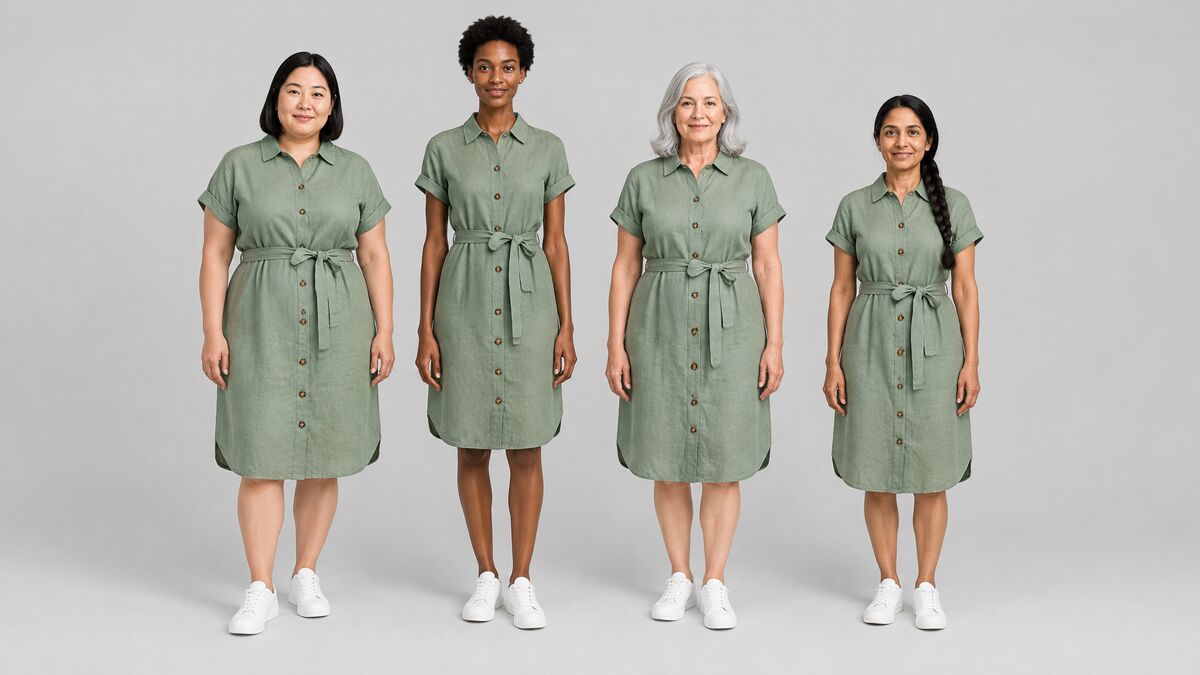
Yes. AI can show the same clothes on models with different looks, body types and ages, because the garment and the person are handled as separate inputs. The garment stays the same, and the person wearing it changes from one image to the next.
Brands use this to build inclusive product photos, to run market-specific ads with local models, and to add variety to a catalog without booking a new shoot for each model. Instead of hiring a clothes model for every look, a brand can model clothes on a range of diverse models from one set of product photos.
There are three ways to do it, and the right one depends on the photo you start with:
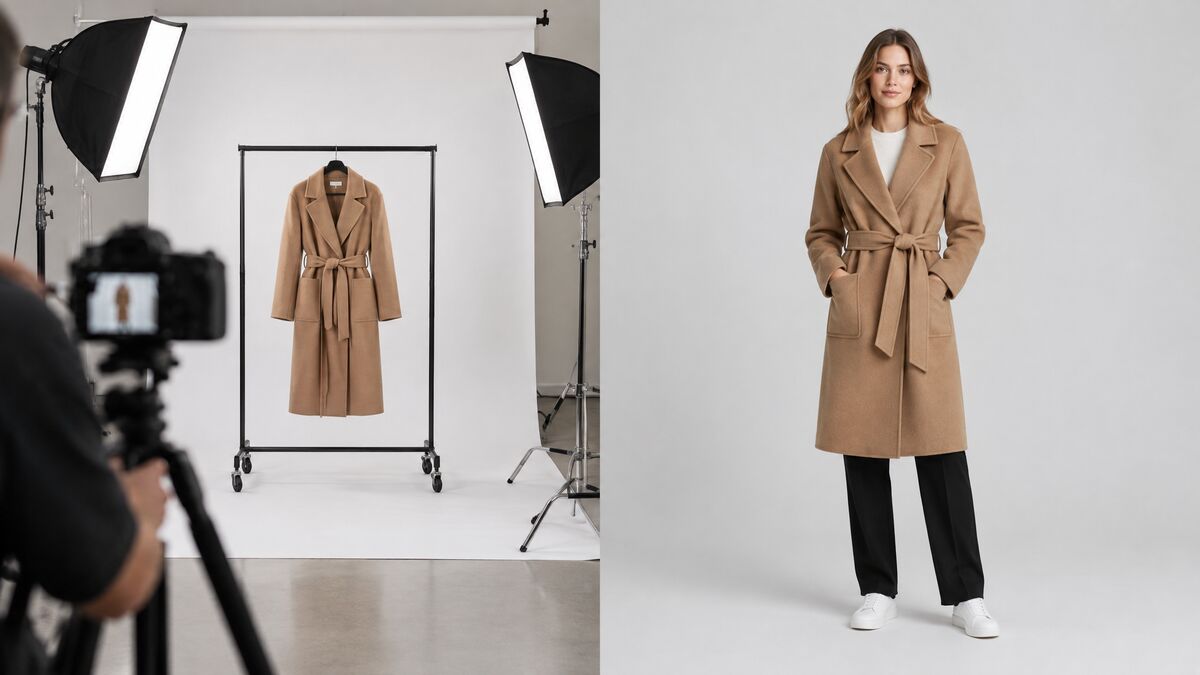
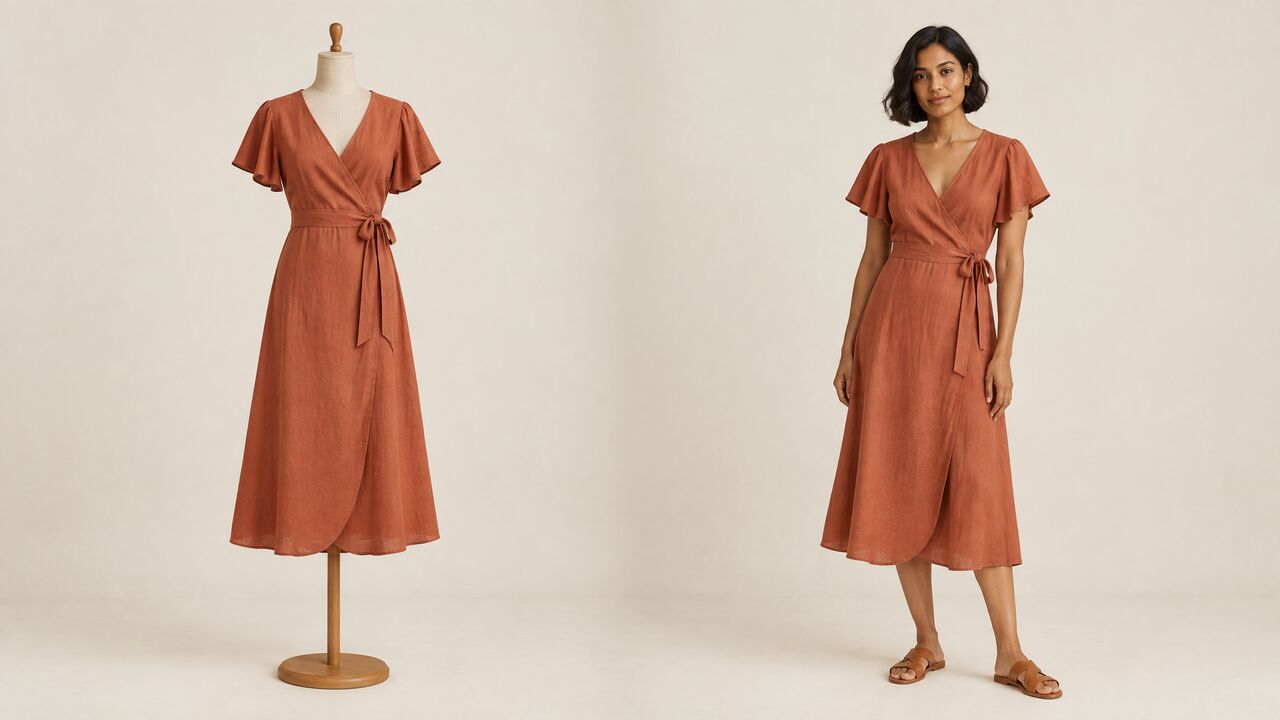
- Virtual try-on dresses a model in garments from flat lays, ghost-mannequin shots or product photos.
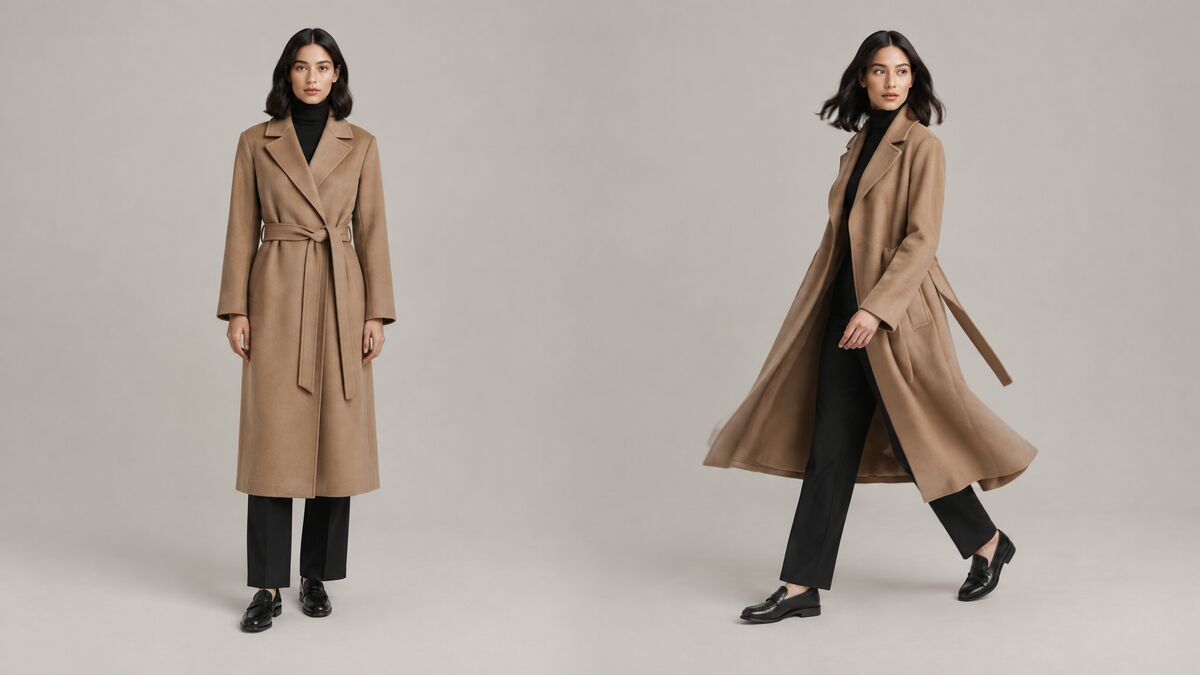
- Model swap replaces the person in an existing on-model photo and keeps the outfit.
- A generated virtual model is created with an AI image generator first, then used as the model in try-on.
All three rely on the same idea behind virtual try-on. If the technology is new to you, start with what AI virtual try-on is and how it keeps a garment accurate.
Which method should you use: virtual try-on, model swap or a virtual model?
Choose the method by your starting photo: a product photo points to virtual try-on, an on-model photo points to model swap, and no model photo at all points to generating a virtual model first.
| Starting point | Method | What changes | What stays | Best for |
|---|---|---|---|---|
| Flat lay, ghost-mannequin or product photo | Virtual try-on with a different model each run | The model wearing the garment | The garment, plus the background and settings you keep fixed | New products that have never been shot on a model |
| An existing on-model photo | Model swap | The person: face, hair, skin tone and body | Clothing, accessories, pose and background | Reusing a finished shoot with different models |
| No suitable model photo yet | Generate a virtual model, then use it in try-on | You define the model in a text prompt | The garment, once the model is used in try-on | Building a model range from scratch |
For the third method, an AI fashion model generator creates the person from a description. Describe the age range, body type, skin tone, hair and pose in the prompt, and ask for a full-body, head-to-toe photo of one person facing the camera on a plain background. That image then works as the model photo in try-on.
Face swap is not one of these methods. An AI face swap changes only the face, while hair, body, outfit and background stay the same, so it does not show a garment on a different body.
How do you show one outfit on several models with virtual try-on?
With virtual try-on, you upload the garment once and run it on one model at a time, changing nothing but the model between runs.
- Prepare the garment photos. Clean, true-color flat lays or ghost-mannequin shots give the best results. The guide on how to turn flat lay and mannequin photos into on-model images covers input preparation in detail.
- Upload the garments. Open AI virtual try-on and add the garment images. Several garments can be combined into one outfit.
- Choose the first model. Pick a built-in AI model or upload your own model photo. An uploaded photo works best as a full-body, head-to-toe shot of one person facing the camera; headshots and group photos work poorly.
- Lock the settings. Keep the same AI model, resolution, aspect ratio, background and prompt for every run.
- Run once per model. Change only the model, then run again. Each run makes one image.
- Review the set. Compare all results side by side and check that the garment's color, print, length and details match in every image.
In Fash Studio, the built-in AI fashion models cover a spread of looks, body types and ages, and up to 7 generations can process at the same time. Only the clothing changes; the model's face, hair, skin tone, body shape and pose stay the same. When you upload a photo of a real person, make sure you have the rights and that person's consent to use it.
How do you swap the model in an existing on-model photo?
Model swap, sometimes called an AI model changer, replaces the person in a finished on-model photo while the outfit, pose and background stay exactly as they were.
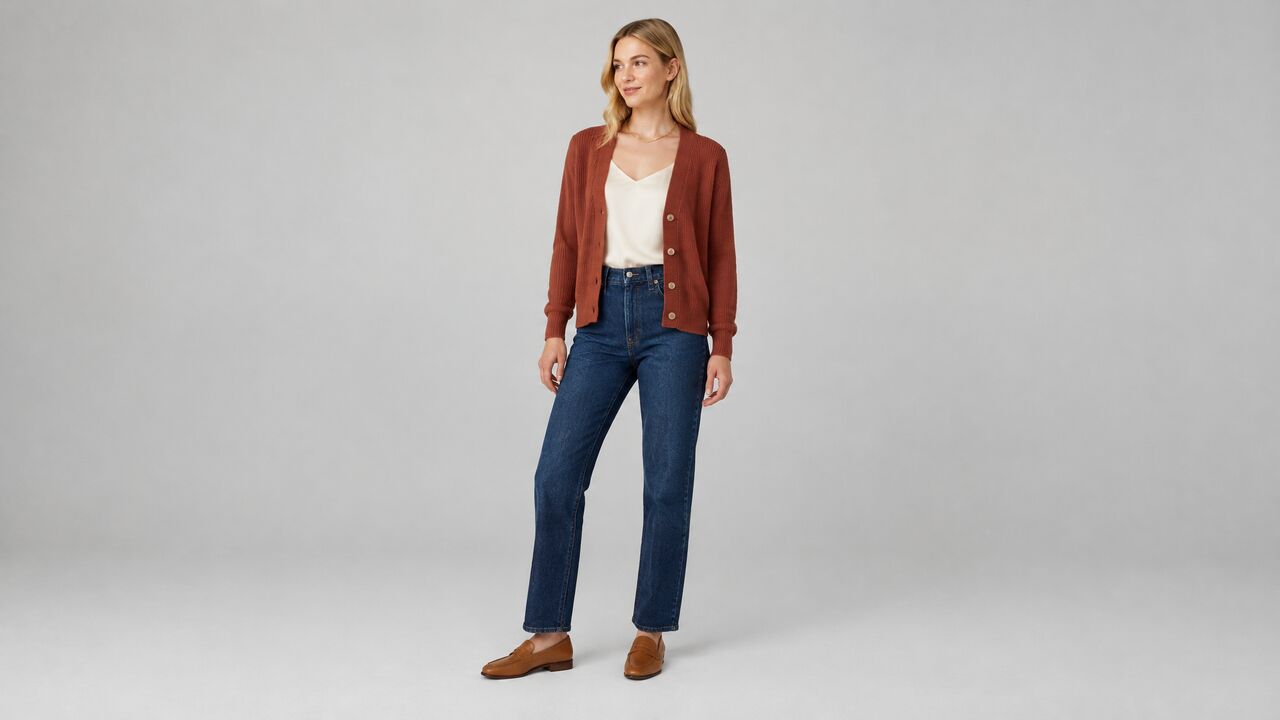
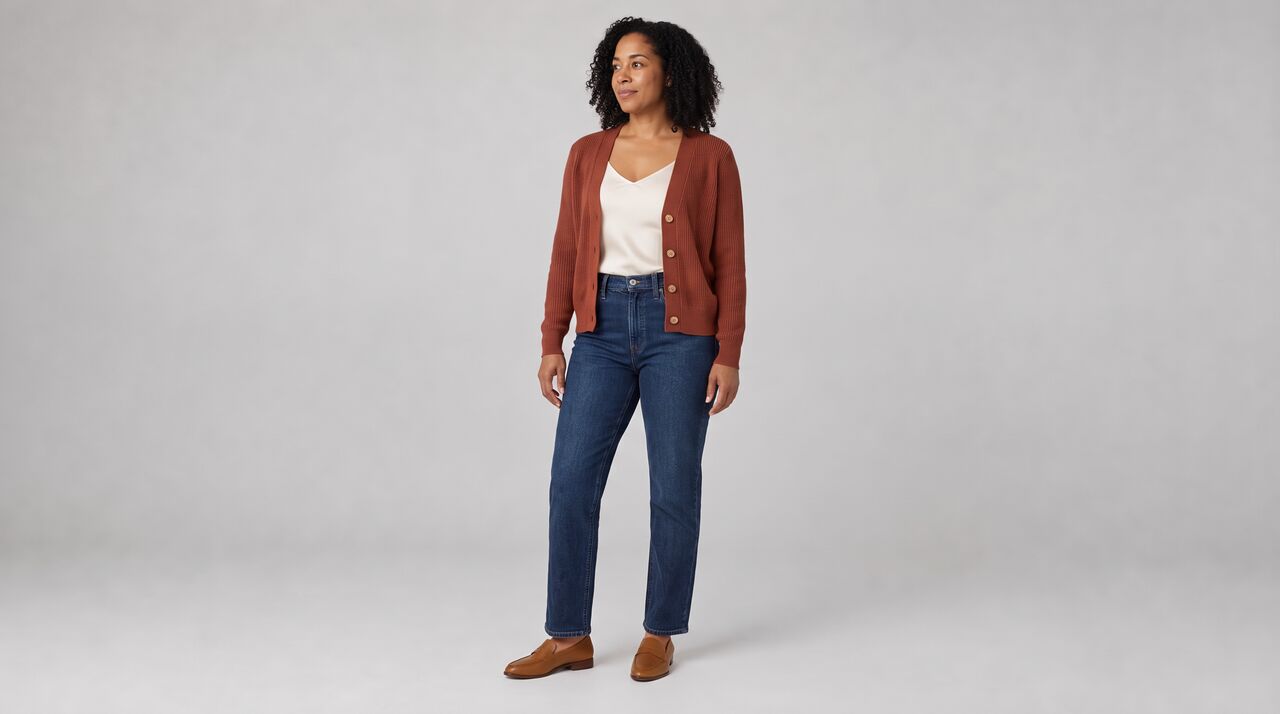
- Upload the New Model photo. This is the person whose face, hair, skin tone and body should appear in the result.
- Upload the Target Photo. This is the on-model product photo where the person will be replaced.
- Run. The Run button shows the exact credit price before the run starts.
Fash Studio's Model Swap uses exactly these two inputs. The face, hair, skin tone and body come from the new model, while clothing, accessories, pose and background stay the same as in the target photo.
A few habits improve results:
- Similar pose and framing: a new model photo with a pose and framing close to the target gives the most natural result.
- A clear face: use a new model photo where the face is sharp, evenly lit and not hidden by hair, hands or sunglasses.
- A high-resolution target photo: the garment details in the result can only be as sharp as the photo they come from.
How do you plan a virtual model range for your catalog?
Plan a virtual model range by deciding which looks, body types and ages your customers need to see, then turning that into a small, fixed set of models you reuse everywhere.
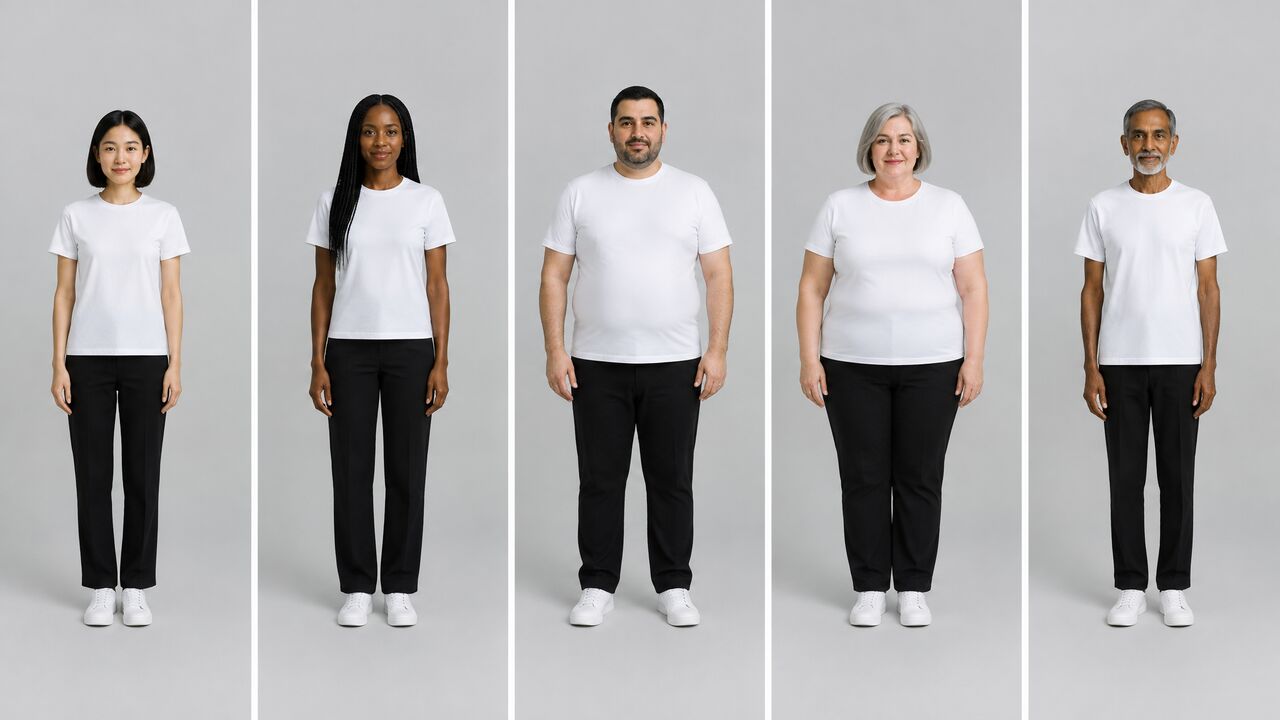
Start from your customers, not from the models. Look at who buys each category and where they live, and list the differences in look, body type and age that matter to them. Model diversity works best when it reflects real shoppers rather than a checklist.
Then build a small model matrix:
- Pick four to six models. Cover the range you listed with as few people as possible. Each model should be clearly different from the others.
- Reuse the same models across the catalog. Returning shoppers start to recognize the faces, and the catalog reads as one brand.
- Assign models by category or market. For example, one set of models for a regional store and another for a different market, or specific models for plus-size and petite lines.
- Keep a record. Note which model was used for which product, market and channel, along with the model photo file and its usage rights.
A fixed range is easier to manage than a new model per product. It also makes gaps visible: if one body type never appears in a category, the record shows it.
How do you keep a multi-model catalog consistent?
A multi-model catalog stays consistent when the model is the only thing that changes between images.
- Same background and lighting: use one background for each category, so changing the model does not also change the mood.
- Same aspect ratio and resolution: product page grids look broken when images have different shapes or sharpness.
- Same pose family: choose a small set of poses, such as front-facing and three-quarter, and use them for every model.
- Same prompt wording: save the exact prompt text and reuse it word for word, because small wording changes shift the result.
- Side-by-side review: before publishing, view a whole category at once. Differences in garment color, length or background stand out far more in a grid than in single images.
Treat these settings as a style guide. Write them down once, and anyone on the team can produce new images that match the existing catalog.
How do you show clothes on models with different body types honestly?
Showing clothes on models with different body types is honest when the images show how a garment could look, and size information comes from real measurements.
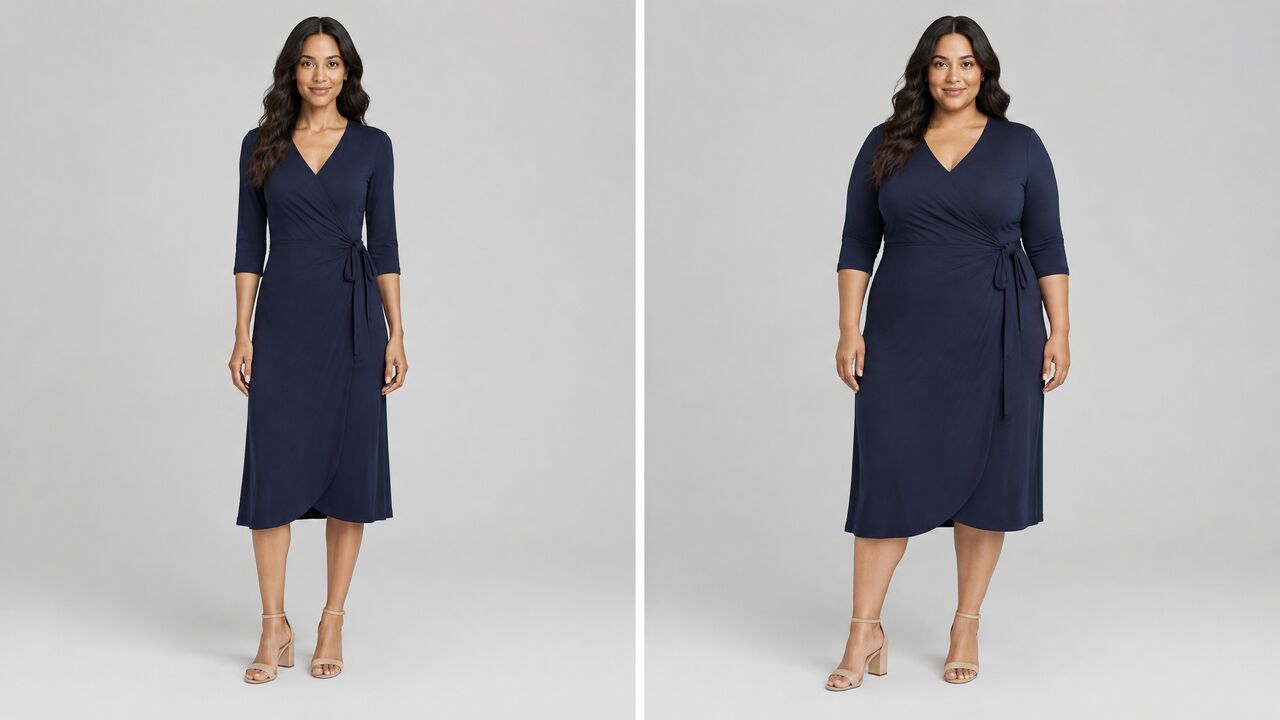
AI shows how a garment could look on a body, not how a specific size fits. It does not know the garment's measurements, the fabric's stretch or how a size sits on a real person. That gap matters, because shoppers use model images to decide what to order.
- Pair images with real size data: show a size chart and garment measurements next to AI model images.
- Avoid size claims that are not true: do not write that a model wears a specific size unless that garment was physically fitted on that person.
- Check length and silhouette: a hem, sleeve or waistline should sit where it realistically would on that body, not in the same spot on every model.
- Have rights and consent: for any real person used as a model, have the rights to the photo and that person's consent for this use.
- Check disclosure rules: some markets and platforms have rules on disclosing AI-generated people in ads or product images, so check the rules where you sell.
Upload a new model and your product photo to Fash Studio's AI model swap and show your outfit on a different model.
Frequently asked questions
What is a virtual model in fashion?
A virtual model is an AI-generated or AI-edited person used to present clothes in product photos and ads. Brands use virtual models to show the same garment on different looks, body types and ages without a separate photoshoot for each model. The garment comes from a real product photo, so the product stays accurate.
Will the clothes change when I change the model?
The clothes should not change when you change the model. In Fash Studio's Model Swap, the face, hair, skin tone and body change, while clothing, accessories, pose and background stay the same as in the target photo. Still check every result at full size, especially prints, logos and garment length.
Can I use my own model photos instead of AI models?
Yes. Fash Studio's virtual try-on accepts your own model photo as well as built-in AI models. The best model photo is a full-body, head-to-toe shot of one person facing the camera, because headshots and group photos work poorly. You need the rights to the photo and the person's consent to use it.
How many models should a product page show?
There is no fixed number of models a product page should show, but two or three different models usually help shoppers more than one. Choose models whose looks, body types and ages match your main customer groups. Keep the same background and framing for all of them, so the product page looks like one set.
Can I choose a model's age, body type or skin tone?
Yes, by describing them in a text prompt when you generate a virtual model. Fash Studio's image generation has no age, ethnicity or body-type dropdowns, so these details go into the prompt, for example "a woman in her fifties with an average build and a gray bob". The generated image can then be used as the model in virtual try-on.
Do I need permission to use a real person as a model?
Yes. You need the rights to the photo and the person's consent before using a real person as a model in AI images. This applies to model swap, face swap and virtual try-on alike. Some markets and platforms also have disclosure rules for AI-generated people, so check them where you sell.
Create your first realistic fashion image in minutes.
Join thousands of brands turning product photos into model imagery, videos, and campaigns.
Get started →