AI Product Photography: How to Create Product Photos with AI (Complete Guide)
14 min readA single well-lit product photo can now become packshots, lifestyle scenes and ad creatives. This guide covers the workflow, source photos, prompts, marketplace rules and the mistakes to check before anything goes live.
What you'll find in this article
- What is AI product photography?
- What types of product photos can you create with AI?
- How do you create product photos with AI, step by step?
- How do you shoot a source photo AI can work with?
- How do you write prompts for AI product photos?
- How do you create marketplace-ready product images with AI?
- How do you keep an AI product photography catalog consistent?
- What are the most common mistakes in AI product photography?
- Frequently asked questions
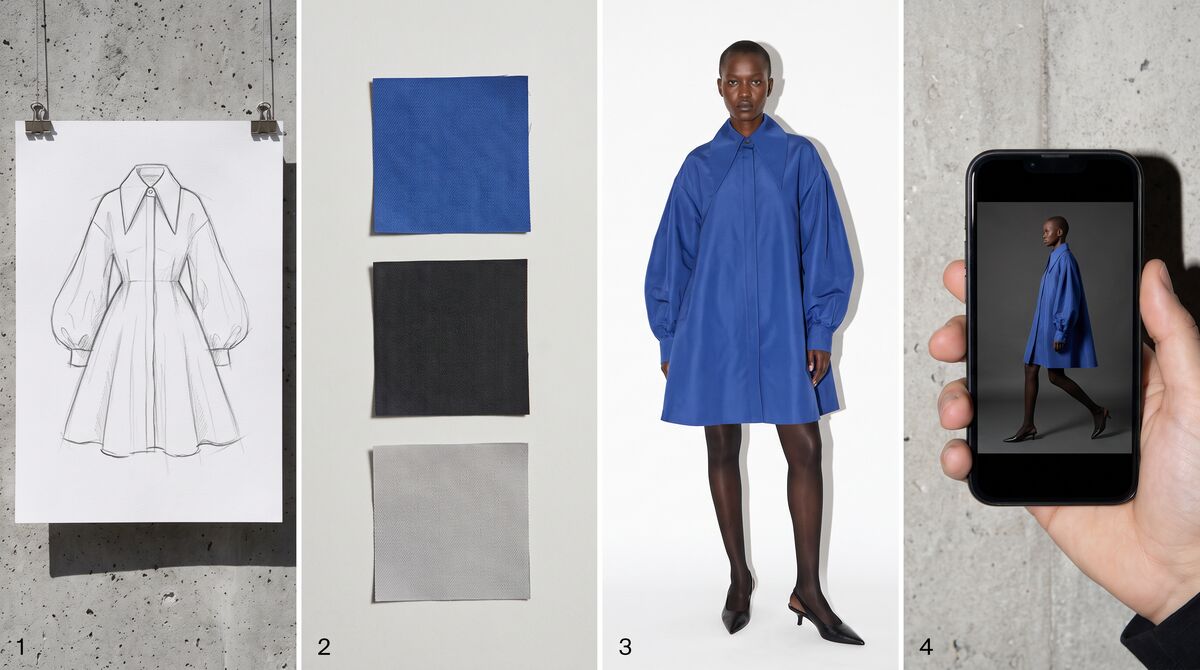
AI product photography is the process of creating or editing product images with AI, starting from a real photo of the product and a text prompt. One true-color source photo can become a white-background packshot, a transparent cutout, a lifestyle scene, an on-model image or an ad creative in any aspect ratio, without booking a studio for every shot.
Key takeaways
- AI product photography starts from a real photo of the product, because the AI reads color, shape, materials and logos from that photo.
- One sharp, evenly lit, true-color source photo per product is enough to create packshots, lifestyle scenes, close-ups and ad creatives.
- For marketplace main images, AI works best as a preparation tool: background removal, a pure white background, upscaling and resizing of the real photo.
- A good product prompt names the scene, surface, light, angle and mood, and states what must stay unchanged.
- Every AI product image needs a review against the physical product for color, logos, details, shadows and scale before it goes live.
What is AI product photography?
AI product photography is the use of AI image tools to create, edit or restage product photos from a real product photo and a written prompt. Instead of building a set for every shot, a brand photographs the product once and uses AI to place it on white, cut it out, set it in a scene or show it on a model.
The main outputs of AI product photography are:
- Packshots: the product alone on white or a plain background.
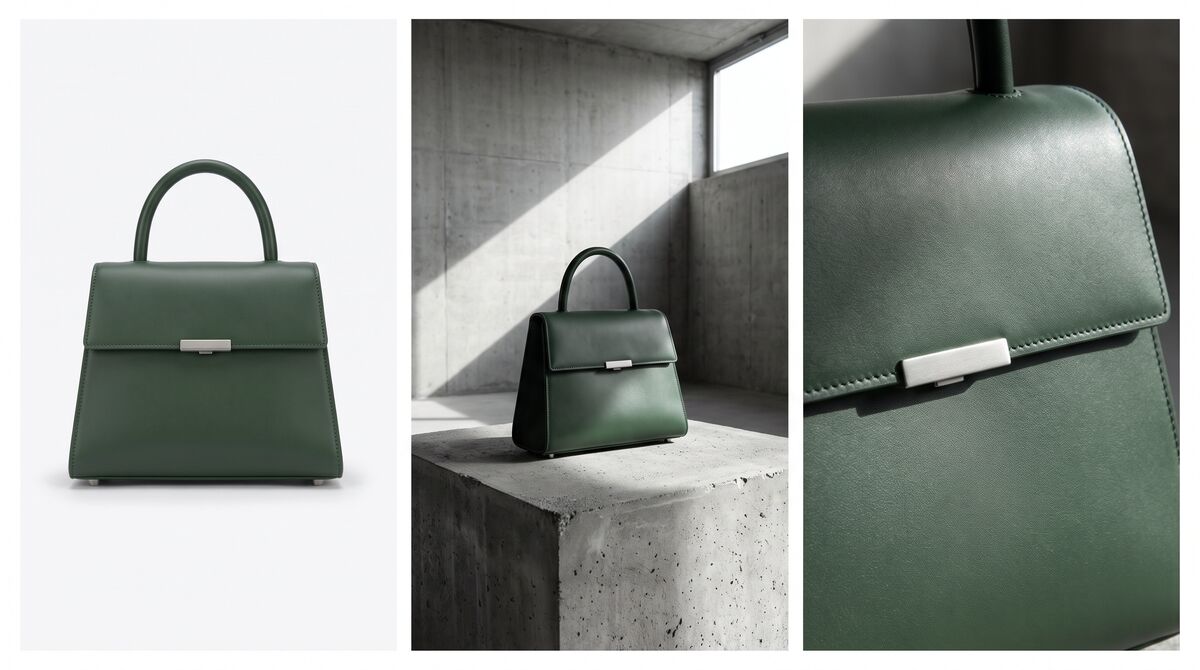
- Lifestyle scenes: the product in a styled setting that suggests how it is used.
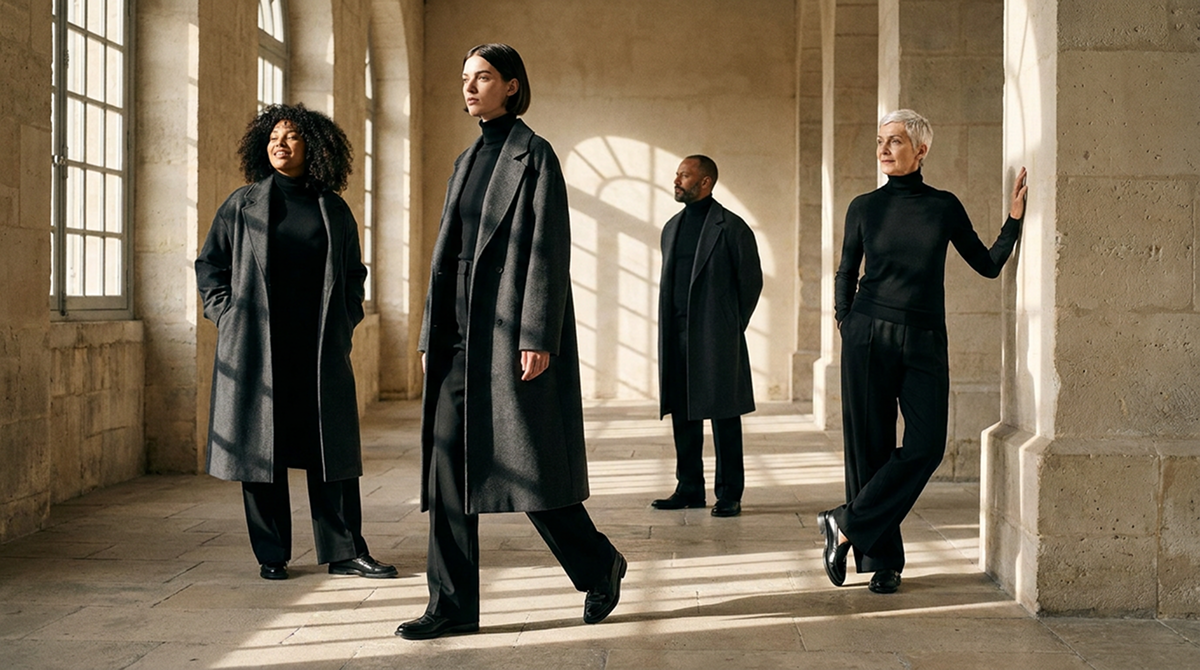
- On-model images: the product worn or carried by a person.
- Ad creatives: the same product shot prepared in the ratios each ad placement needs.
- Marketplace images: clean main images and secondary gallery images that follow each marketplace's rules.
Tools for this go by many names, such as AI product photo generator or AI product image builder, but they share one idea: the real product photo is the basis for accuracy. A generated scene can only be as faithful as the photo behind it.
Clothing shown on a person is its own discipline, covered in the guide on how to create realistic fashion images with AI. If you are still deciding whether AI or a studio day fits your budget, the AI fashion photoshoot vs traditional photoshoot comparison walks through cost and timing. This guide focuses on product photos in general: packshots, still life, lifestyle and marketplace images for apparel, shoes, bags and accessories.
What types of product photos can you create with AI?
AI can create every common type of product photo, from a plain white packshot to a seasonal campaign scene. The table shows what each type is for and which tool usually does the job.
| Photo type | What it shows | Where it is used | Tool to use |
|---|---|---|---|
| White-background packshot | The product alone on pure white | Marketplace main images, product pages | Background Changer with a white background prompt |
| Transparent cutout | The product with no background | Banners, collages, design files | Background Remover |
| Lifestyle scene | The product in a styled setting | Product page galleries, social posts | Image Generation |
| Flat lay styling | The product arranged from above with props | Social posts, lookbooks | Image Generation |
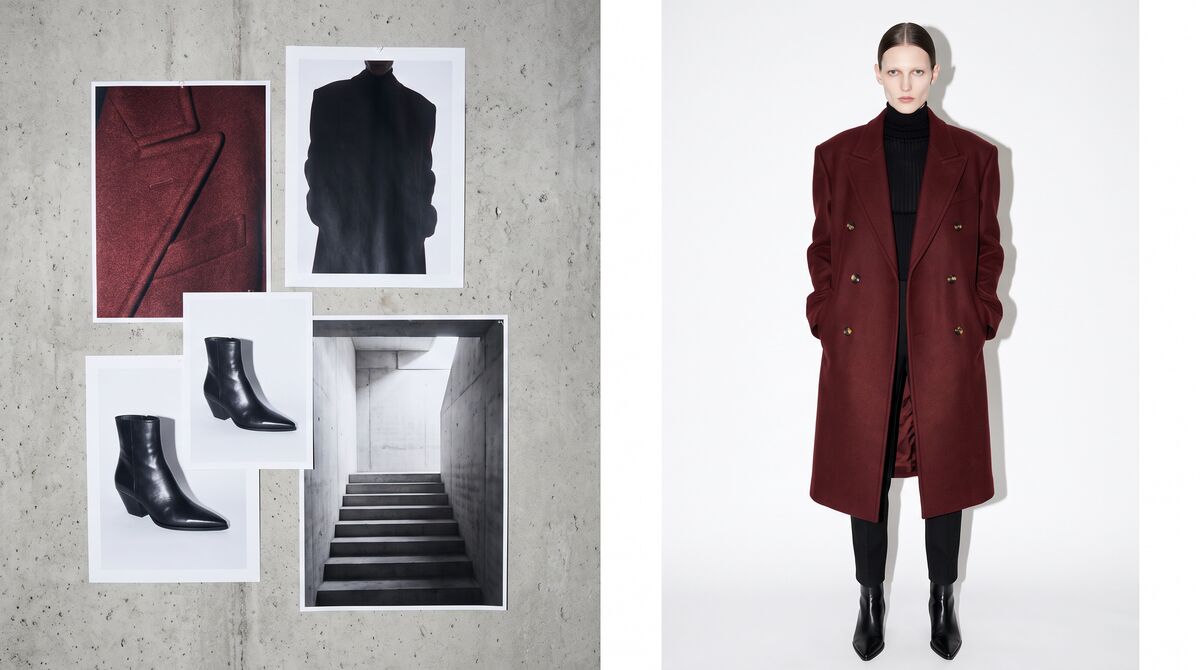
| On-model image | The product worn or carried by a model | Product pages, ads | Virtual Try-On for clothing, Image Generation for bags and accessories |
| Seasonal or campaign scene | The product in a holiday or campaign setting | Campaigns, email, homepage banners | Image Generation |
| Close-up detail | Texture, hardware, stitching | Product page galleries | Image Generation, Image Upscale |
| Ad creative in several ratios | The same shot in 1:1, 4:5, 9:16 or 16:9 | Paid social, display ads | Image extender (Reframe) |
For clothing, an AI virtual try-on dresses a model in the garment from a product photo, which is faster than describing the garment in a prompt and more faithful to its cut and print. Bags, shoes and jewelry usually go through image generation with the product photo as a reference. Whenever a real person appears, you need the rights to the photo and that person's consent. Fash Studio splits these jobs across dedicated tools, so each output type gets a tool built for it rather than one general prompt box.
How do you create product photos with AI, step by step?
To create product photos with AI, start from one good photo of the real product, clean its background, generate the scenes you need, and review every result against the physical item. These seven steps cover how to create product photos with AI for a store, a marketplace and social channels.
- Shoot one true-color source photo per product. A phone is fine if the light is good. The photo should show the whole product, sharp, on a plain background.
- Remove or replace the background. An AI background remover returns a transparent PNG of the product for design files and banners. An AI background changer keeps the product and generates a new background from a prompt, a reference image or both, which is the quickest route to a pure white packshot.
- Generate scenes from the reference photo and a prompt. Upload the product photo and describe the scene. In Fash Studio, image generation takes up to 5 reference photos (up to 14 on Nano Banana 2.1), such as a product shot, an on-model photo or a phone photo, plus a written prompt; each run makes one image, and up to 7 runs can process at once.
- Choose the aspect ratio and resolution per channel. Pick the ratio for where the image will live, such as 1:1 or 4:5 for feeds, 9:16 for Stories and 16:9 for banners, and generate at 1K, 2K or 4K depending on the model.
- Upscale if needed. An AI image upscaler raises the resolution up to 4K while keeping detail, color and texture, which helps zoomable product pages and print.
- Review against the real product. Hold the item next to the screen and check color, logos, stitching, hardware and proportions at full size.
- Compress for the web. Large files slow product pages down. Fash Studio's Media Optimizer compresses, resizes and converts images to PNG, JPG or WEBP at no credit cost and is included in every plan.
How do you shoot a source photo AI can work with?
A source photo for AI product photography should be sharp, evenly lit, true to color and show the whole product. The AI copies what it sees, so every flaw in the source photo can carry into each image made from it.
- Soft, even light: daylight from a large window or a softbox, with no hard reflections hiding details.
- True color: set the white balance so white looks white, and compare the photo with the product before you use it.
- Plain, contrasting background: a dark product on a light background and a light product on a dark one, so the edges separate cleanly.
- The whole product visible: no cropped handles, soles or straps, since the AI cannot restore what it never saw.
- Sharp details and logos: focus on the logo, label or hardware the customer will look for.
- Straight-on angle: a front or three-quarter view at the product's height, without strong wide-angle distortion.
- High resolution: shoot at the camera's full size and crop later, never the other way around.
For clothing, how the garment is laid out matters as much as the light. The guide on how to turn flat lay and mannequin photos into on-model images explains how to photograph garments so the AI reads their cut, length and details correctly.
How do you write prompts for AI product photos?
A good prompt for an AI product photo names the scene, the surface, the light, the camera angle and the mood, then states what must stay unchanged. The last part matters most: the AI needs to know the product is fixed and only the world around it changes.
Use this structure for product photography AI prompts:
- Scene: the setting, such as a concrete gallery, a sunlit kitchen or a beach.
- Surface: what the product stands or lies on.
- Light: its direction, hardness and time of day.
- Angle: front, three-quarter, top-down or low angle.
- Mood: minimal, warm, luxurious or playful.
- What stays unchanged: the product's color, shape, logo, stitching and size.
Example prompts for fashion and accessories, each used with the product photo uploaded as a reference:
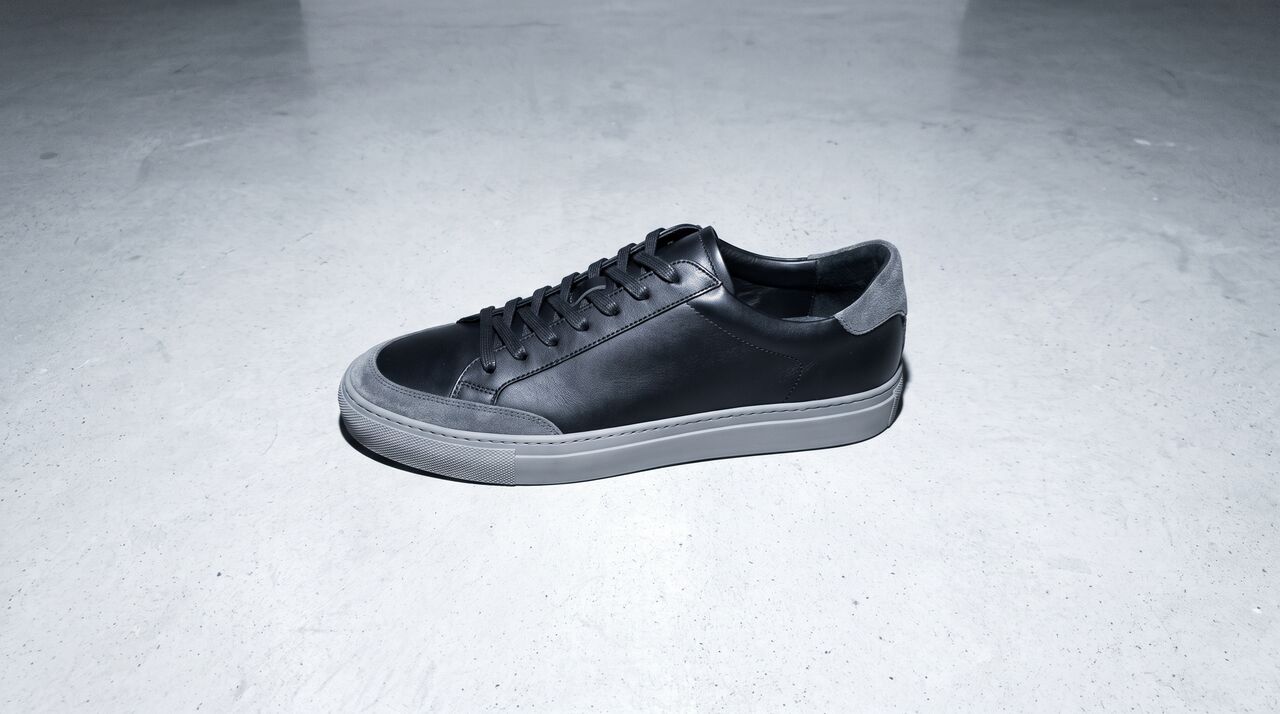
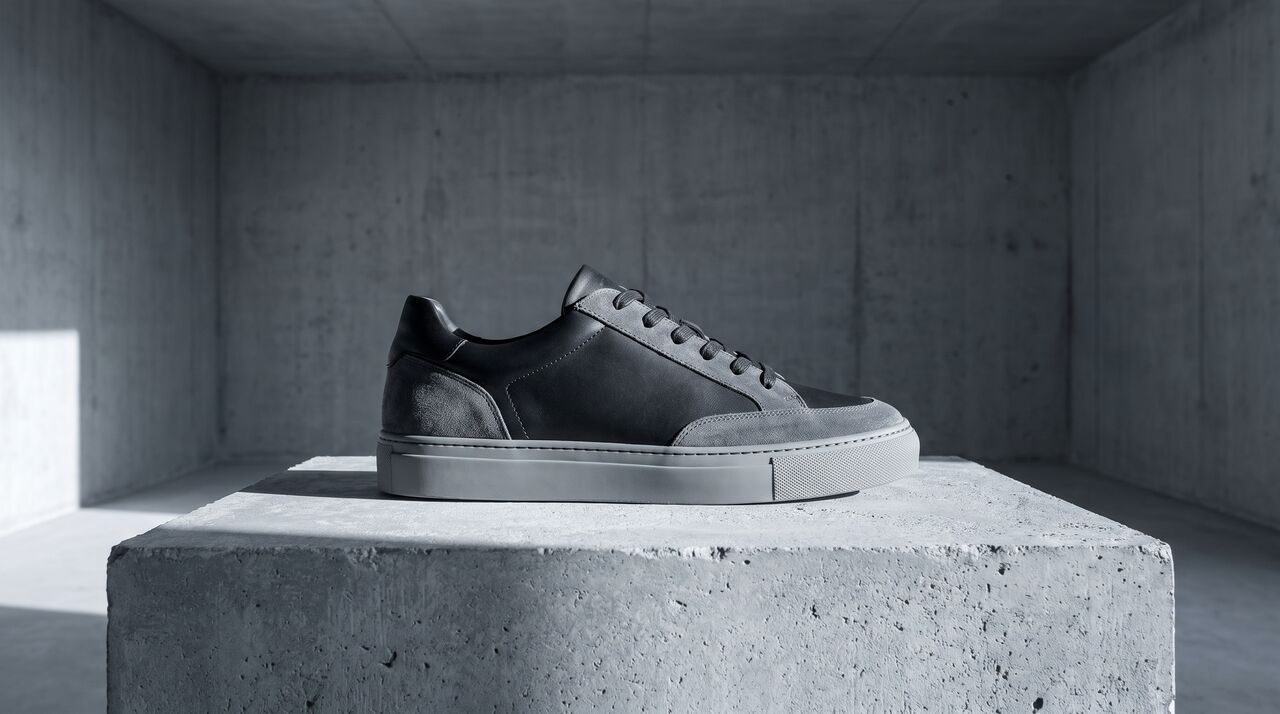
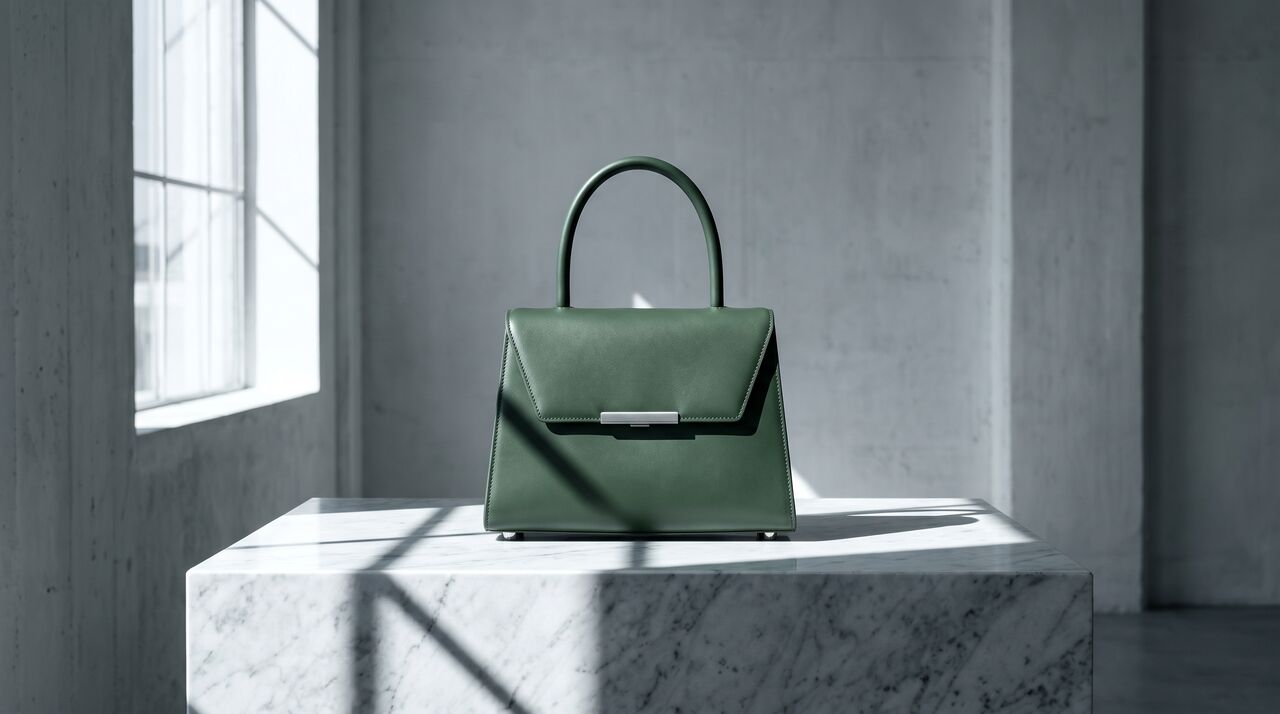
The sneaker from the reference on a raw concrete plinth, hard low morning light from the left, long sharp shadow, three-quarter side view, low angle, minimal mood. Keep the shoe's color, sole, laces and logo exactly as in the reference.The handbag from the reference on a white marble table by a tall window, hard daylight with a crisp window shadow, three-quarter front view at eye level. Keep the bag's color, shape, clasp and stitching unchanged.The knit sweater from the reference laid open over a light wooden bench, soft side light from a window, top-down view, calm Scandinavian mood. Keep the knit pattern, color and neckline unchanged.The sunglasses from the reference resting on fine pale sand, late-afternoon sun from behind, long shadows, low angle close to the ground. Keep the frame shape, color and lens tint unchanged.The leather ankle boots from the reference on wide stone steps outside a modern building, hard midday light, side view at ground level. Keep the toe shape, heel and leather finish unchanged.The silk scarf from the reference draped over a chrome chair in a white studio, hard flash, front view, graphic minimal mood. Keep the print and colors exactly as in the reference.The gold hoop earrings from the reference on a smooth grey stone, macro close-up, soft directional light, shallow depth of field. Keep the shape, size and finish unchanged.The product from the reference centered on a pure white seamless background, soft even light, straight-on view, no props. Keep the product exactly as in the reference.
Never ask the AI to add text, prices or sale badges into the image. Add them later in a design tool, where they stay sharp and editable. Fash Studio's image generator has an Enhance switch that expands a short prompt into a fuller photographic brief, and its own guidance notes that long text in images still comes back garbled, so check labels and logos at full size. Any AI lifestyle image generator works best when you change one thing per run and keep the rest of the prompt the same.
How do you create marketplace-ready product images with AI?
Marketplace-ready product images start from a real photo of the product, placed on a pure white background, filling most of the frame, with no text and nothing that is not included in the sale. Most marketplaces apply these rules strictly to the main image, and many sellers search for an "Amazon product image generator AI" expecting a tool that invents the photo. For the main image, that is the wrong approach.
The main image must show the actual product the customer receives. The safest use of AI here is preparation, not invention:
- Background removal: cut the product out of the original photo.
- Pure white background: place the cutout on white, with a natural shadow if the marketplace allows one.
- Upscaling: raise the resolution so zoom works and edges stay sharp.
- Resizing: export at the size and format each marketplace asks for.
Secondary gallery images are where AI scenes earn their place. Lifestyle shots, close-ups of materials and an image that shows the product in use help a shopper picture the item, as long as they show the same product with no added features or accessories that are not included. Many stores also accept a short product clip, which can show the shape from more than one side.
Marketplace rules change and differ by category, so check each marketplace's current image guidelines before you upload.
How do you keep an AI product photography catalog consistent?
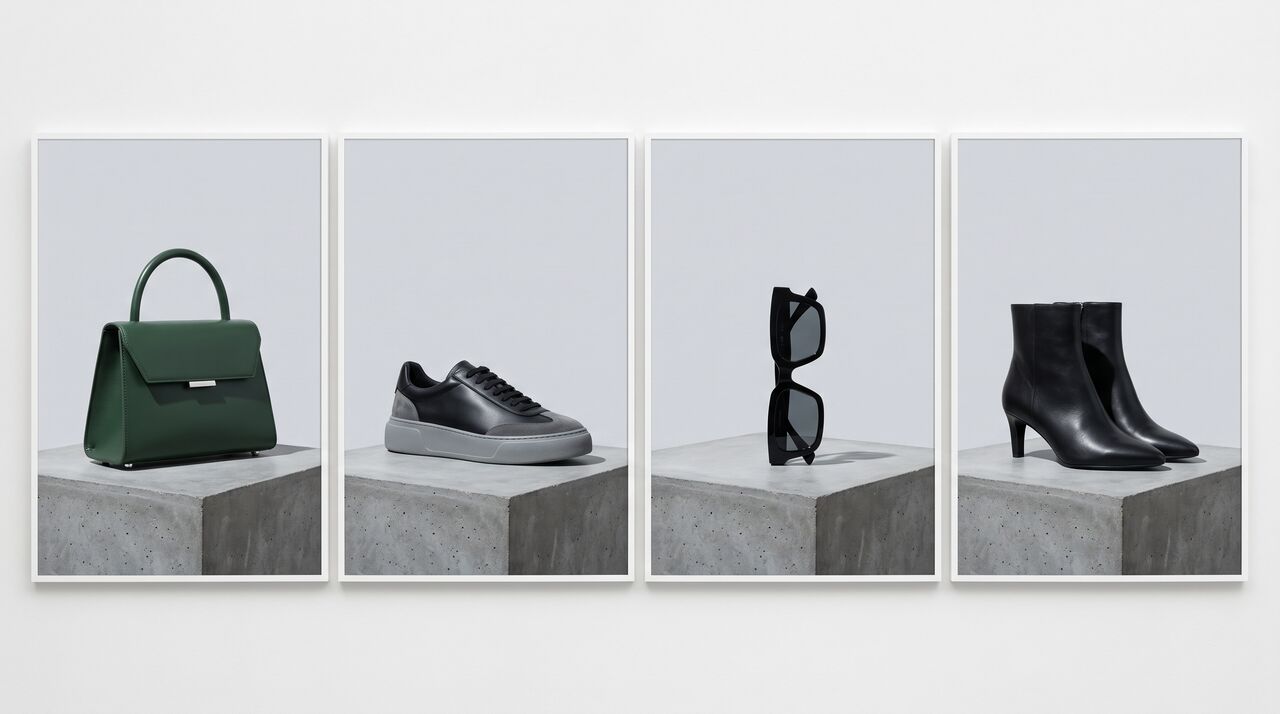
A consistent AI product photography catalog uses the same background family, light direction, camera angle, aspect ratio and resolution for every product in a category. Shoppers compare products side by side in a grid, and a mix of styles makes a store look unplanned.
- Background family: one backdrop or setting per category, such as pale grey for shoes and white marble for bags.
- Light direction: the light always comes from the same side, so shadows fall the same way.
- Angle: one standard angle per category, for example three-quarter front for shoes.
- Ratio and resolution: fixed per channel, such as 4:5 at 2K for product pages.
- Saved prompt text: keep the exact prompt in a shared document and only swap the product reference.
- Side-by-side review: check each new image next to the rest of its category before it goes live.
When an older image is in the wrong ratio, regenerating it can change the scene. An AI image extender keeps the original image unchanged and generates only the missing area for the new ratio, so a 1:1 product shot can become a 9:16 Story or a 16:9 banner while still matching the rest of the catalog.
What are the most common mistakes in AI product photography?
The most common mistakes in AI product photography are changes to the product itself and scenes that do not match how the product looks in real life. Each one sets a wrong expectation and can lead to returns.
- Changed colors: a navy bag turns black, or a warm white turns cool. Compare every image with the physical product under neutral light.
- Warped logos or text: letters bend, merge or change. Zoom to full size on every label and logo, and fix or regenerate any that differ.
- Invented details: extra pockets, buttons, straps or stitching appear. Count the details against the real item.
- Inconsistent shadows and scale: shadows fall the wrong way for the light in the scene, or the product floats above the surface. A missing contact shadow is the first sign of a fake image.
- Wrong ratio for the channel: a 16:9 image cropped into a 9:16 placement loses the product. Generate or extend to the right ratio instead.
- Scenes that do not match the product's real size: a small clutch that fills a large table, or sunglasses beside oversized props. Use props of known size so shoppers can judge scale correctly.
Upload one product photo to Fash Studio's AI product image generator and create your first lifestyle shot.
Frequently asked questions
Can AI create product photos from a phone picture?
Yes. AI can create product photos from a phone picture if the photo is sharp, evenly lit, true to color and shows the whole product on a plain background. The AI reads color, shape and details from that photo, so a well-lit phone shot gives better results than a poorly lit camera shot.
Is AI product photography good enough for Amazon?
AI product photography is good enough for Amazon when it prepares a real photo of the product: removing the background, placing it on pure white, upscaling and resizing. The main image must show the actual product with no added text or props. AI lifestyle scenes fit secondary images, as long as the product in them is unchanged.
How do I make lifestyle product photos with AI?
Upload a clean photo of the product to an AI image generator as a reference, then write a prompt that names the scene, surface, light, angle and mood. End the prompt with what must stay unchanged, such as the color, logo and stitching. Review the result against the real product before you publish it.
Will AI change the color or details of my product?
AI can change the color or details of a product, especially when the source photo has poor light or the prompt asks for a big scene change. A true-color source photo and a prompt that names what must stay unchanged reduce the risk. Always compare each image with the physical product, including logos and hardware at full size.
What resolution should AI product photos be?
AI product photos should be generated at 2K or higher for product pages, so zoom shows clear detail. Use 4K, or upscale to 4K, for large banners and print. Before uploading, compress and resize each image to the size the store or marketplace asks for, so pages still load fast.
Can I use AI product photos in ads?
Yes, AI product photos can be used in ads, as long as the product shown matches what the customer receives and you have the rights to every input photo. Fash Studio allows commercial use of the images you generate, keeps uploads encrypted and never uses them to train its own AI models. Some ad platforms and markets require a label on AI-generated or AI-edited content, so check the rules for each channel.
Create your first realistic fashion image in minutes.
Join thousands of brands turning product photos into model imagery, videos, and campaigns.
Get started →